Enable Google Two-Step Verification
Google two-step verification helps protect agent accounts. Once enabled, an agent must enter a Google verification code in addition to the account password when signing in to MultiChat.
How to Enable It
Go to:
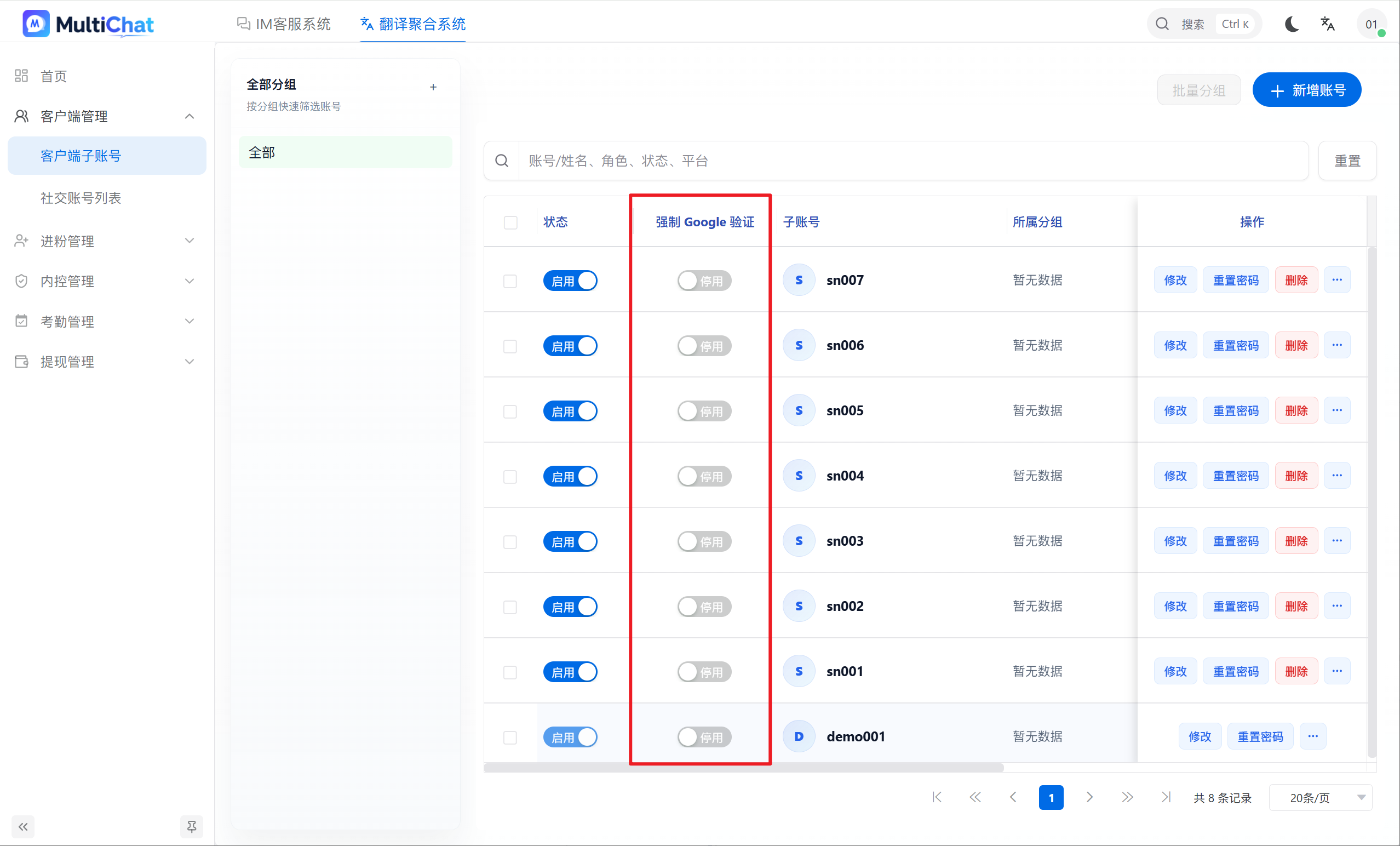
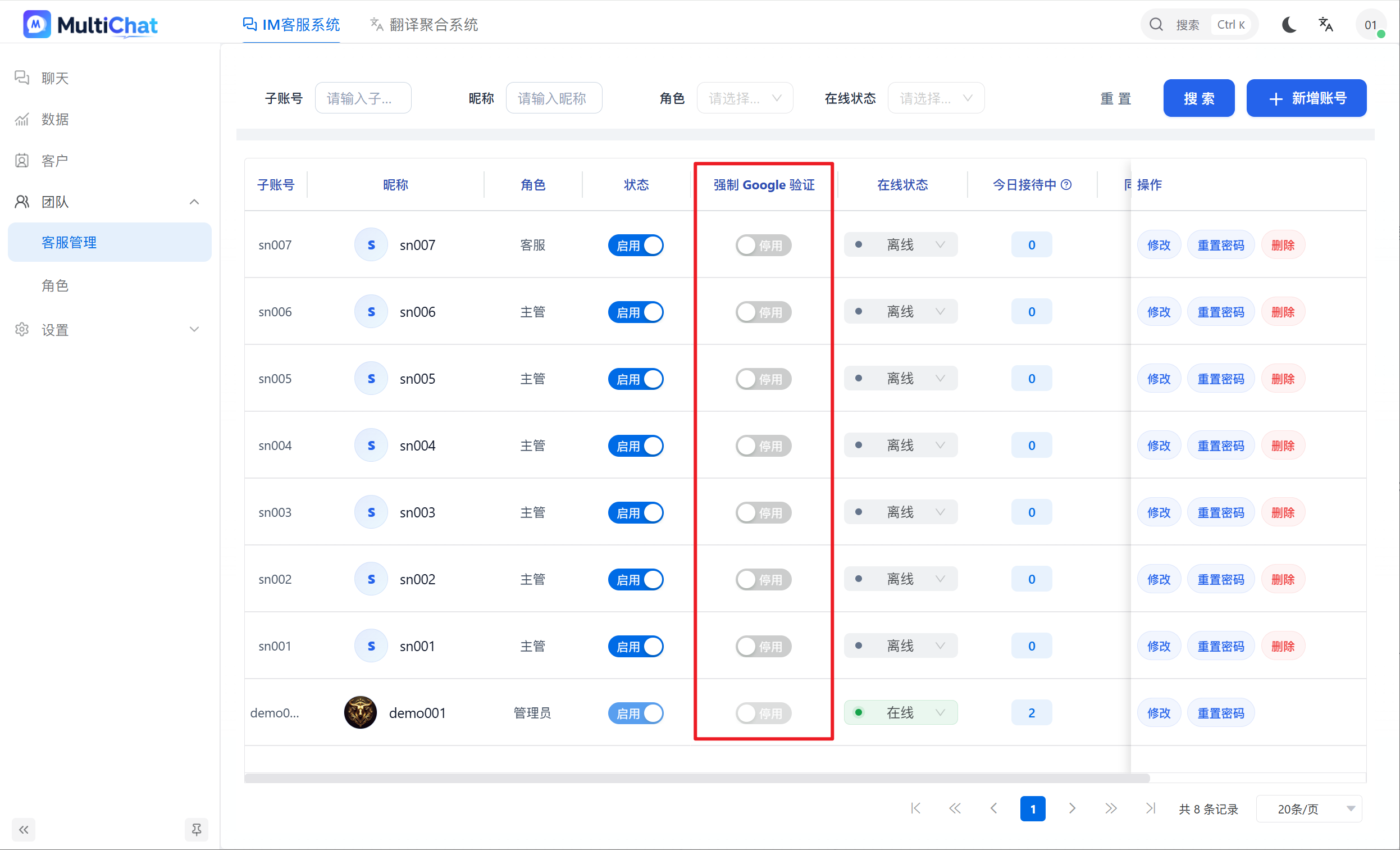
Client Management → Agent Management
Find the agent account that needs verification, then turn on the Google verification code switch.
The next time this agent signs in, the identity-verification flow will start automatically.
Bind an Authenticator on the First Sign-in
When the agent signs in for the first time, a Google identity-verification window displays a QR code for binding.
Scan the QR code with Google Authenticator or another authenticator app.
After binding succeeds, enter the verification code to complete sign-in.
The QR code is displayed only during the initial binding process.
Subsequent Sign-ins
After the initial binding, the QR code will no longer appear.
For each sign-in, the agent only needs to enter the time-based code generated by the authenticator app.
Enter the correct code to access the system.
If the Verification Code Is Unavailable
If an agent changes or loses their phone, loses access to the authenticator, or cannot obtain a code, contact an administrator.
The administrator can go to:
Client Management → Agent Management
Find the relevant agent account, then:
- Turn off Google verification codes, or
- Reset Google verification codes.
After a reset, a new QR code is displayed the next time the agent signs in and the binding process must be completed again.