
🚀 Quick Start with Unified Translation
MultiChat Unified Translation lets you manage accounts from multiple social platforms in one desktop client. Incoming and outgoing messages can be translated automatically, making it easier to support customers in different countries and languages.
1. Download and install MultiChat
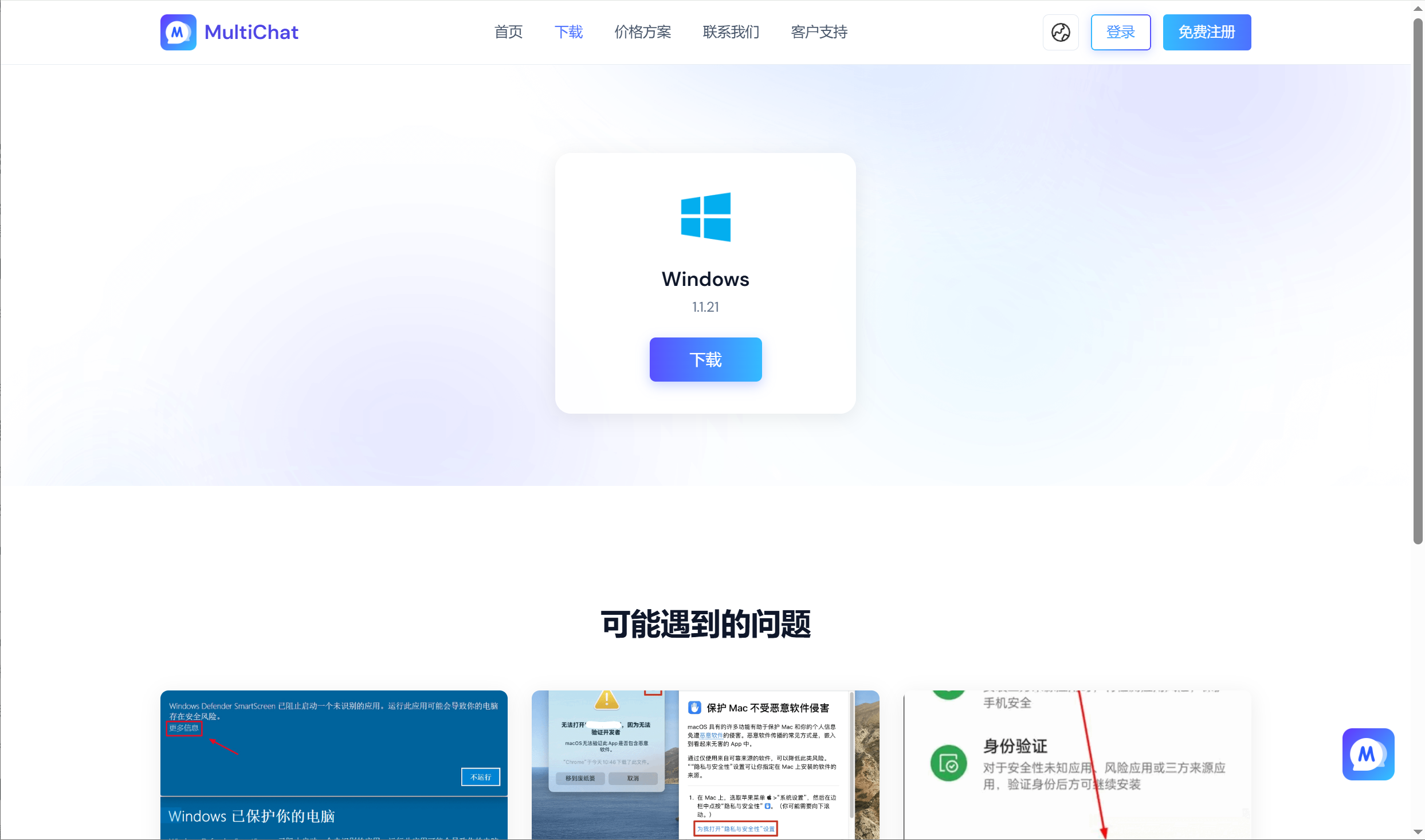
Download and install the latest MultiChat client from the official download page.
2. Create an agent sub-account
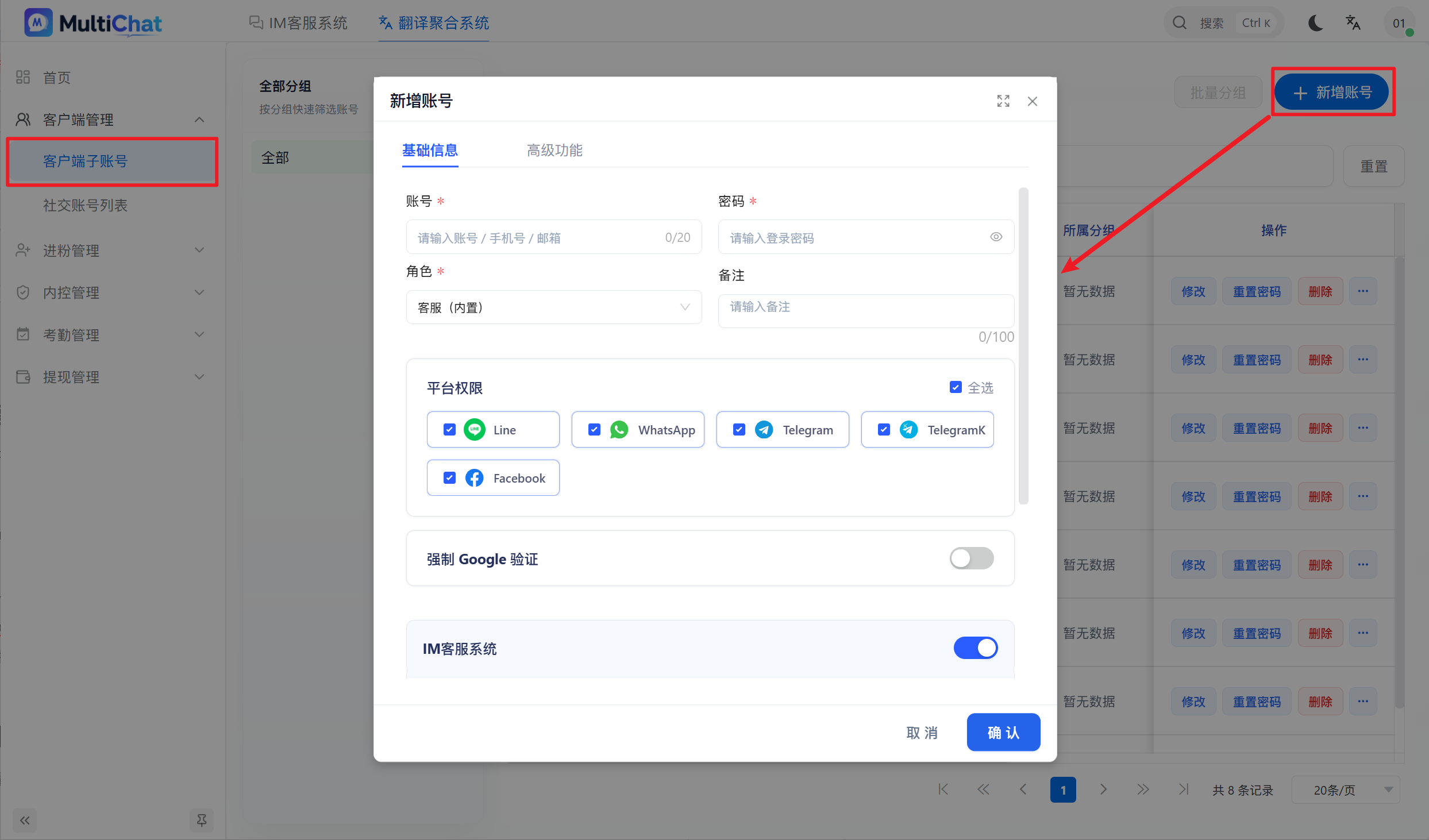
Sign in to the MultiChat admin panel, open Agent Sub-accounts, and click Add Account to create an account for the agent who will use the desktop client.
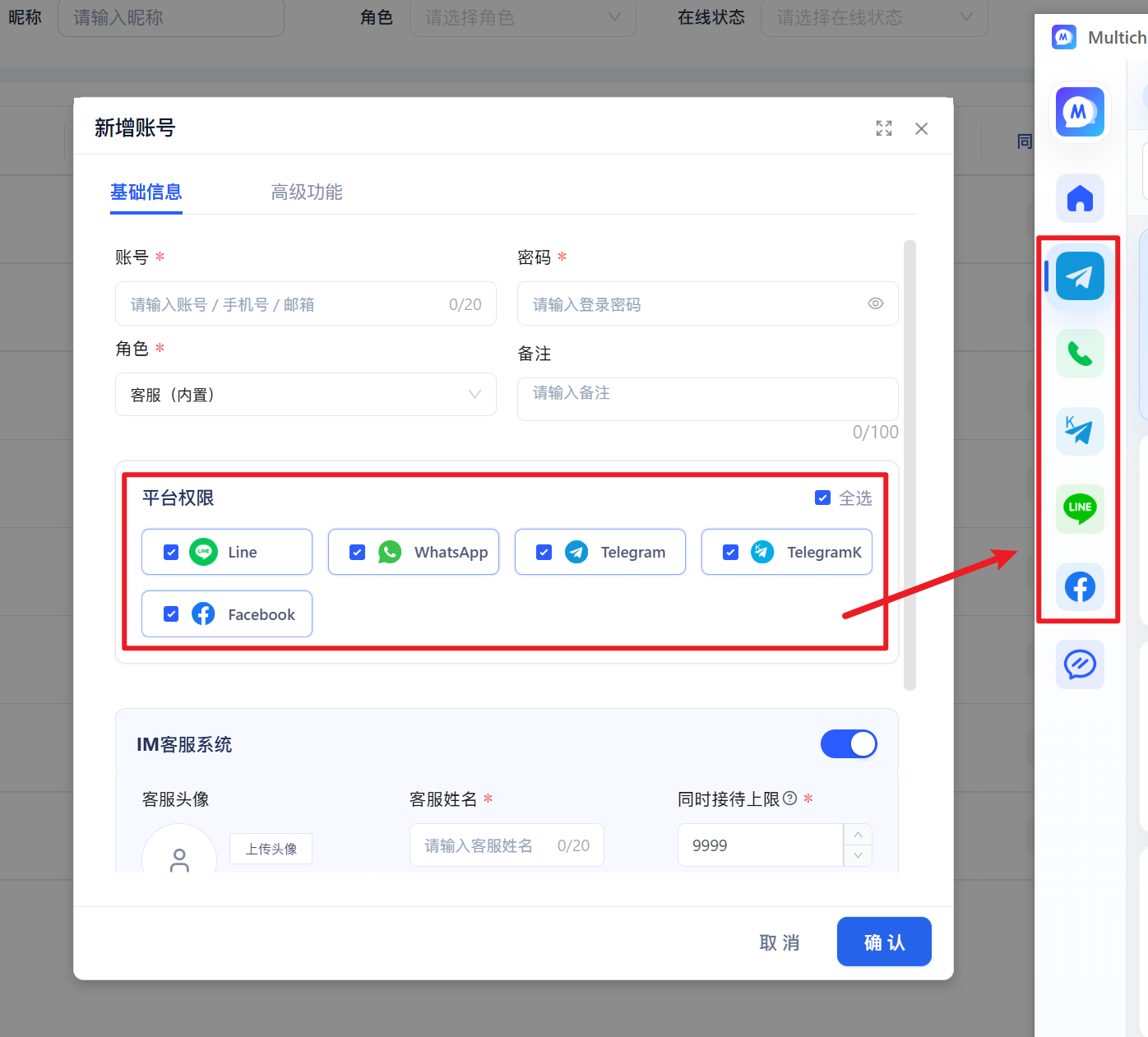
Grant the platforms the agent needs. For details, see Platform Permissions.
If account creation reports a query failure or says the merchant sub-user account already exists, see Why does creating an agent account say the account already exists?.
3. Sign in to the desktop client
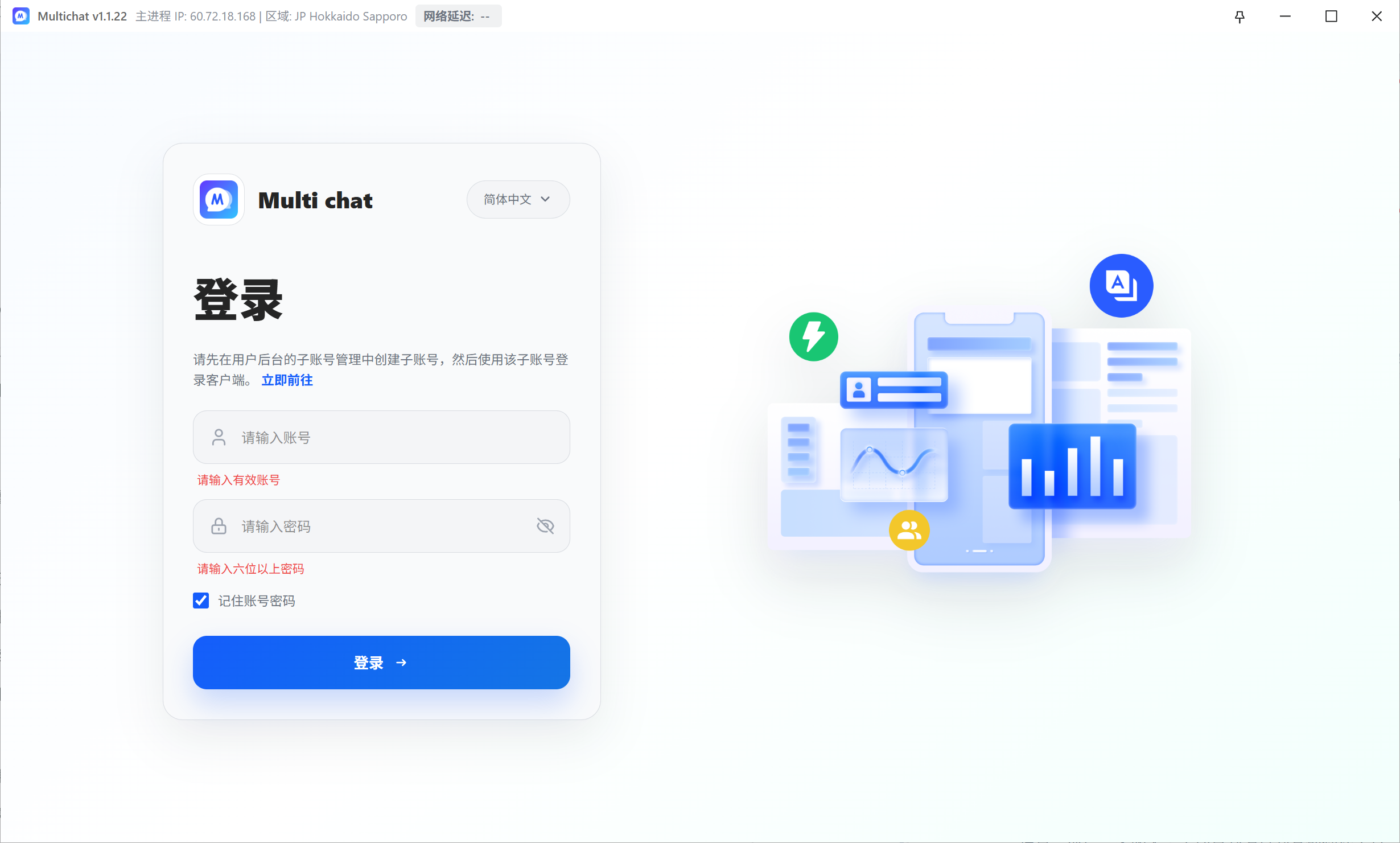
Open MultiChat and sign in with the agent account you created.
4. Add a social-platform window
Click the blue + button and choose the social platform you want to add. Sign in to the corresponding account in the new window.
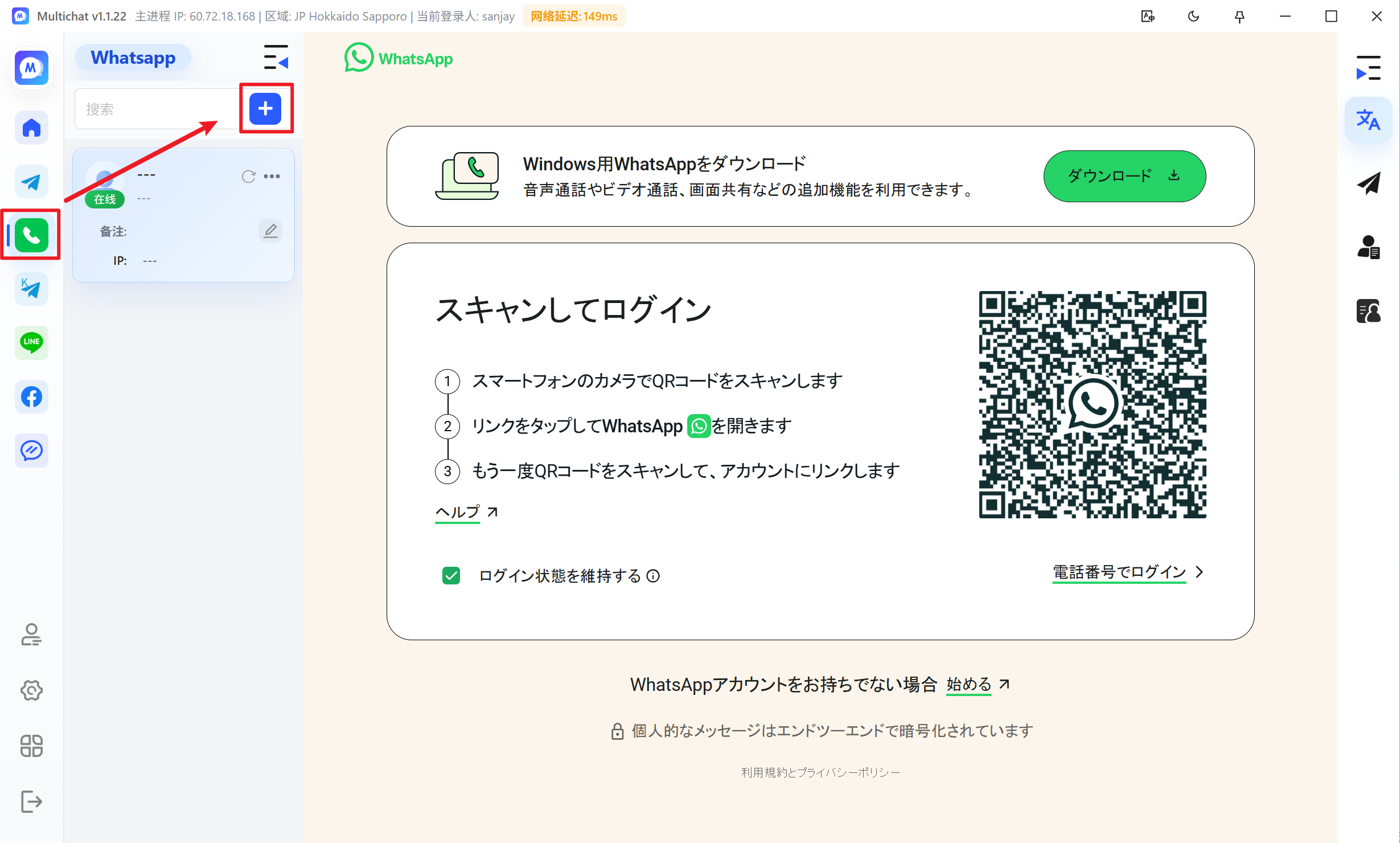
5. Configure translation
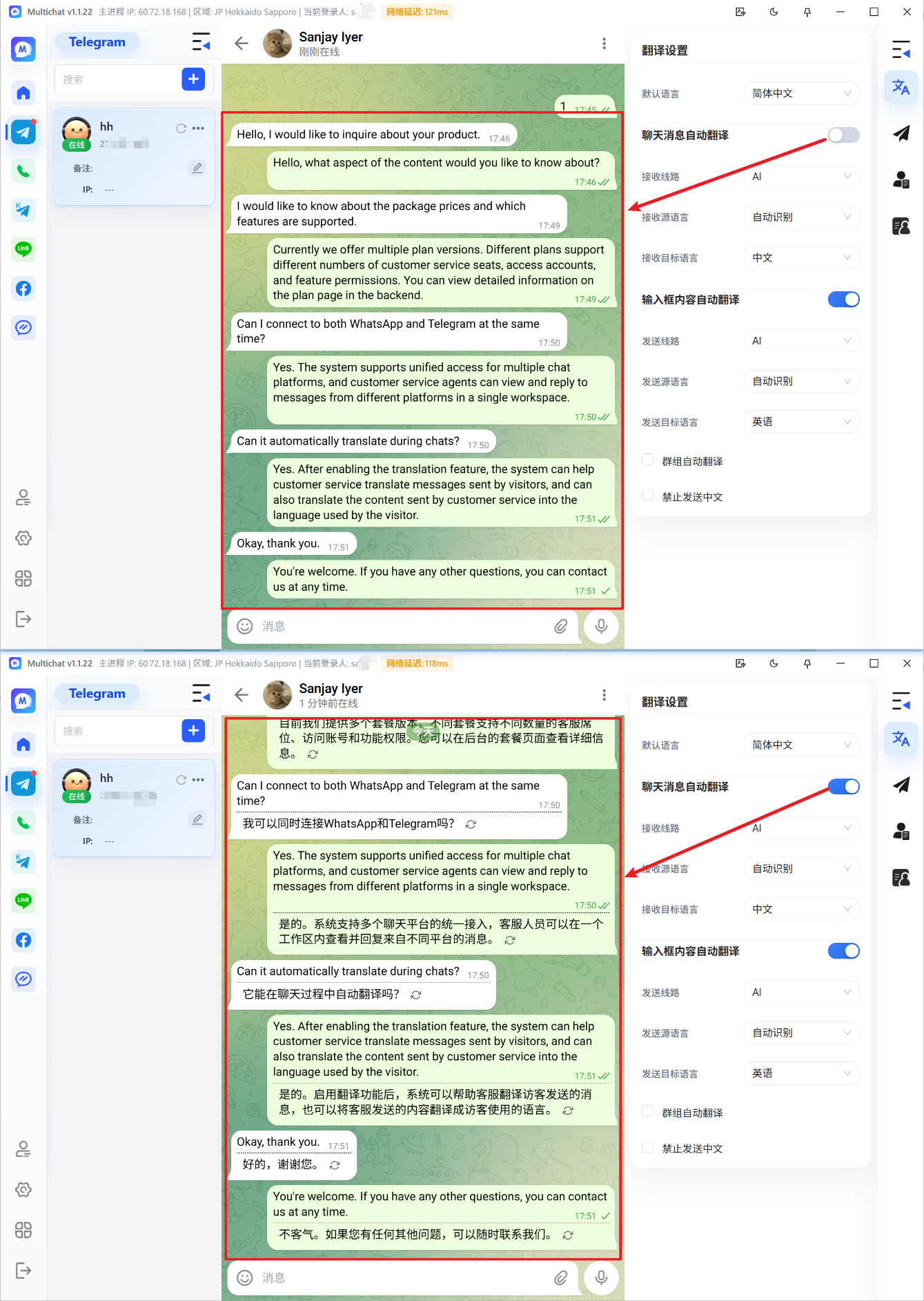
Automatically translate received chat messages
Translate existing chat content into a specified language. Choose the translation route used for received messages, set the source language to automatic detection when appropriate, and select the target language for incoming messages.
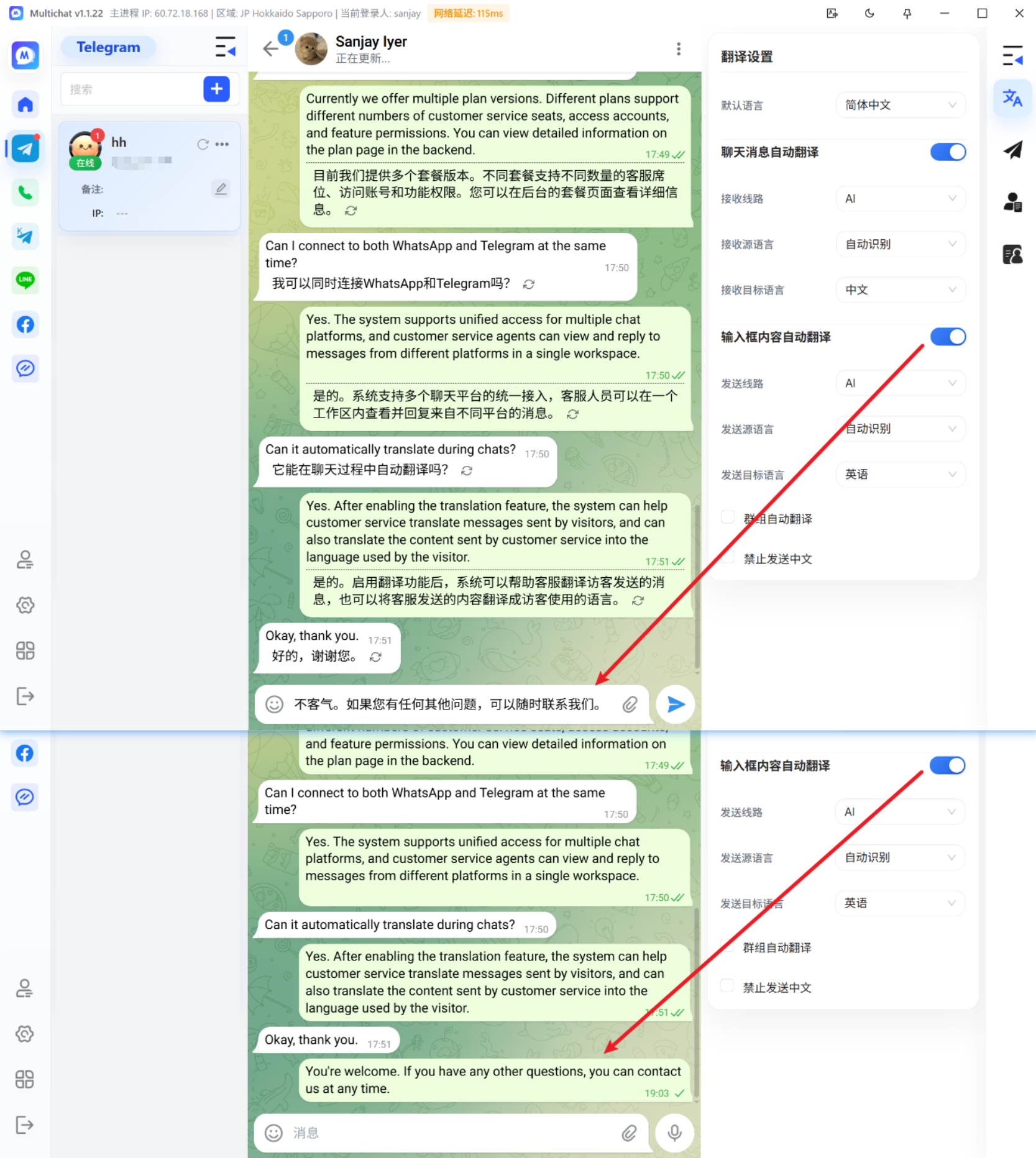
Automatically translate text entered in the message box
After this option is enabled, text entered by the agent is translated into the specified language before it is sent. Choose the route used for outgoing messages, the language the agent types in, and the target language the customer should receive.
6. Use quick messages
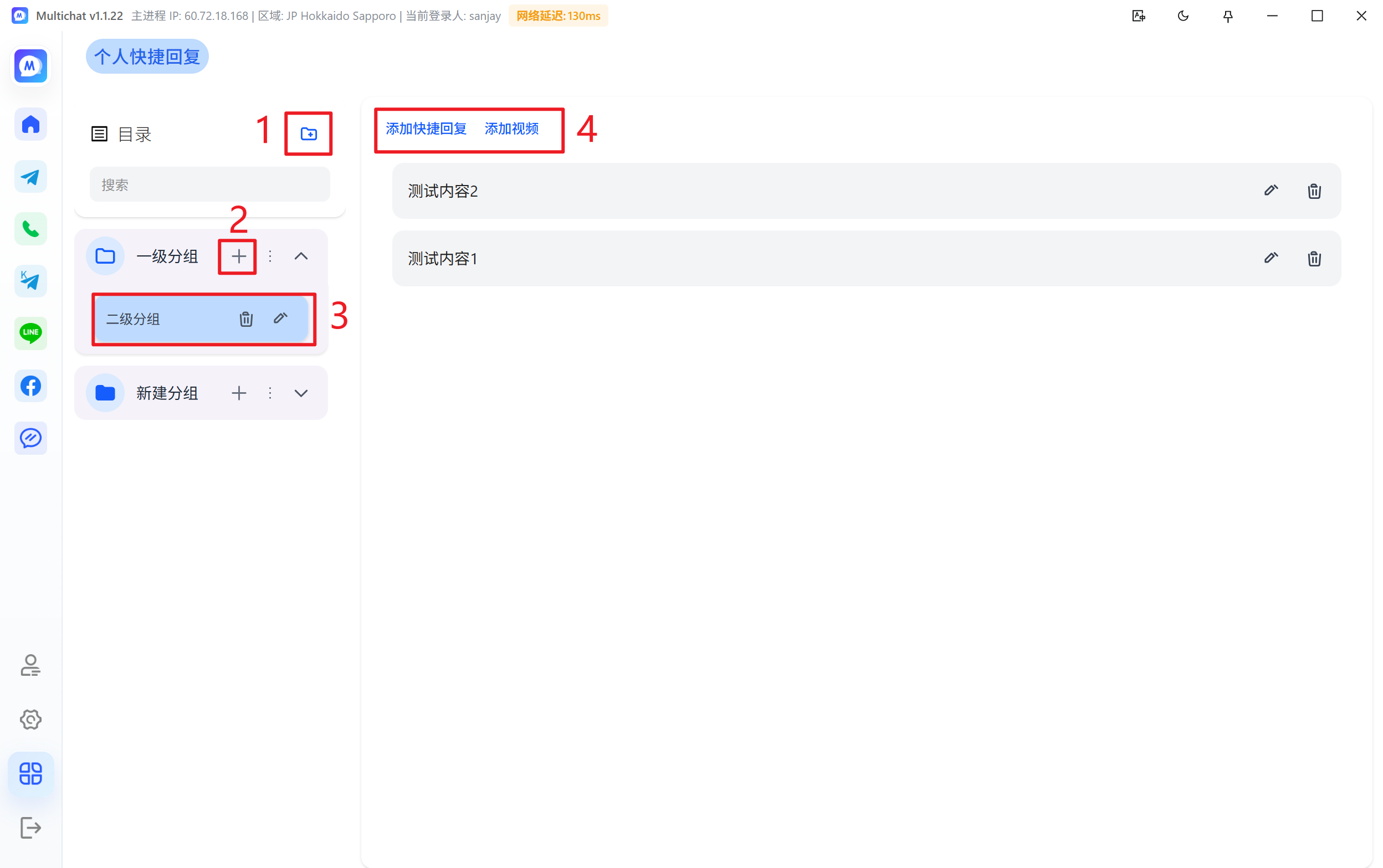
Create reusable messages from Home → More → Quick Messages.
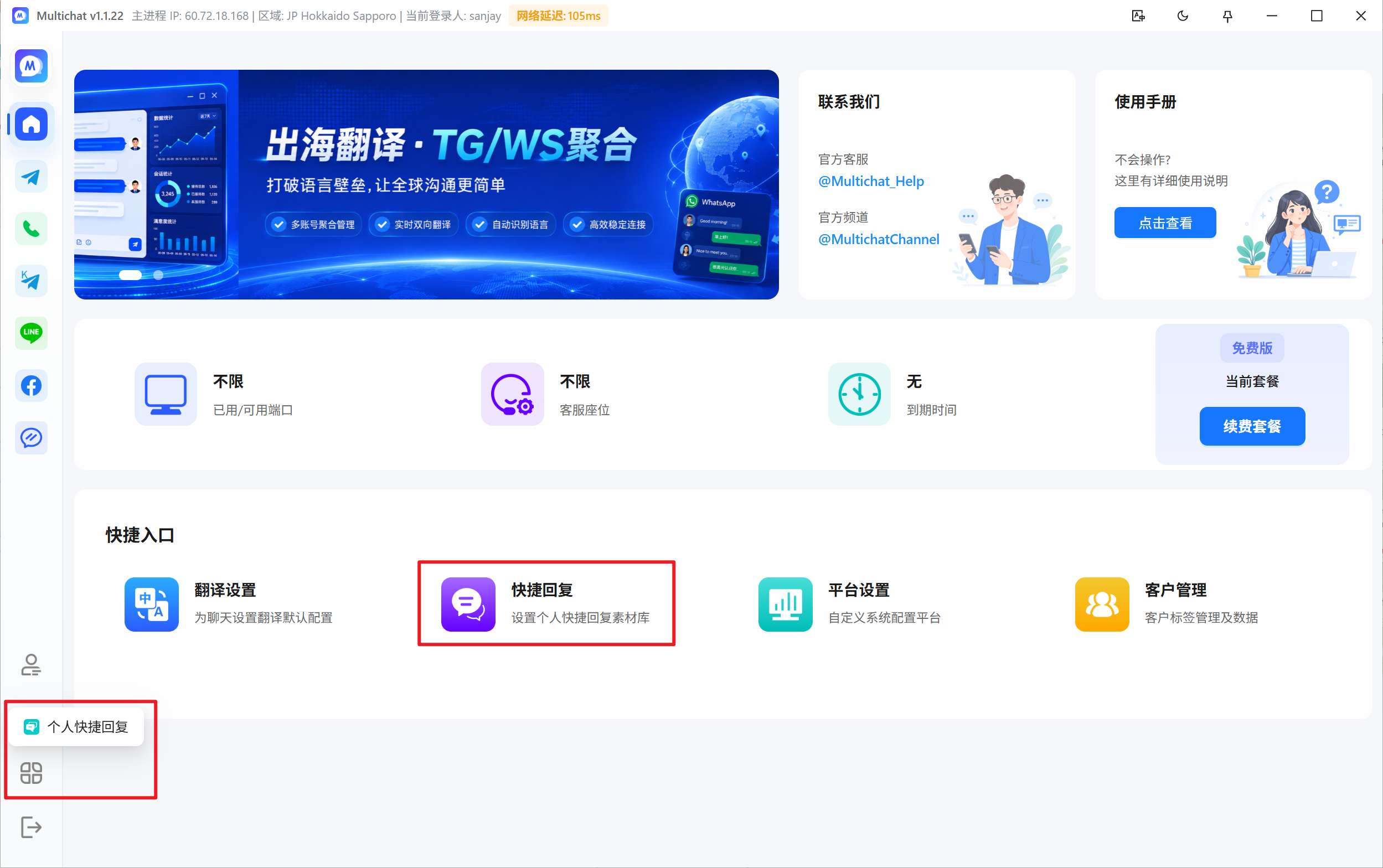
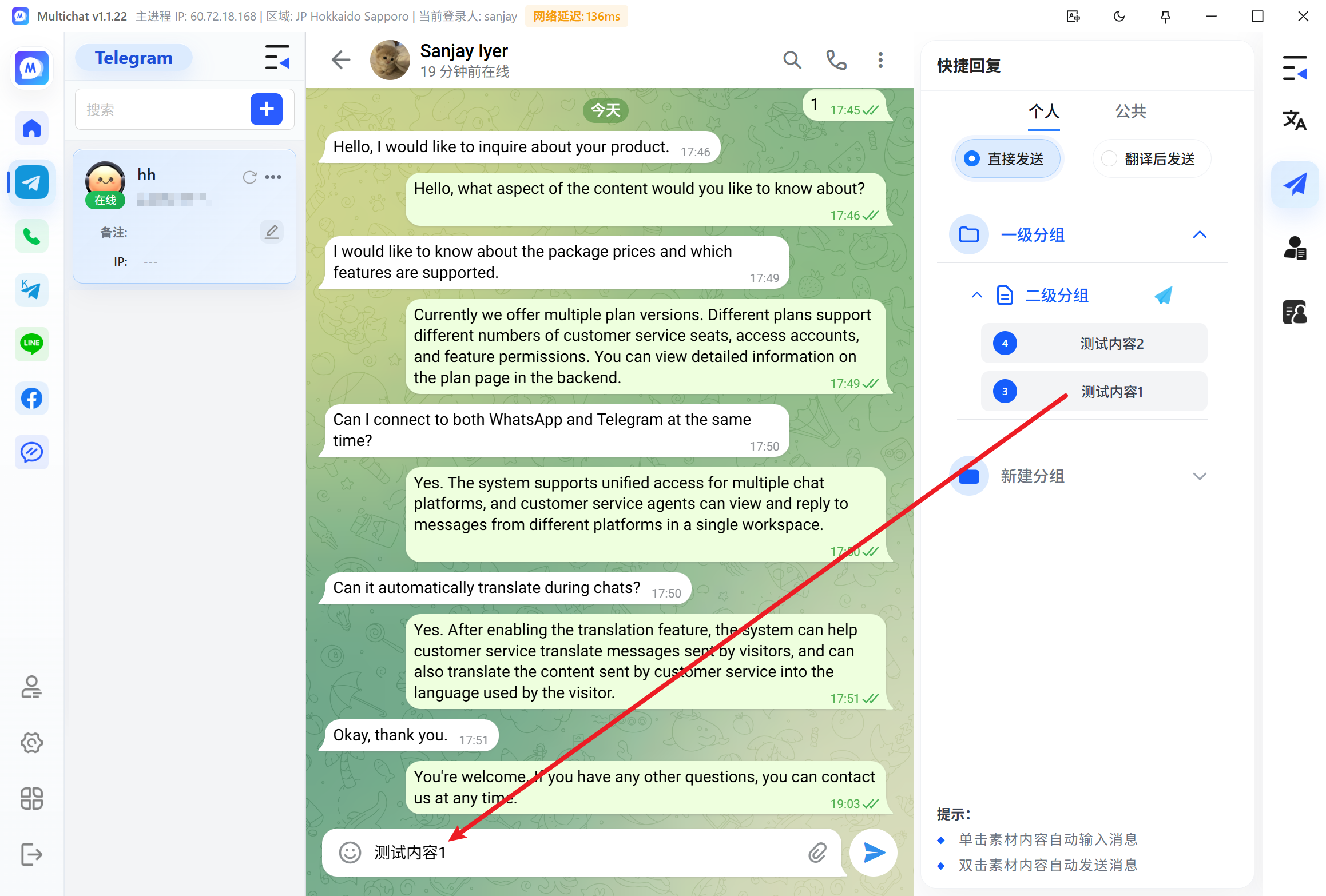
Quick messages appear on the right side of the chat window. Double-click a message to send it immediately, or click it once to place it in the input box for editing.
7. Start working
Your daily workflow is simple: sign in to MultiChat, sign in to your social-platform accounts, let MultiChat translate incoming messages, and reply in your preferred language.