Connect Zoho Mail
Zoho Mail requires IMAP access and an application-specific password before it can connect to MultiChat.
1. Add the mailbox in MultiChat
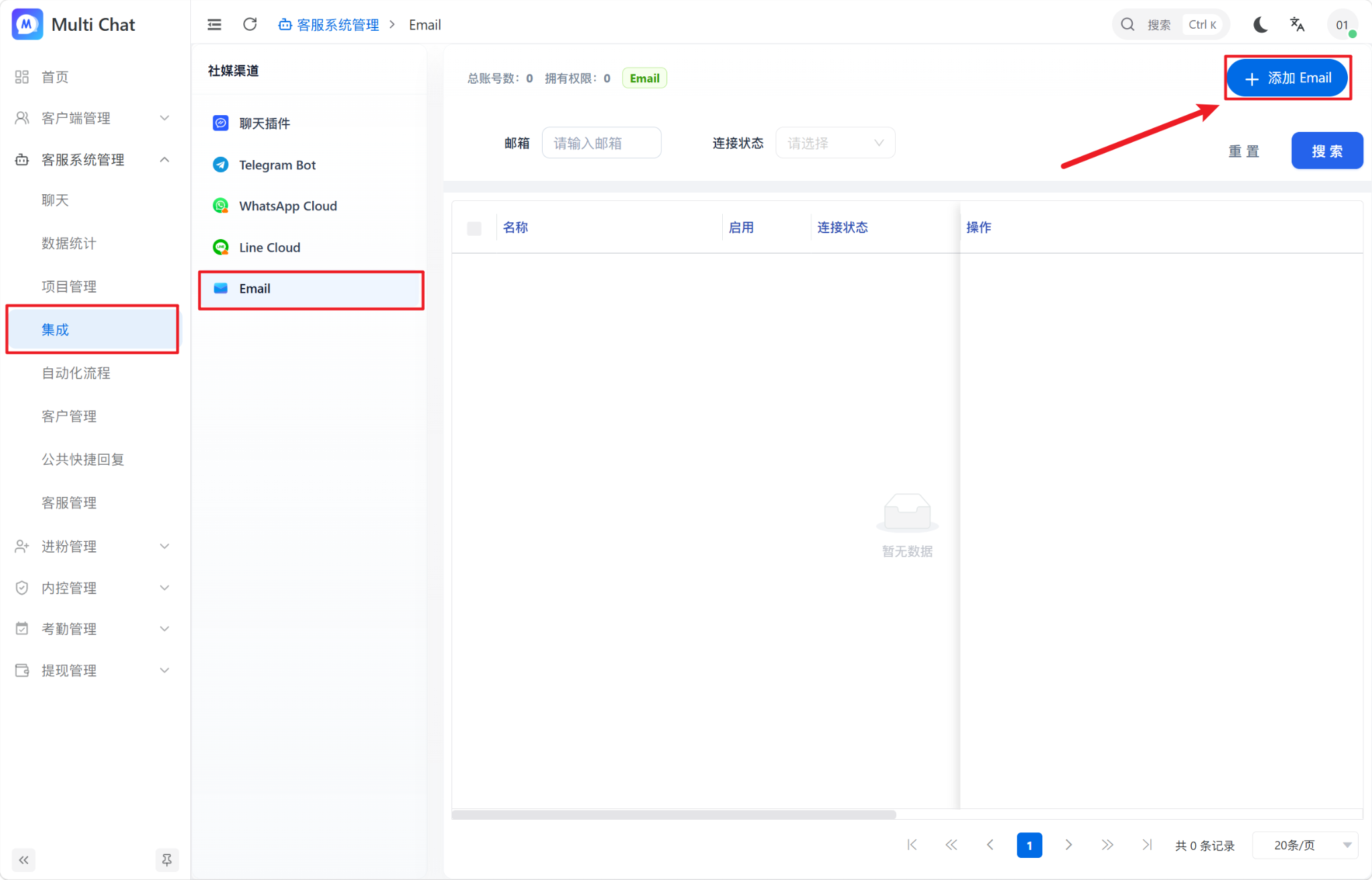
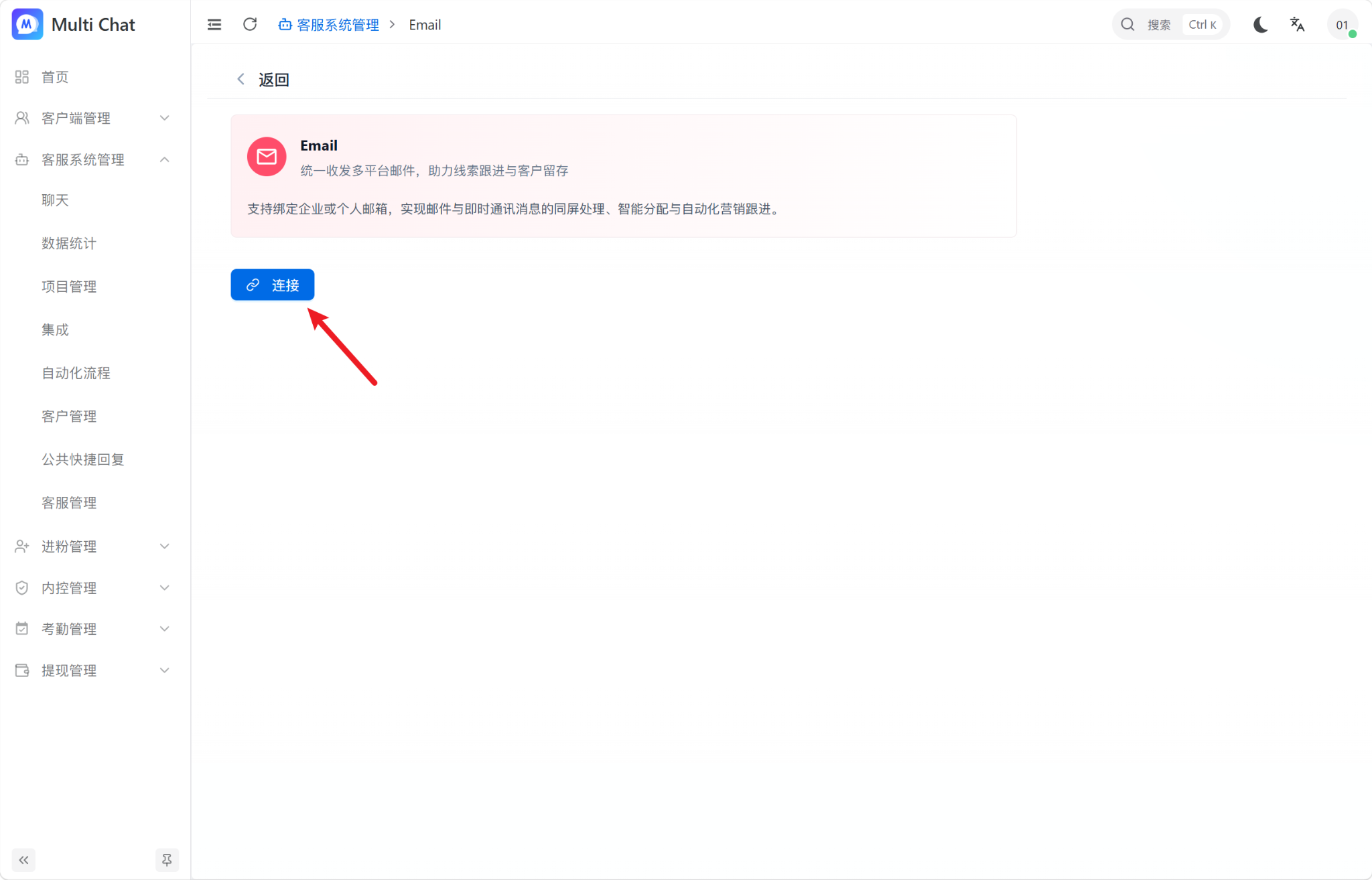
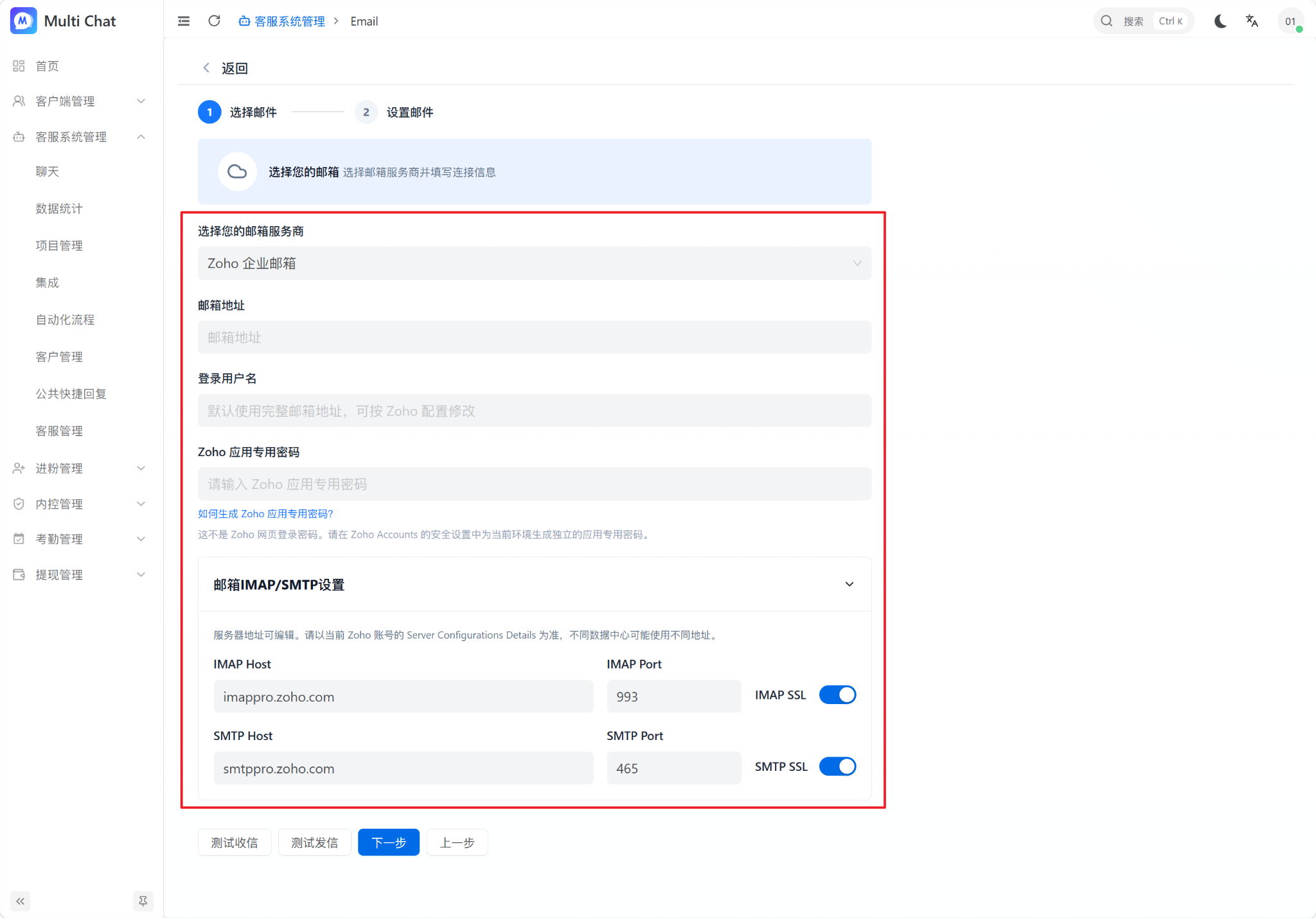
Go to “Customer Service Management → Integrations → Email”, click “Add Email”, and open the connection form.
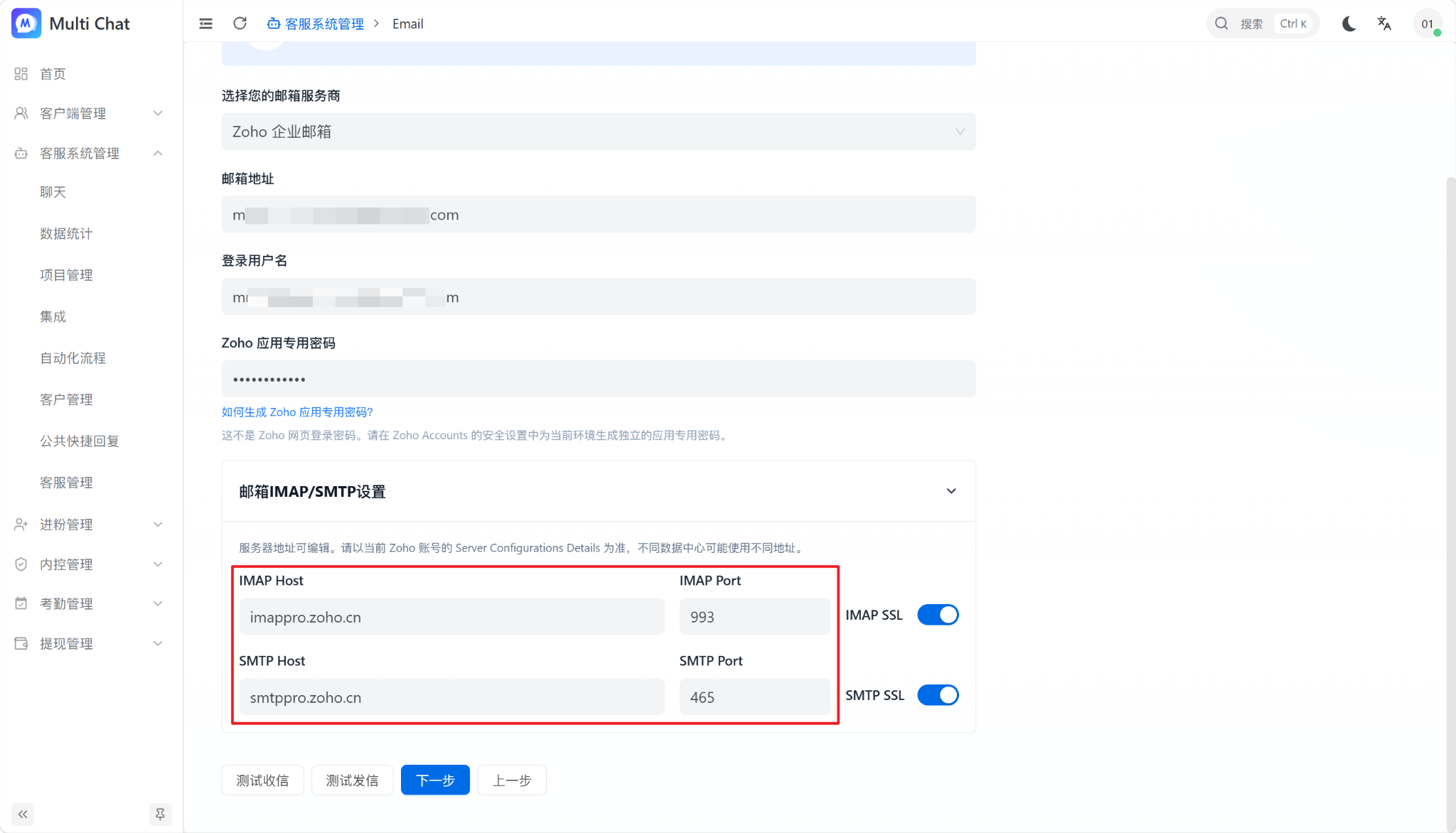
Select Zoho Mail, enter the address and app password, and verify the IMAP/SMTP values.
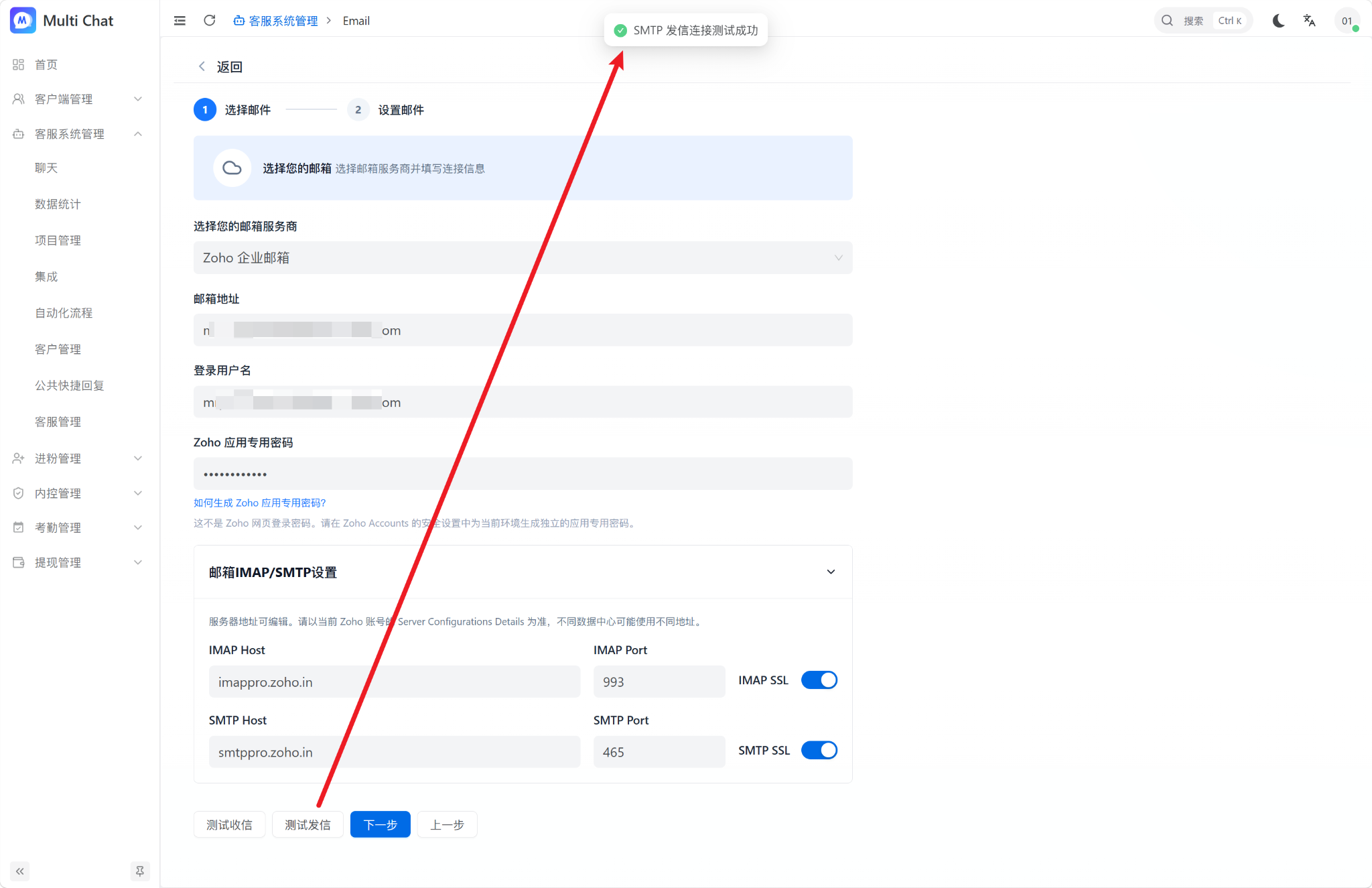
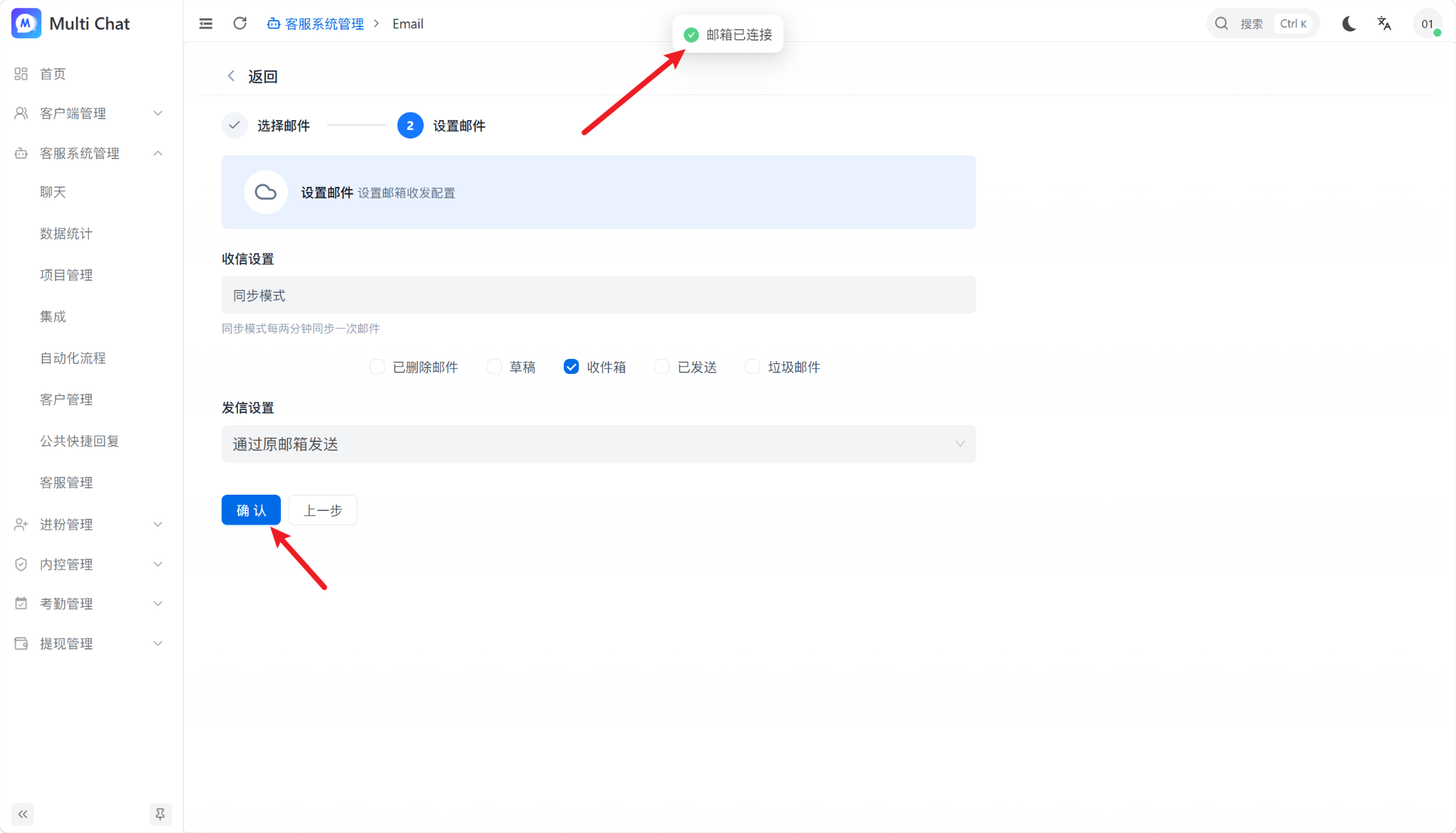
Click Test Send. After a successful test, click Next and confirm to save the connection.
2. Enable IMAP in Zoho
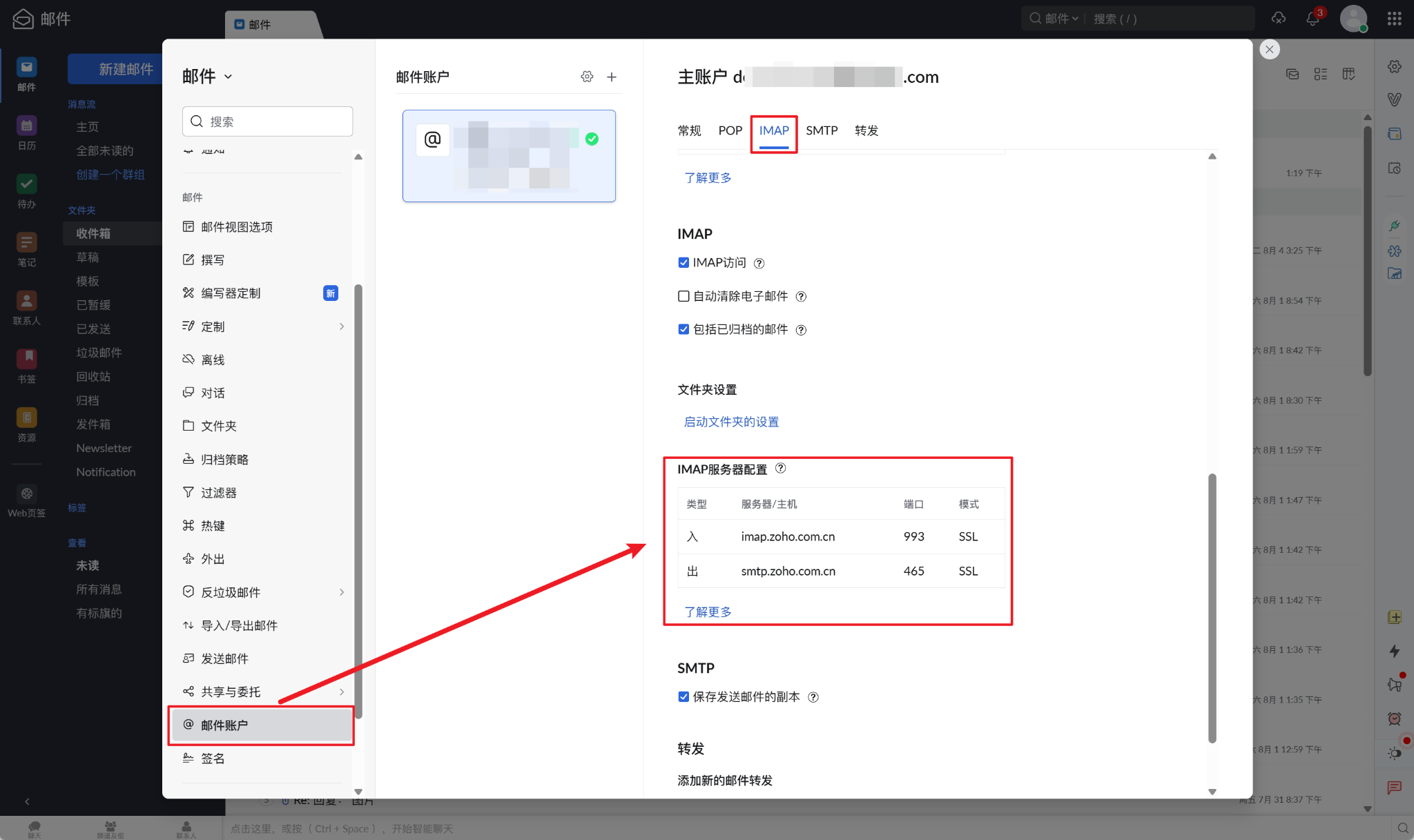
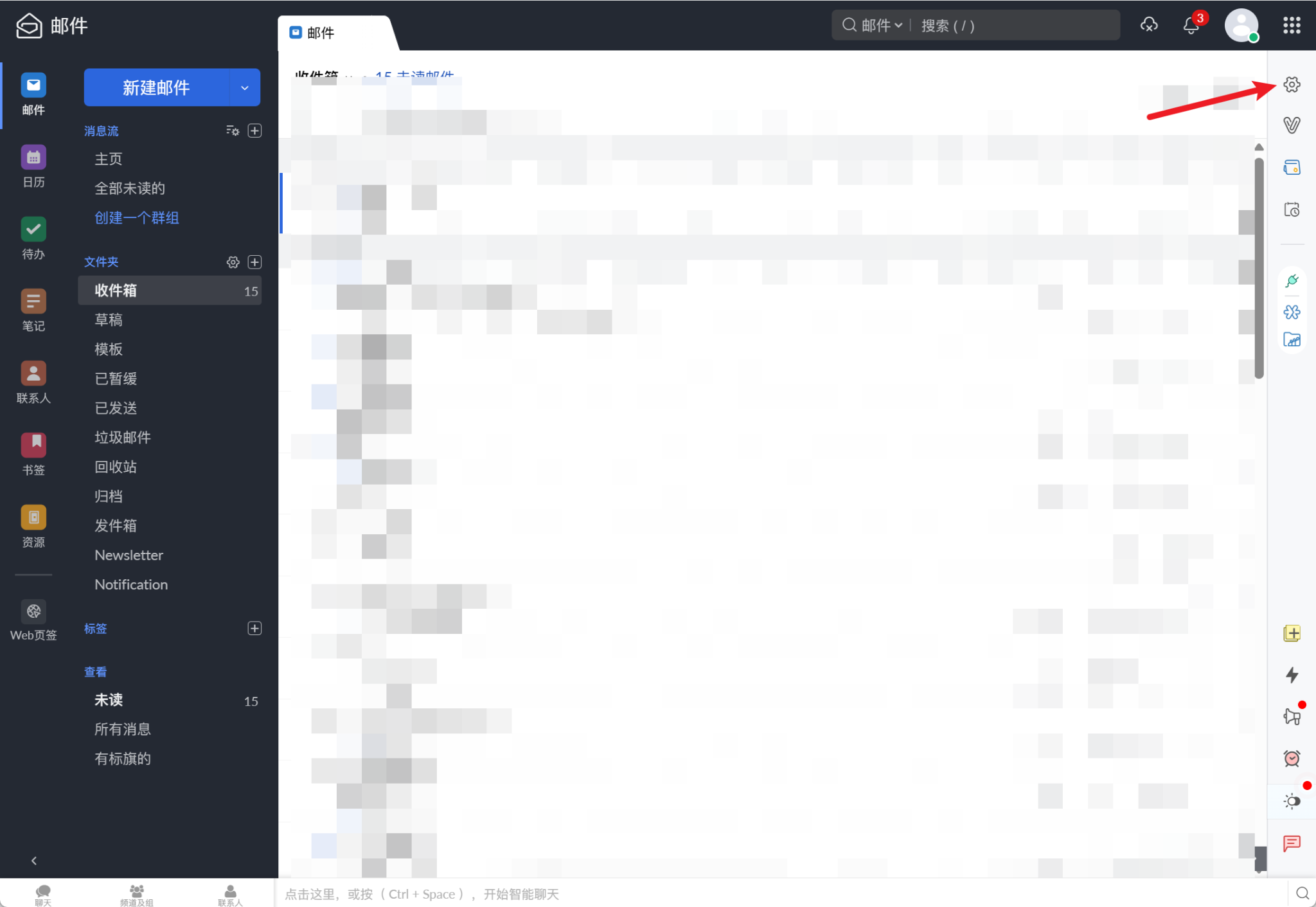
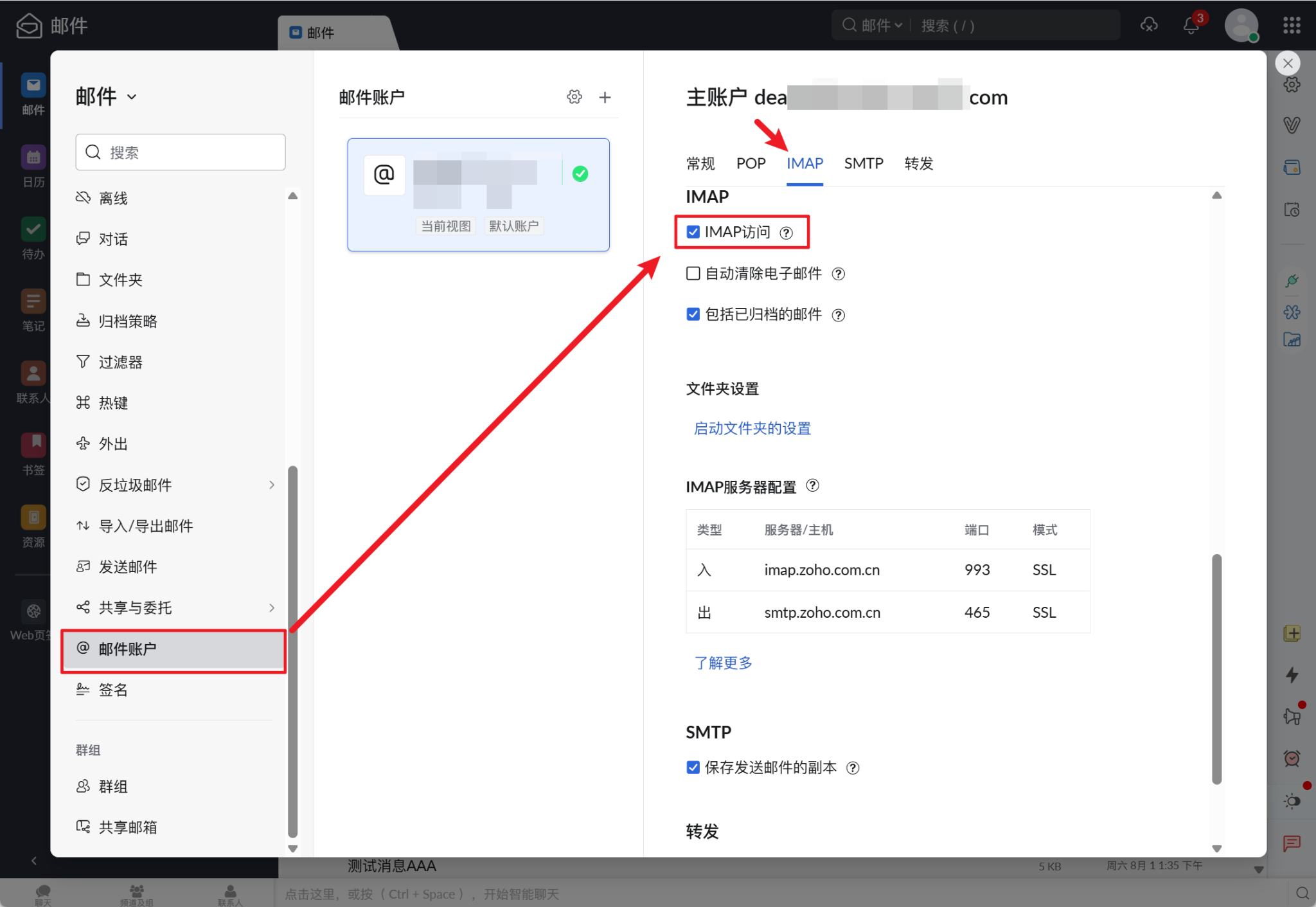
Sign in to Zoho Mail, open Settings, select Mail Accounts, and enable IMAP access. MultiChat cannot read or synchronize mail while IMAP is disabled.
3. Create an app password
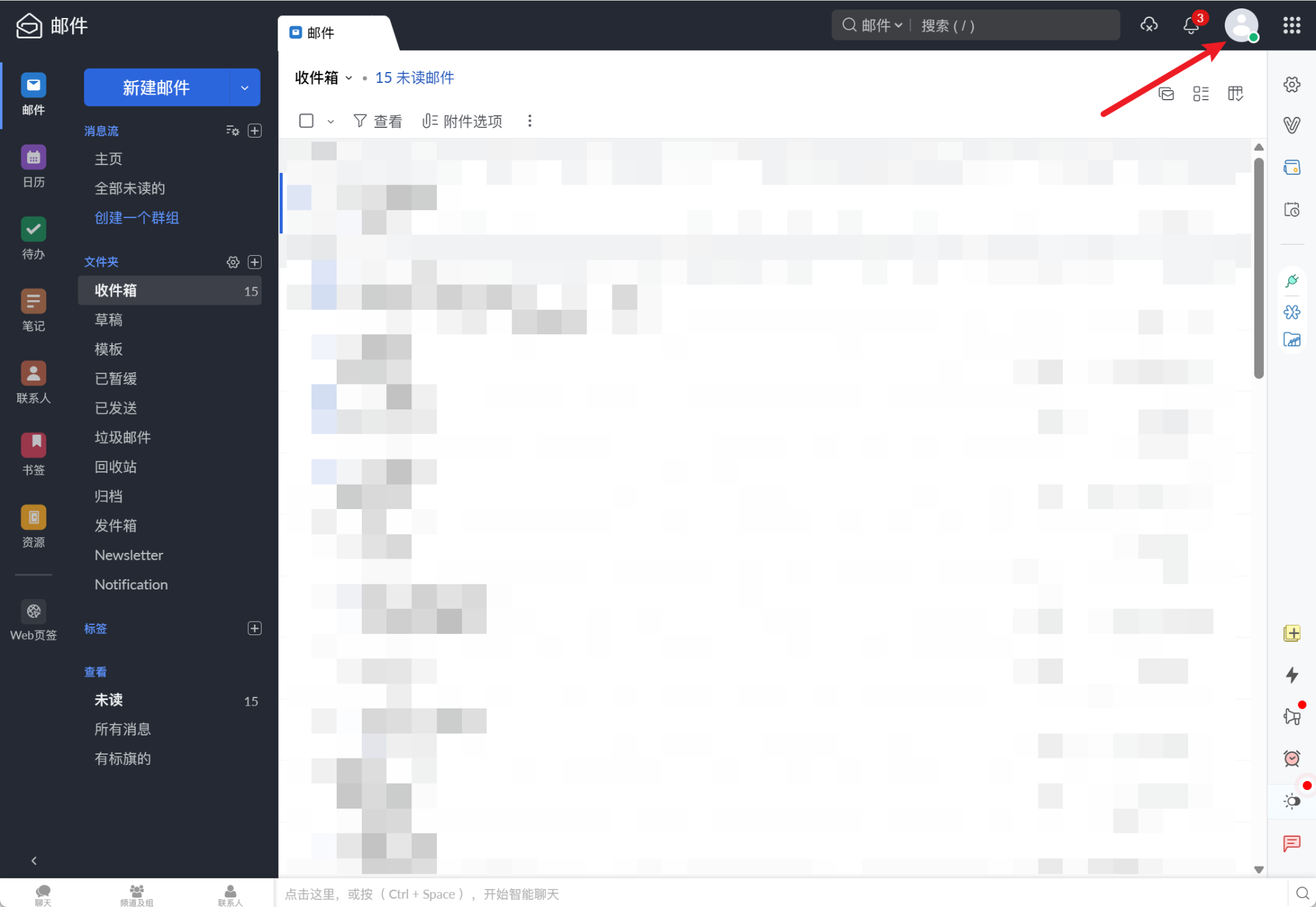
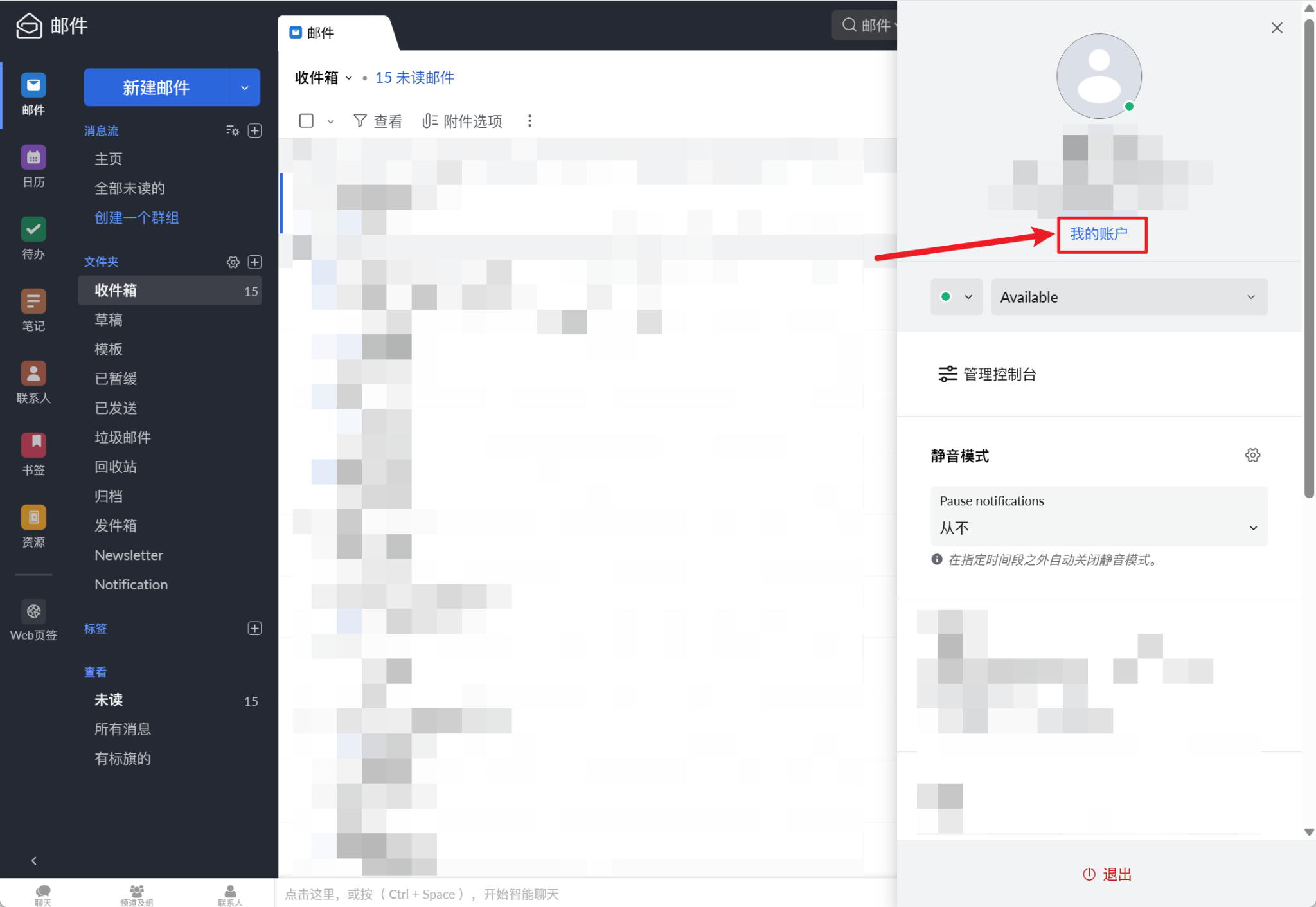
- Open your Zoho Account from the avatar menu.
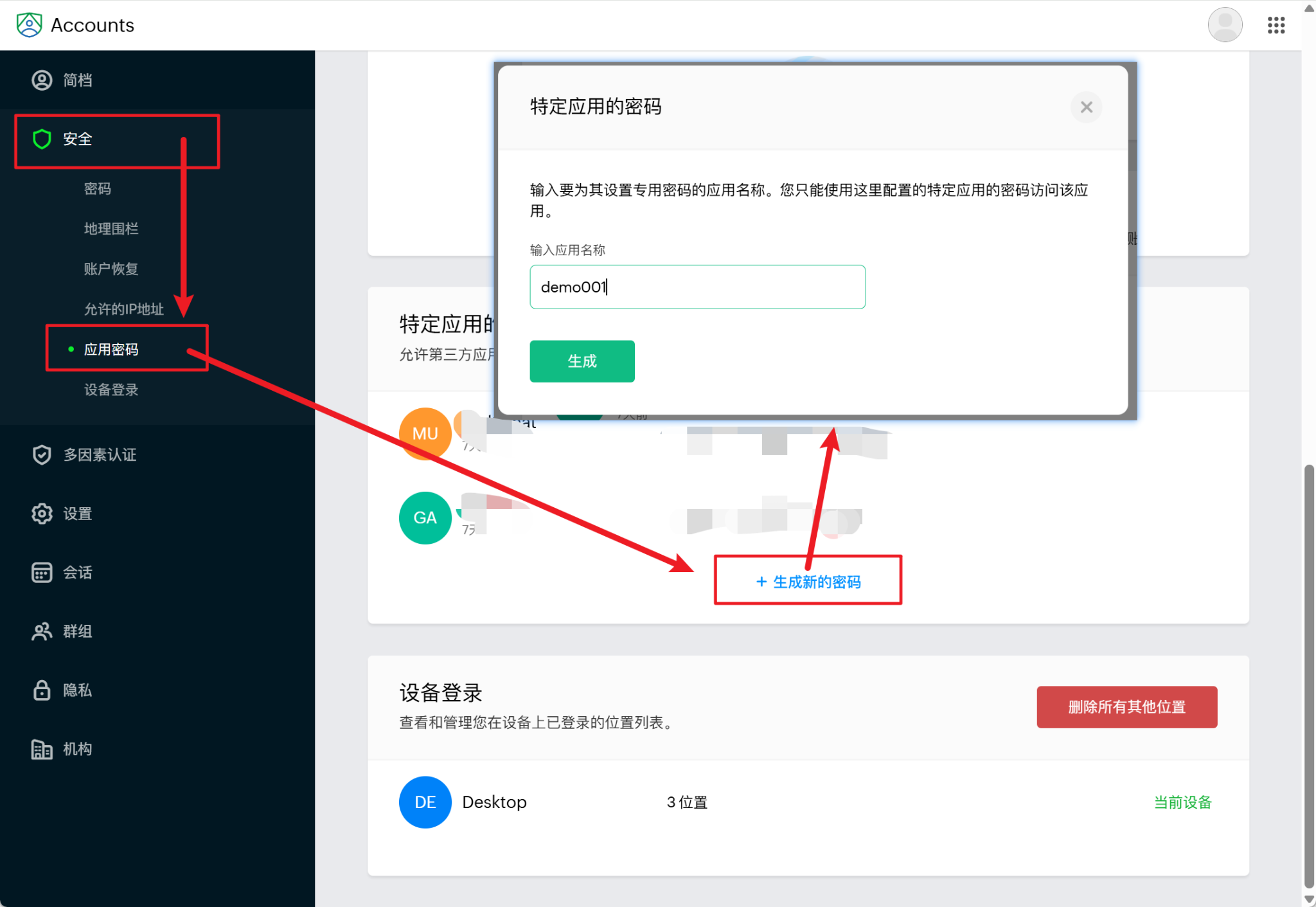
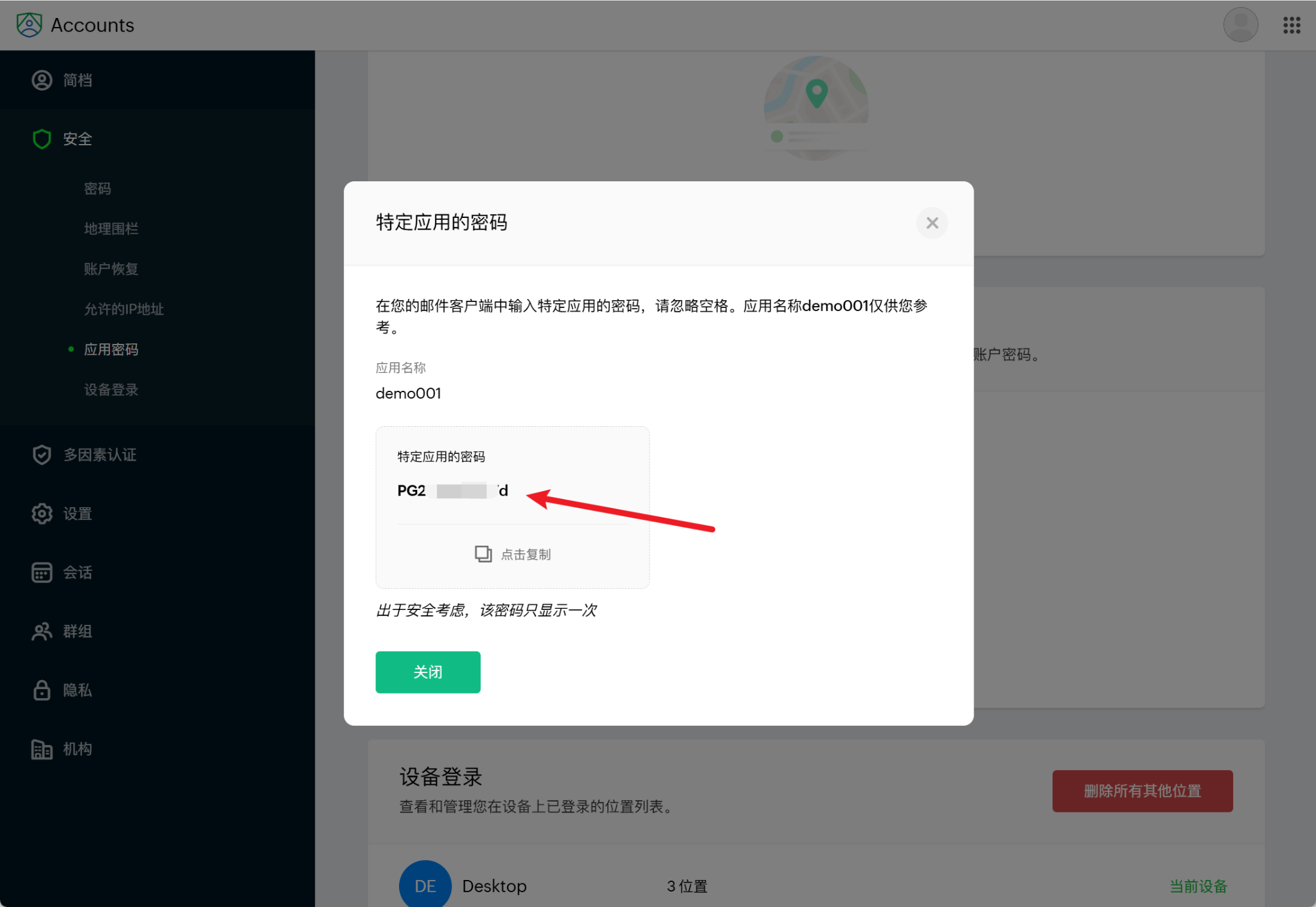
- Go to “Security → App Passwords”.
- Create a new app-specific password.
- Enter the generated password in MultiChat.
DANGER
An app password is a sensitive credential. Enter it only in the MultiChat connection form and never publish it.
4. Verify server settings
The IMAP and SMTP hosts, ports, and encryption must match the values displayed in Zoho Mail.