Connect a WhatsApp Cloud API Number
This guide explains how to create a Meta app, grant the required business permissions, generate an access token, and connect your WhatsApp Cloud API number to MultiChat.
1. Create a Meta app
Open Meta for Developers and create an app.
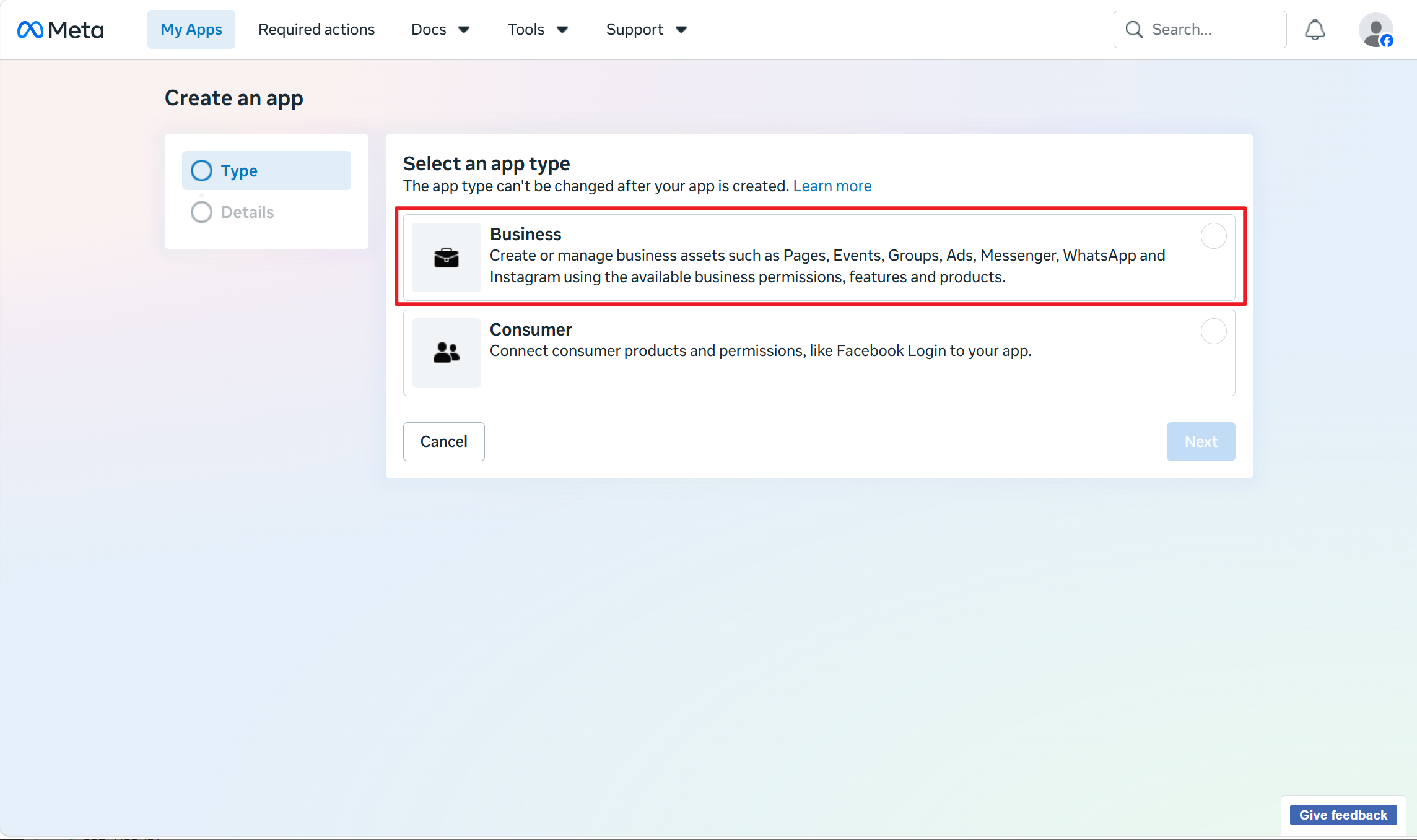
Choose the Business app type.
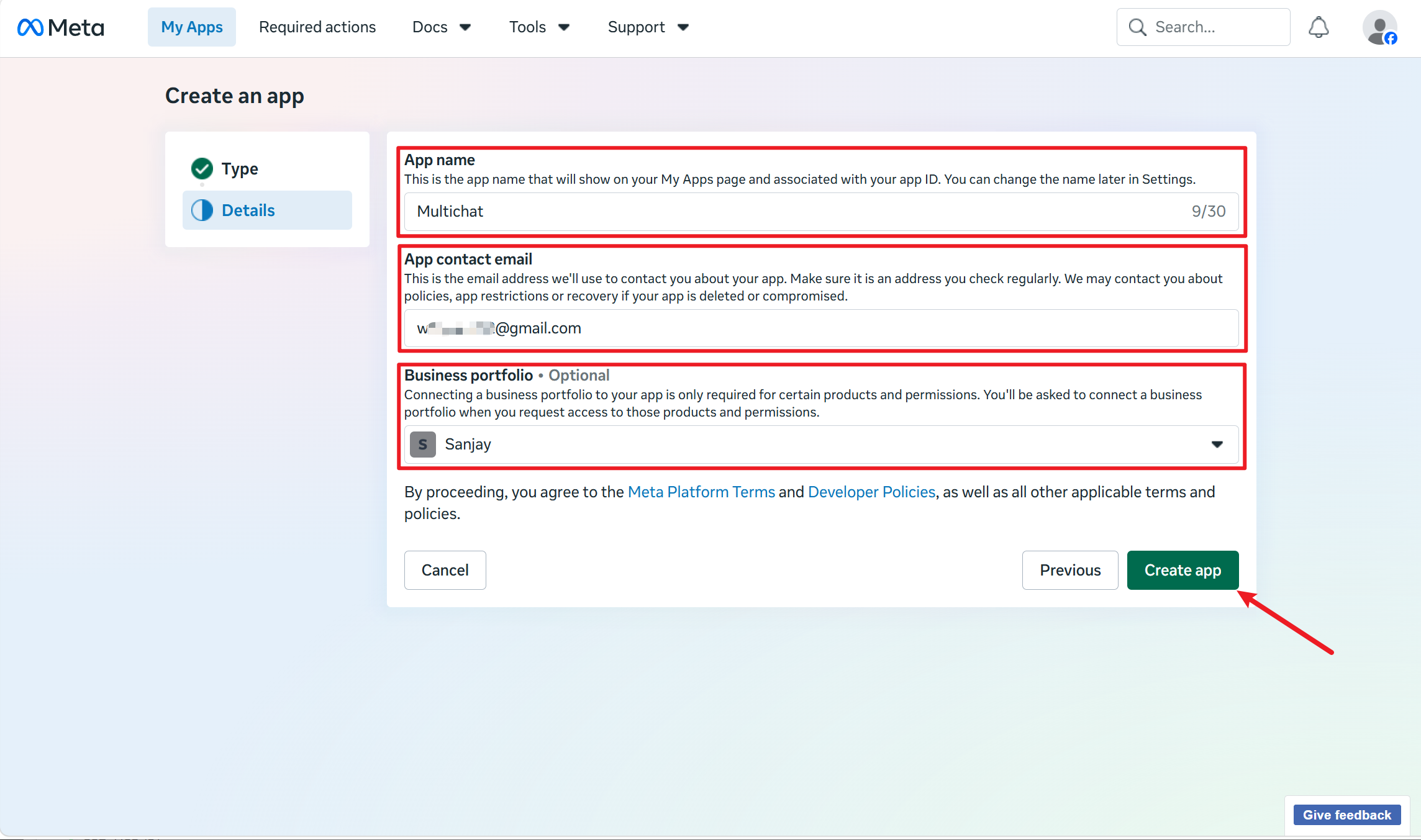
Enter the app name and contact email, then select the correct Meta Business Account (BM). A Business Account can be linked to only one app for this setup.
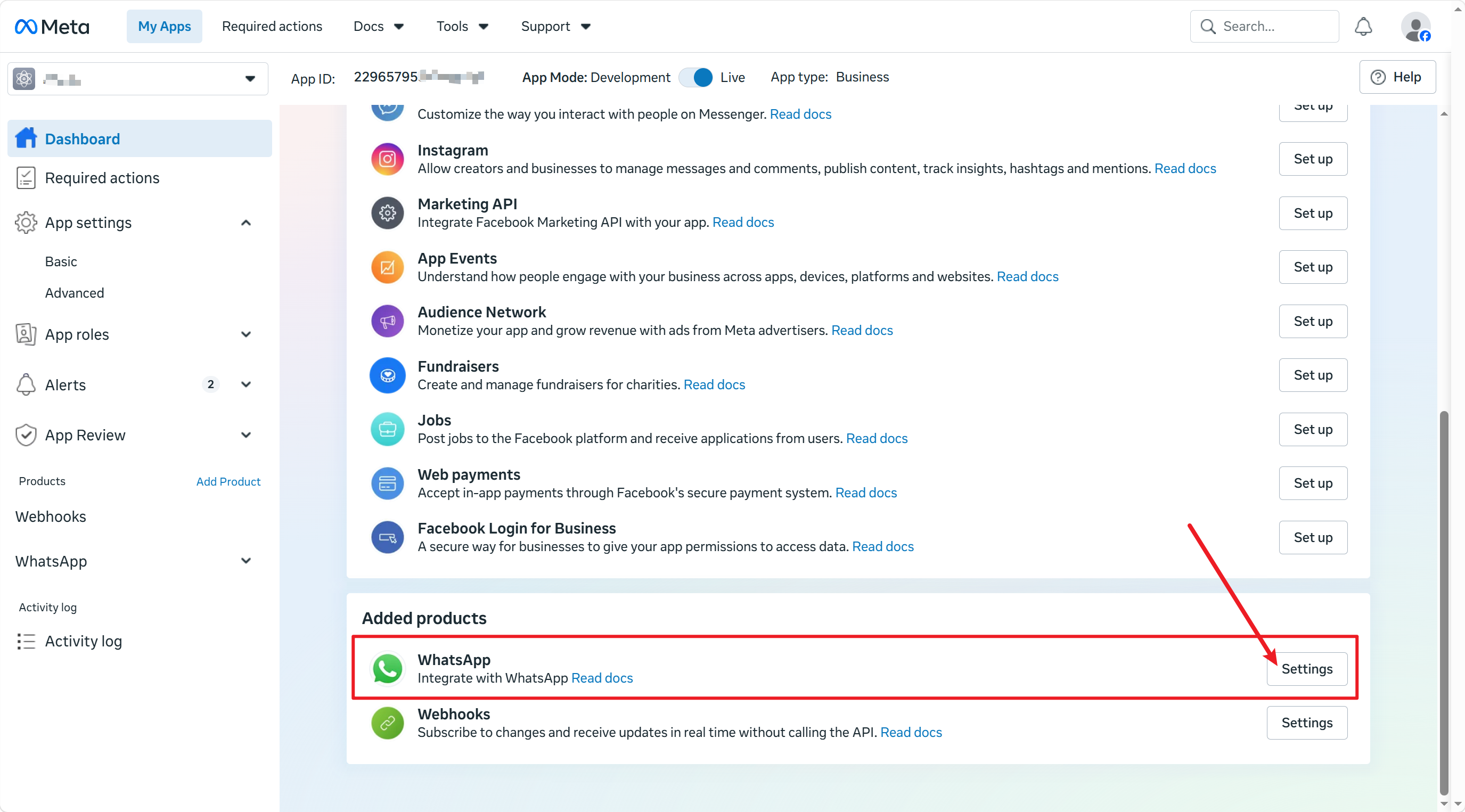
After the app is created, add the WhatsApp product.
2. Get the app information
In the Meta app dashboard, open Settings → Basic. Copy the following values:
- App ID
- App Secret
- Business Account ID (BM ID)
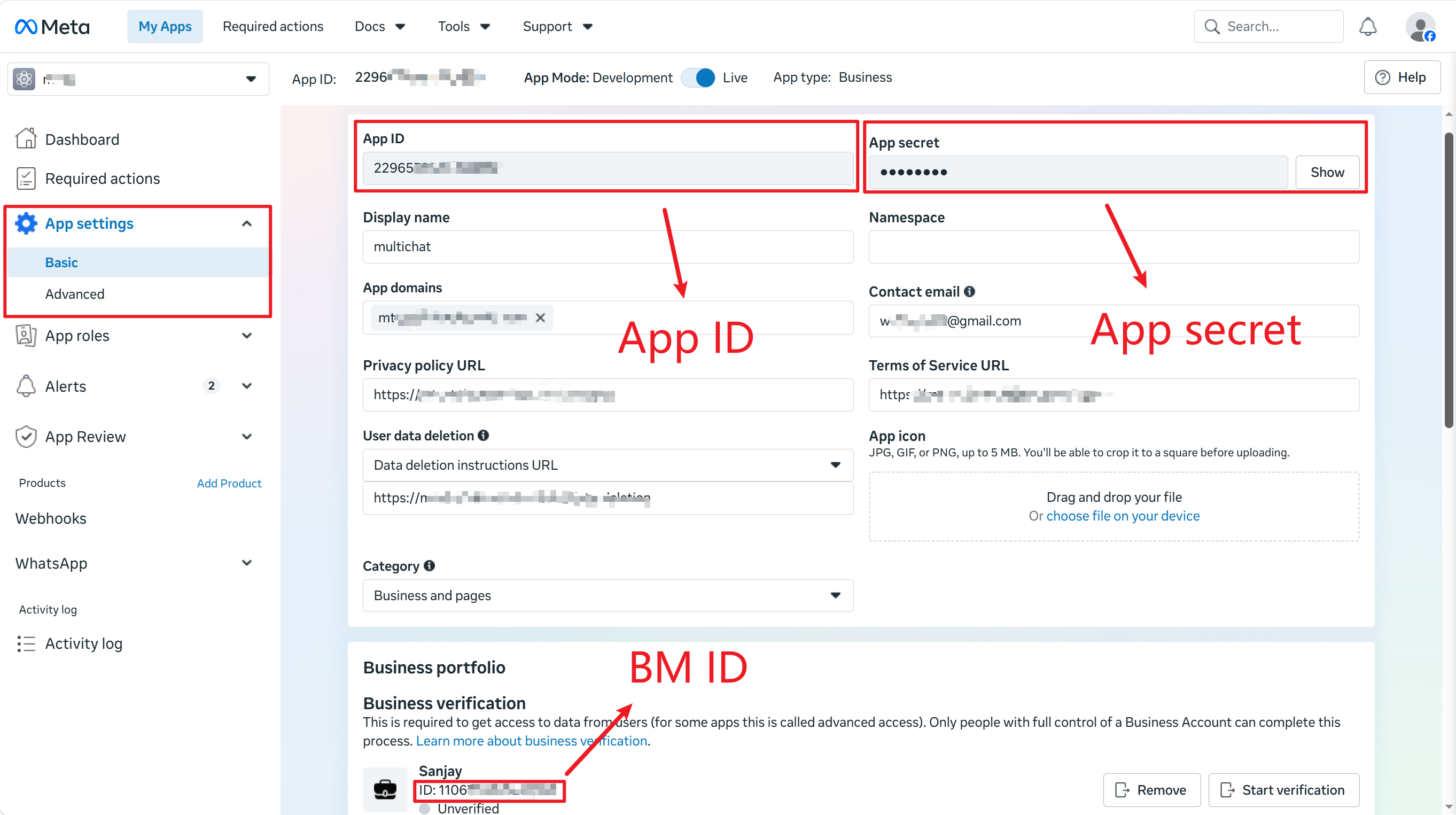
Enter the App ID, App Secret, and bound BM ID in the corresponding MultiChat fields.
3. Configure a system user and permissions
Open Meta Business Settings and go to Users → System Users. Add a system user and assign the Admin role.
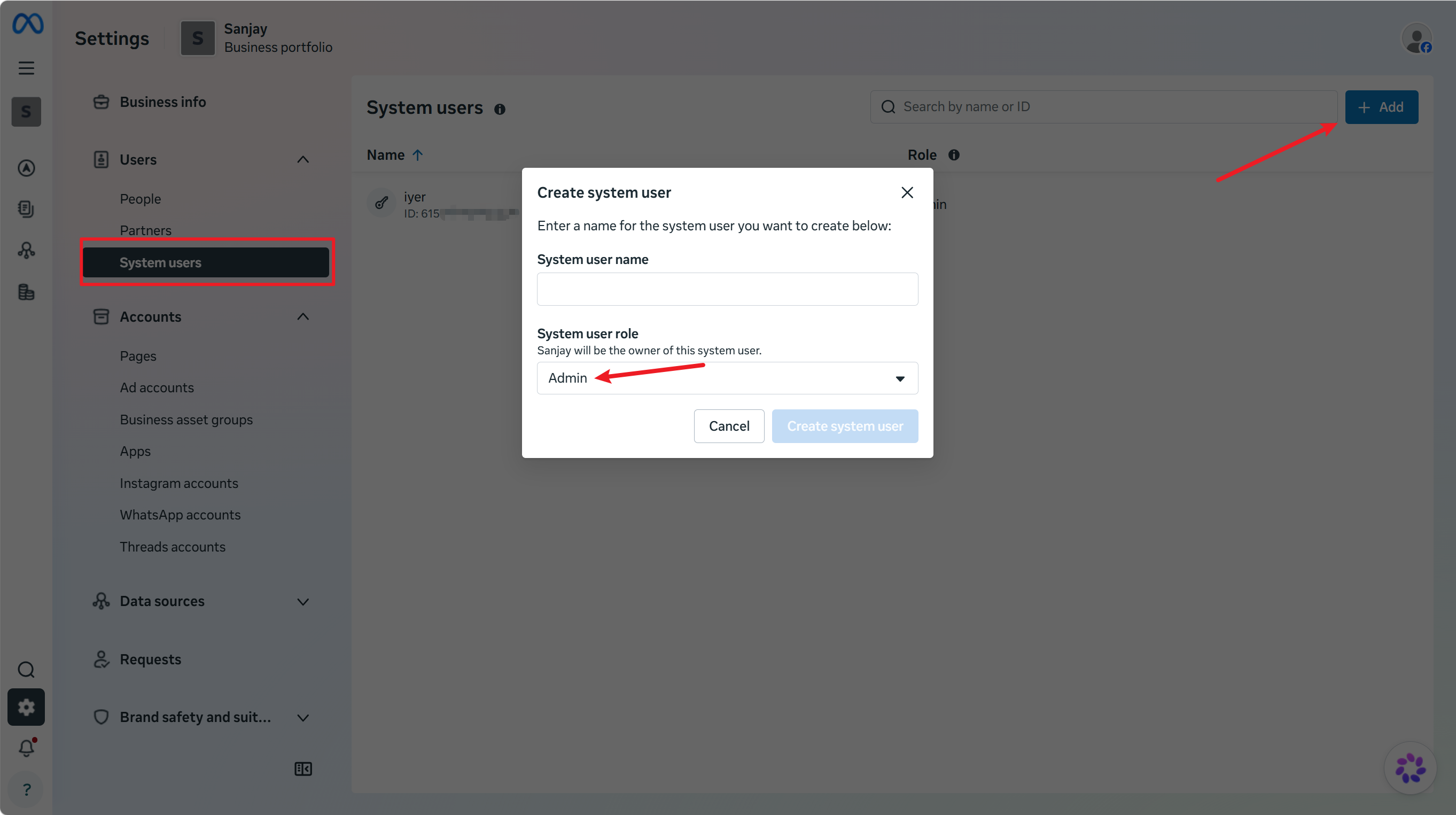
Click Add Assets.
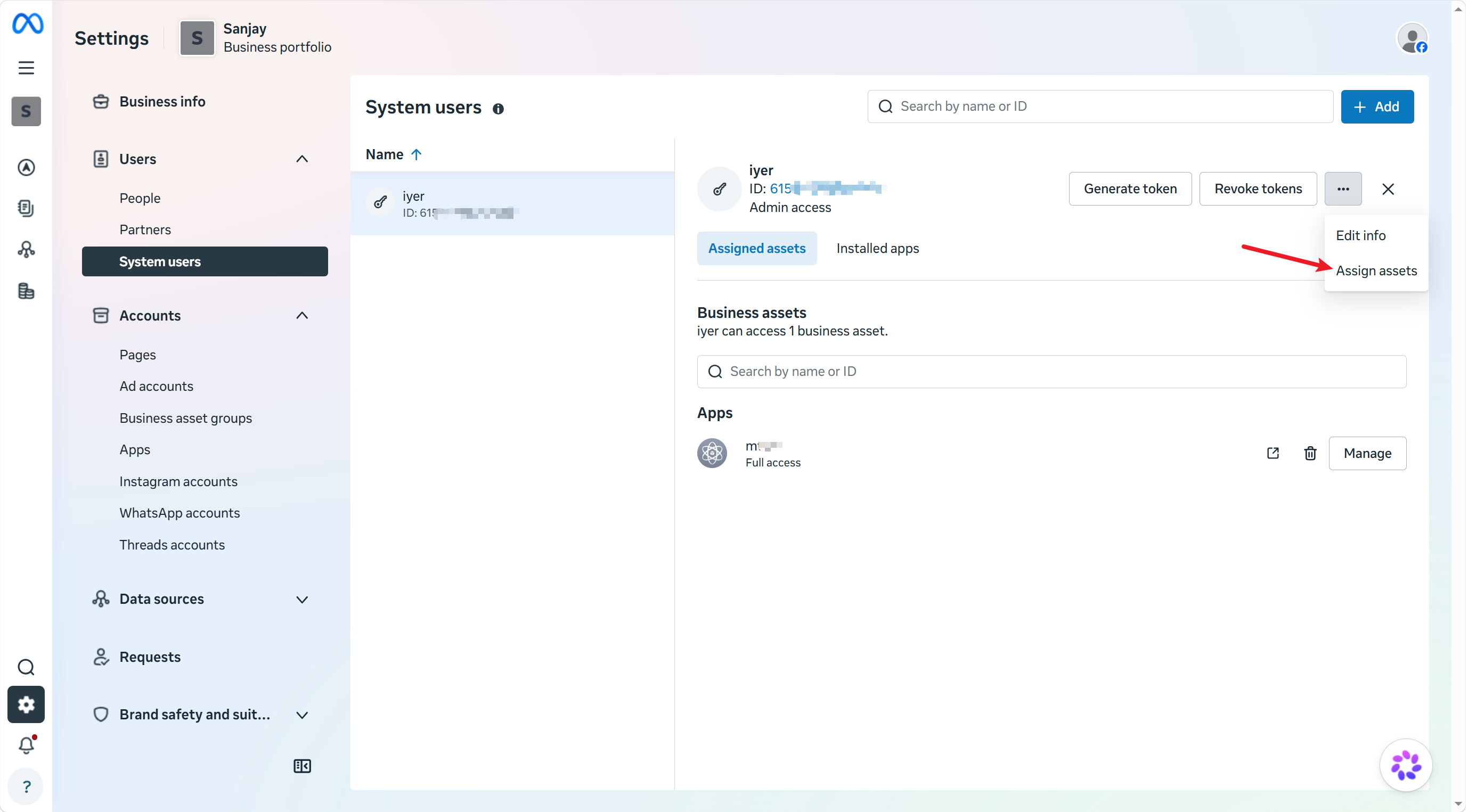
Select the app and grant permission to manage the app.
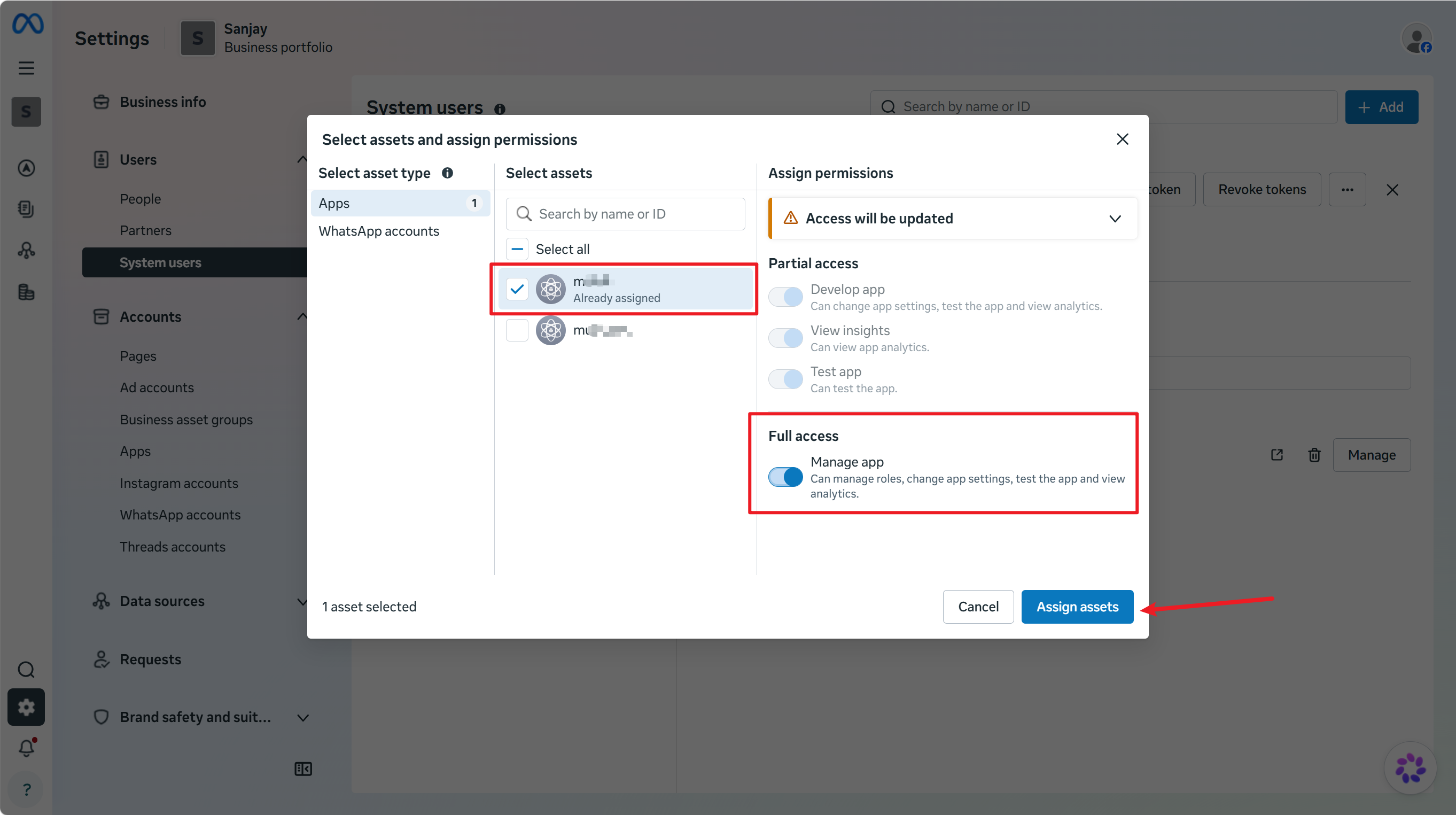
If the Admin role is unavailable, create an Employee system user and grant full permissions for the relevant WhatsApp account and app assets.
Generate an access token
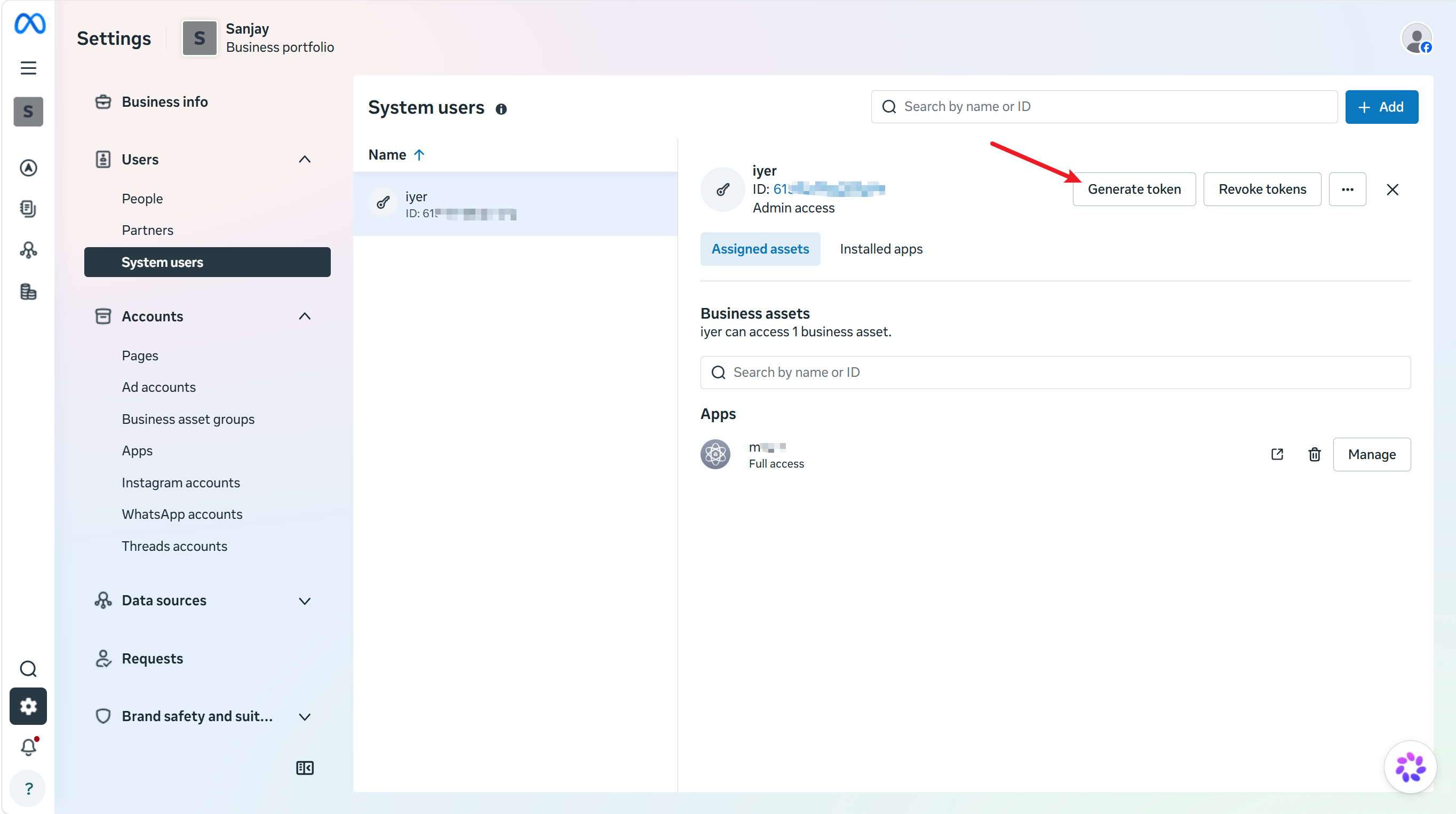
Select the system user and click Generate New Token.
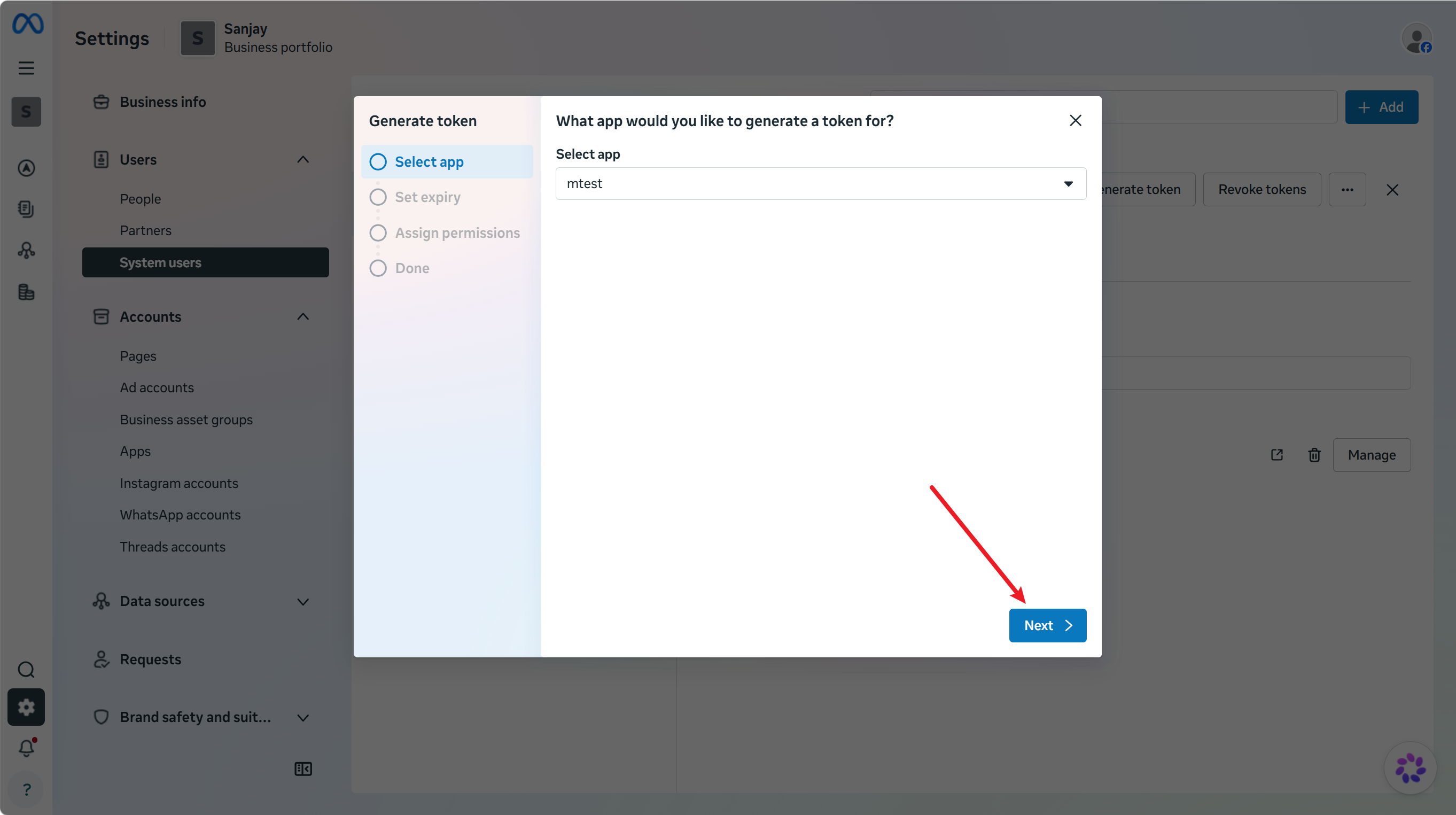
Choose the app you created.
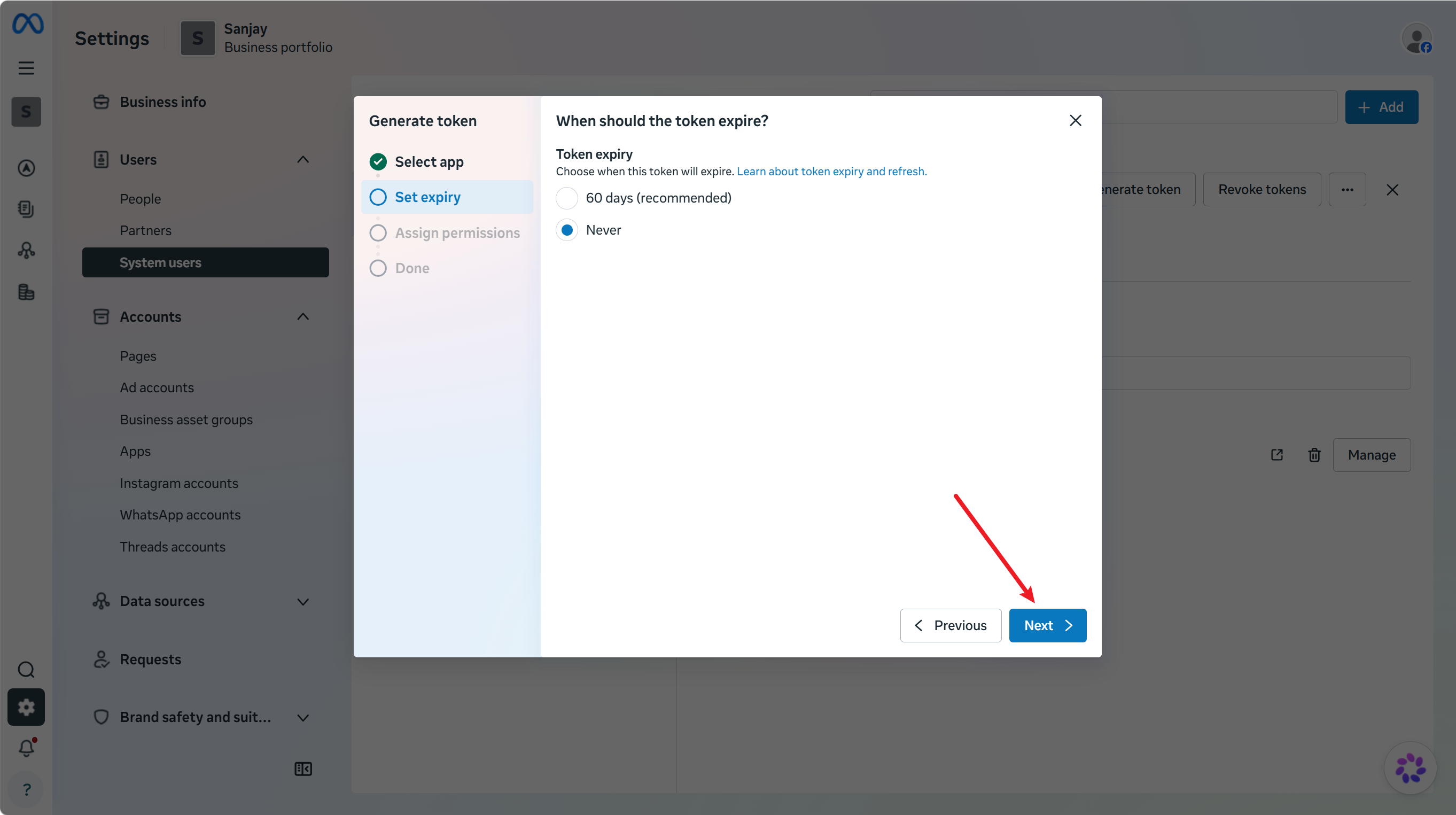
Enable these permissions:
business_managementwhatsapp_business_messagingwhatsapp_business_management
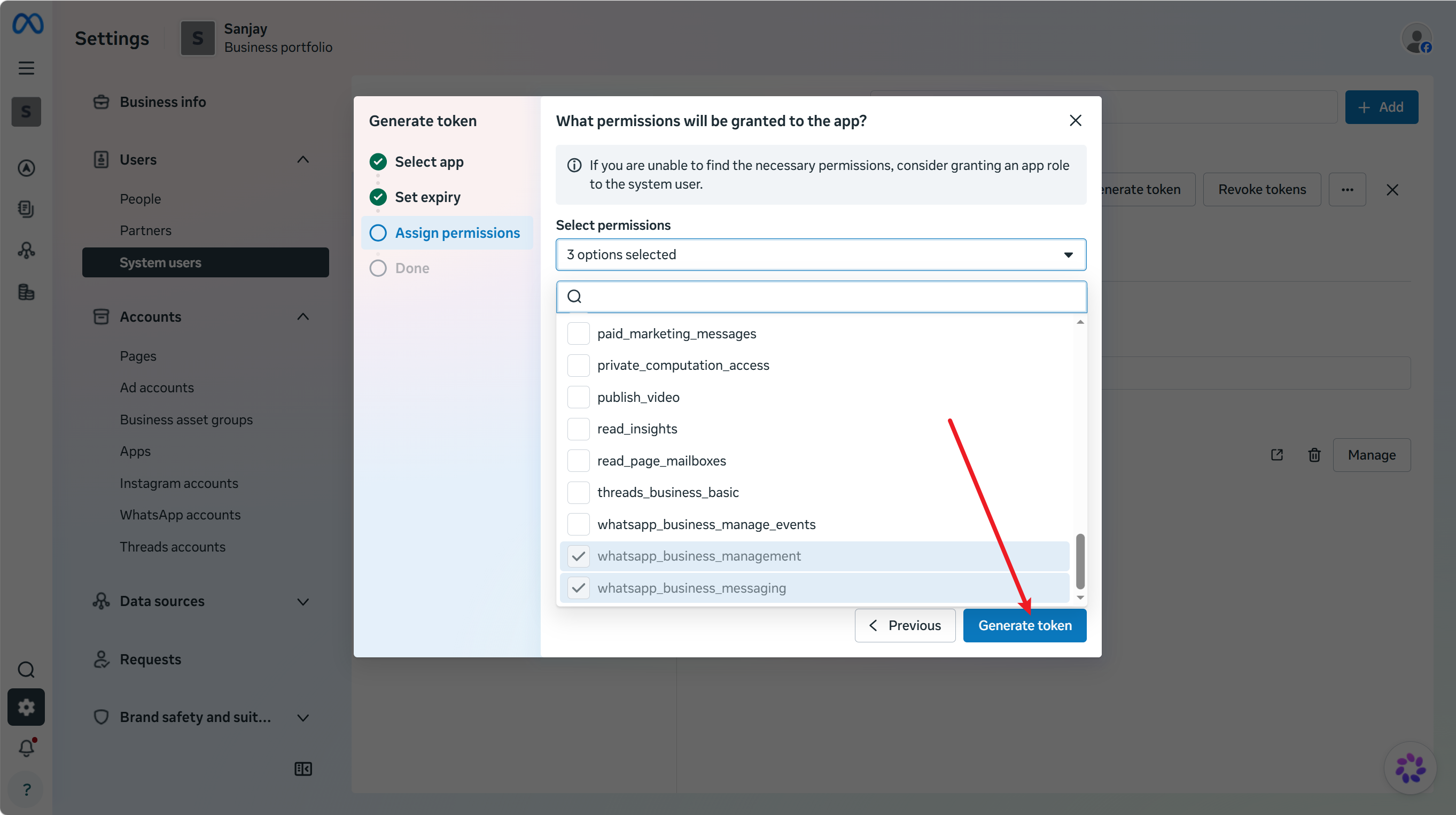
Generate and copy the access token.
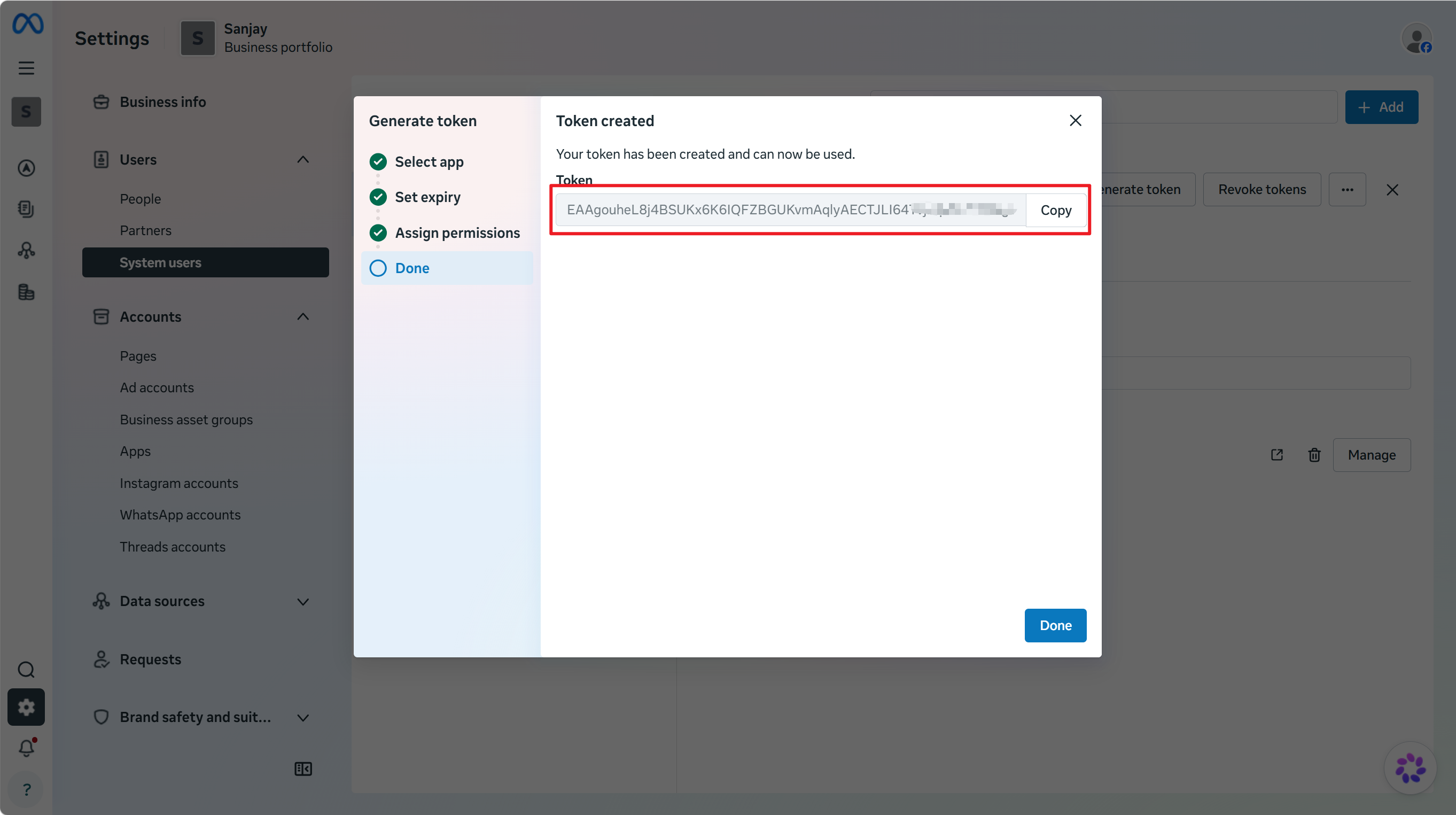
Paste the token into the Token field in MultiChat.
4. Complete the connection
In MultiChat, confirm that App ID, App Secret, Token, and BM ID are filled in, then click Next.
MultiChat automatically loads the first 50 WhatsApp Business Account numbers. If your account contains more than 50 numbers, use synchronization to load the remaining numbers. Enable the required number for contacts, broadcasts, and conversations.
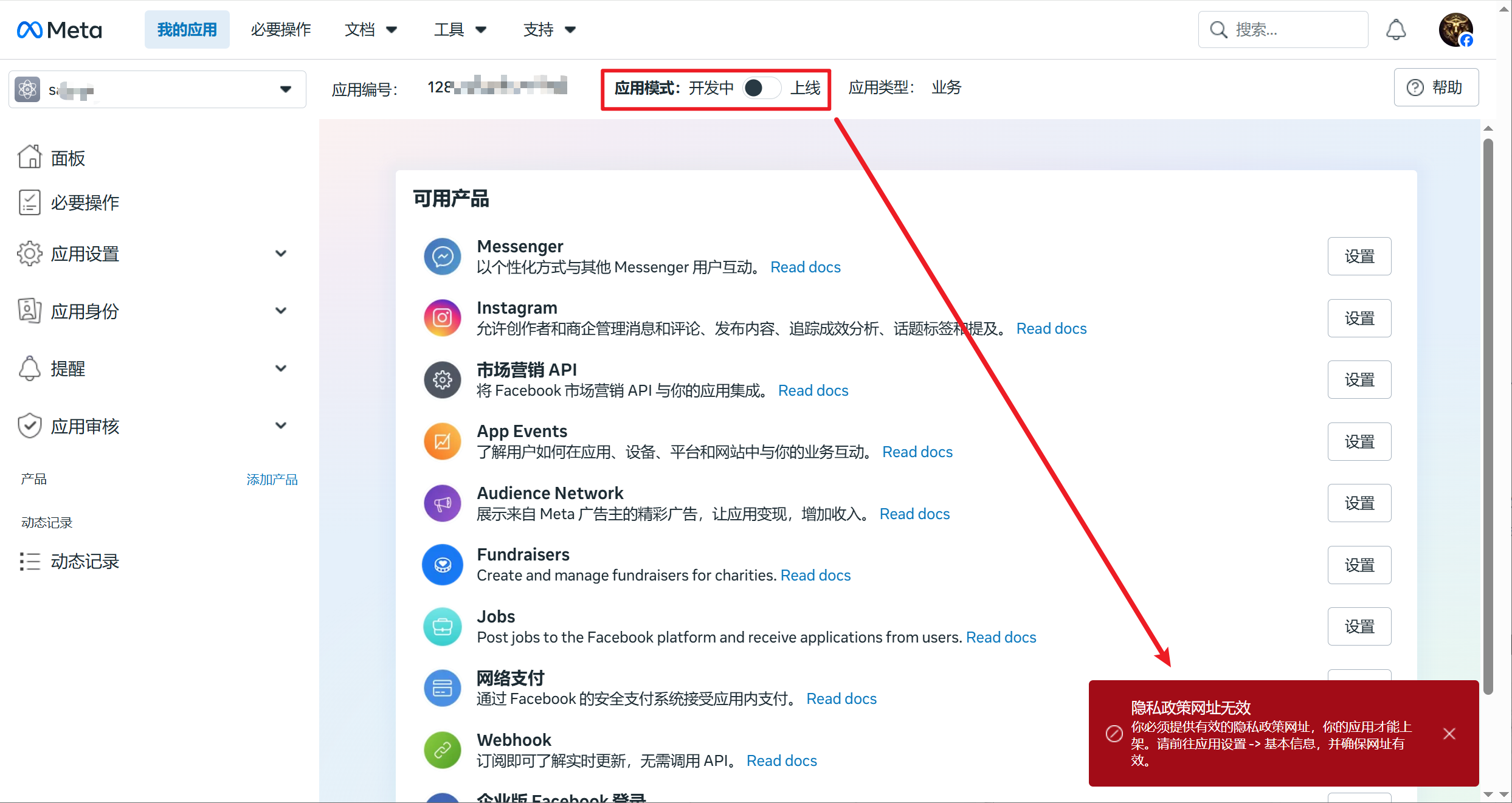
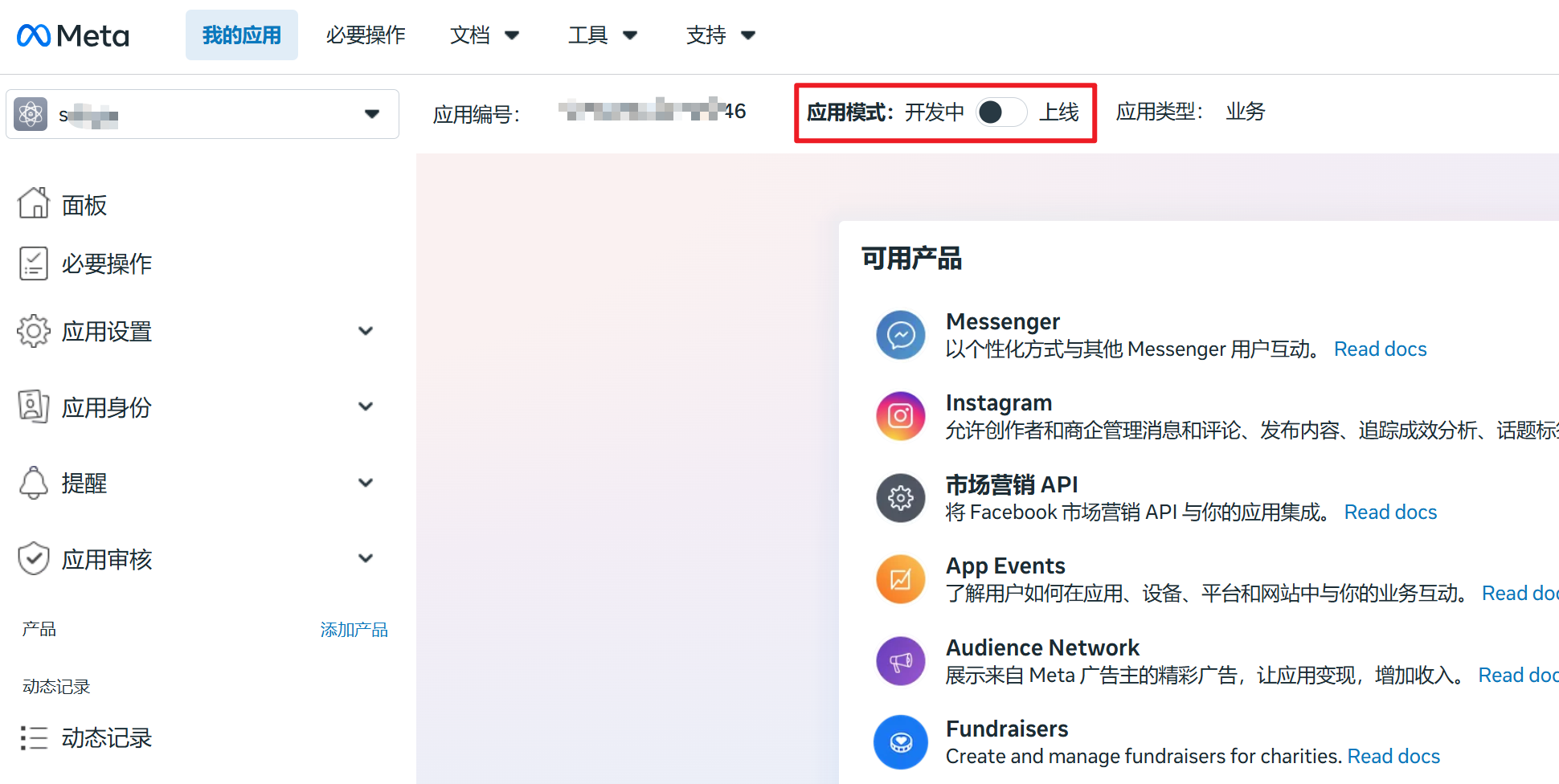
Finally, switch the Meta app to Live mode.
FAQ
(1) The account is temporarily restricted
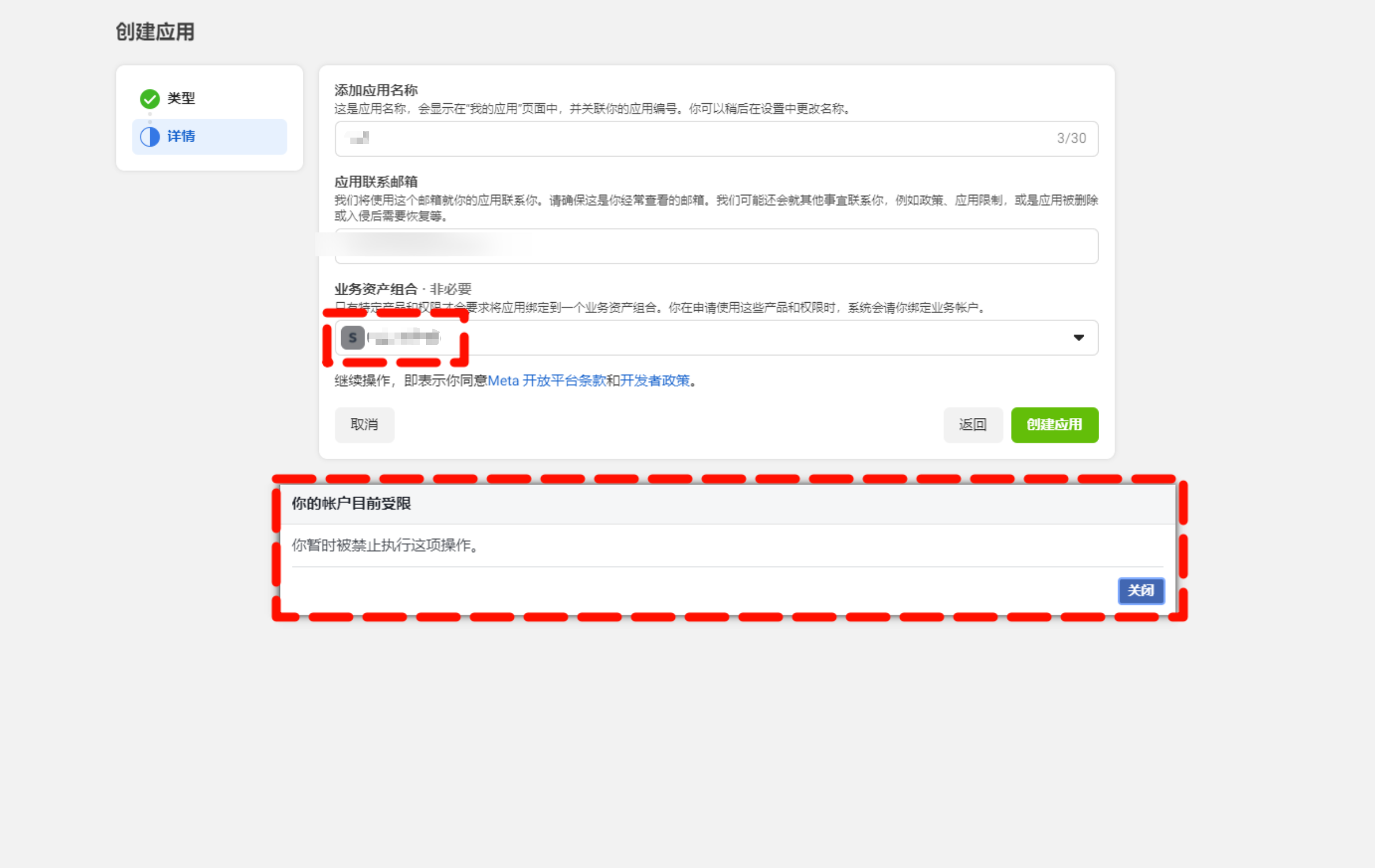
This normally indicates a restriction or abnormal status on the Meta Business Account. Check the account status in Meta Business Settings before trying again.
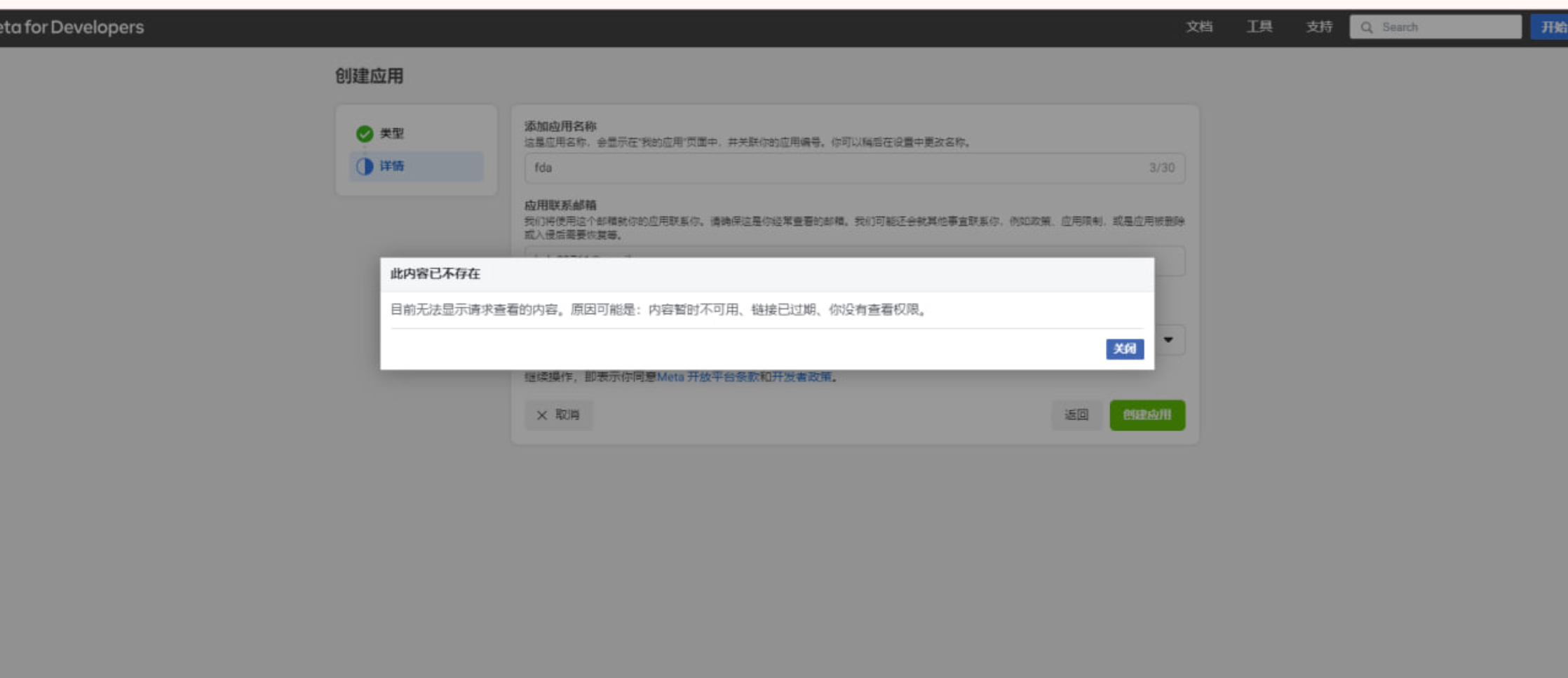
(2) Meta says that the requested content cannot be displayed
The app or asset may be unavailable, the session may have expired, or your account may not have permission. The app might also have been removed or restricted, or the WhatsApp number may have been banned. Try signing in with an account that has the required permissions.
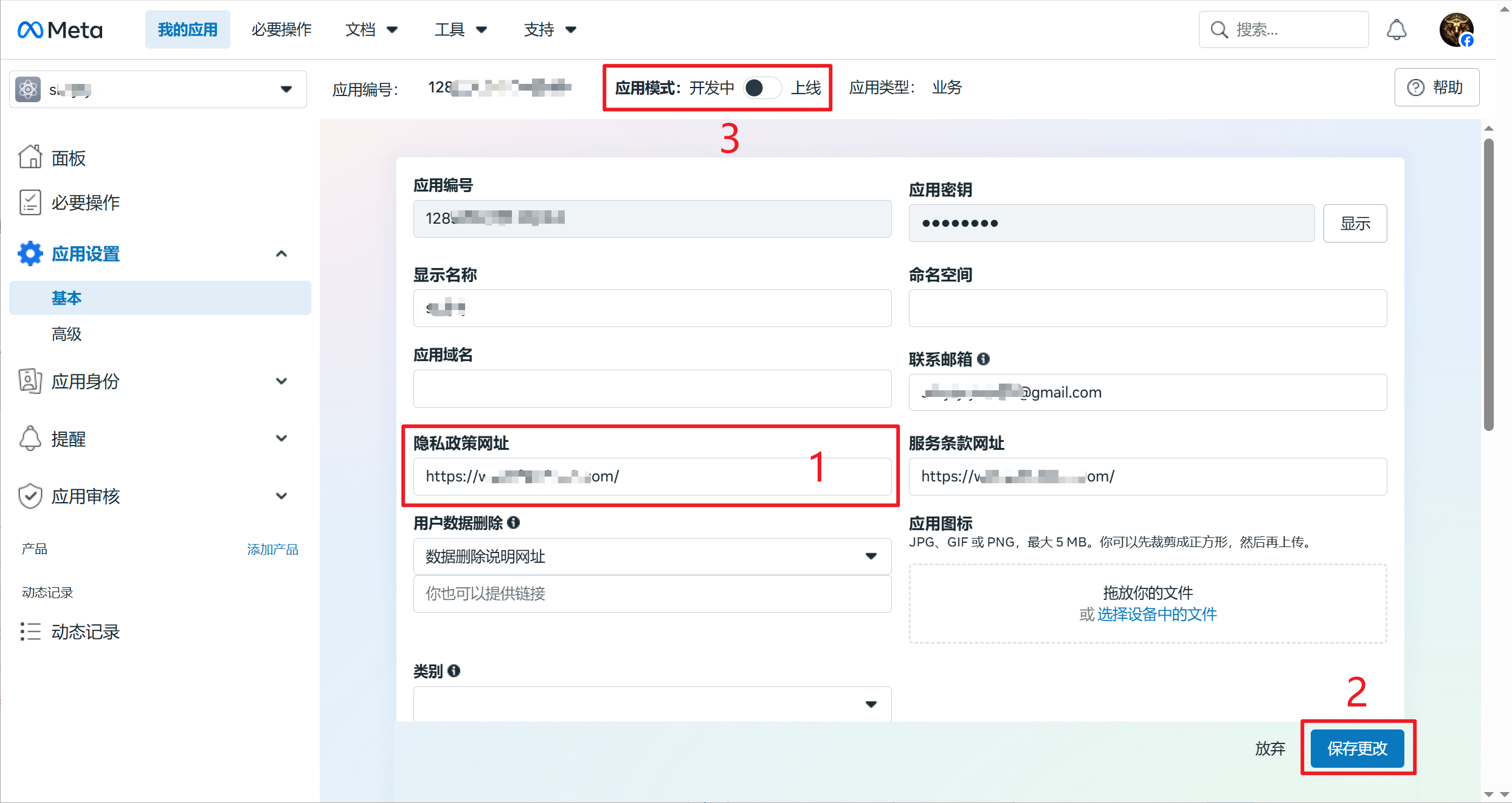
(3) The privacy policy URL is invalid
Open Settings → Basic in the Meta app dashboard and enter a publicly accessible privacy-policy URL. Save the changes, then switch the app to Live mode again.
Use a stable privacy-policy page on a domain you control whenever possible.