
Create an FAQ Automation Flow
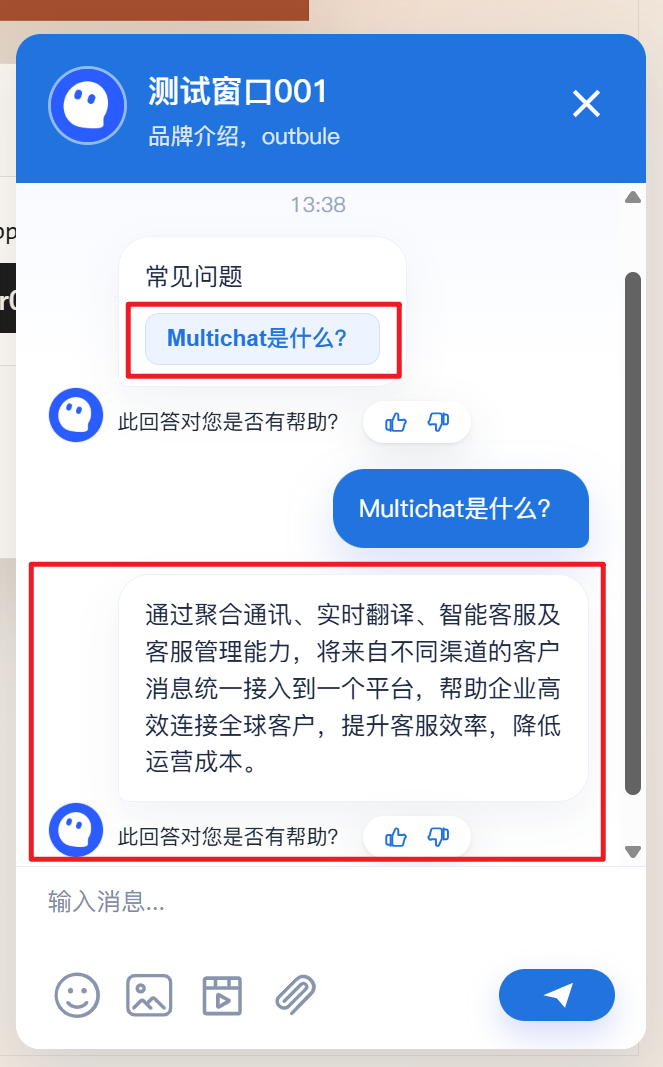
This example sends a list of common questions when a visitor enters the chat. Selecting a button sends the corresponding answer.
1. Create a blank flow
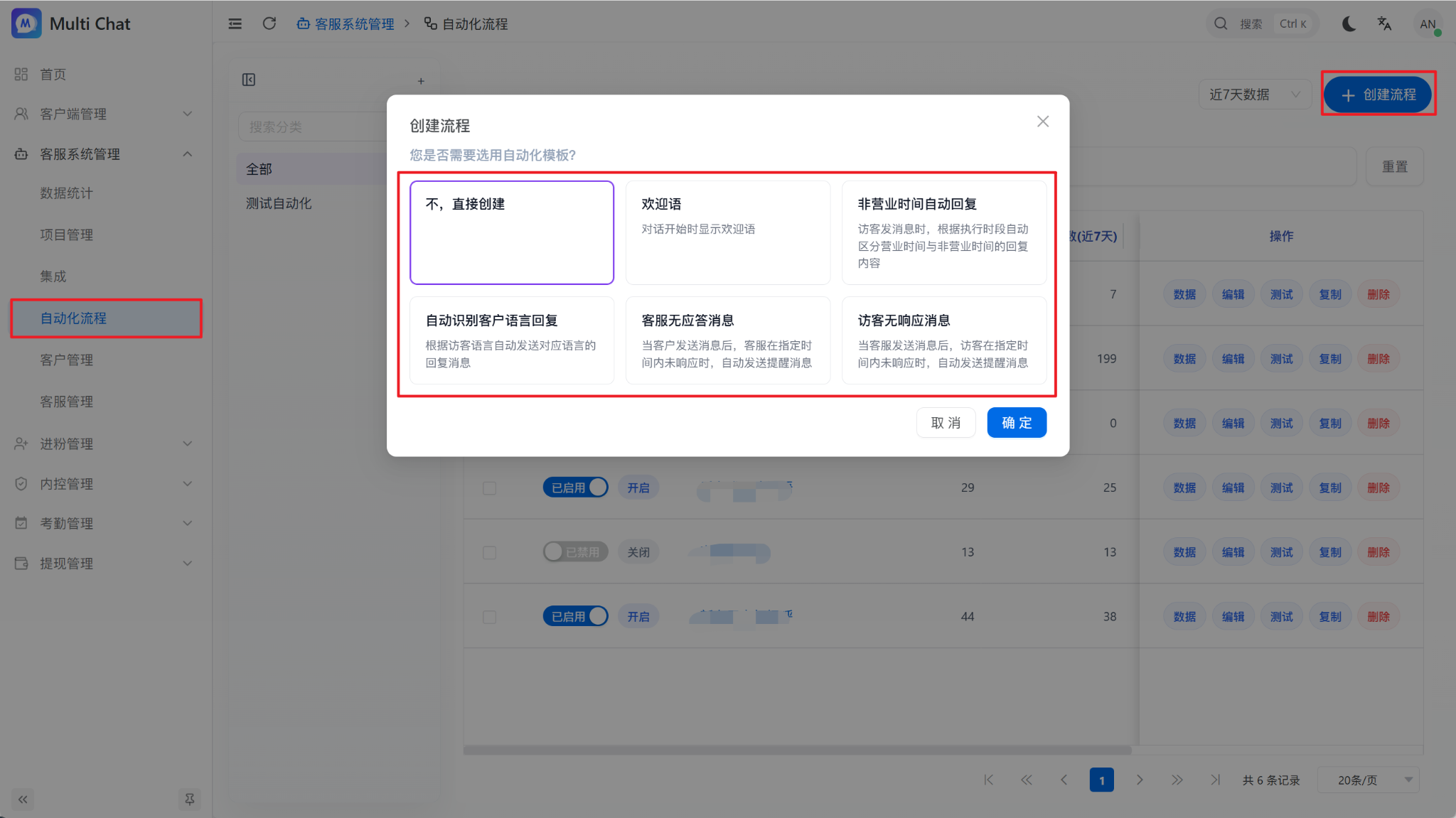
Open Automation, click “Create Flow”, and select “No, create directly”.
2. Add visitor triggers
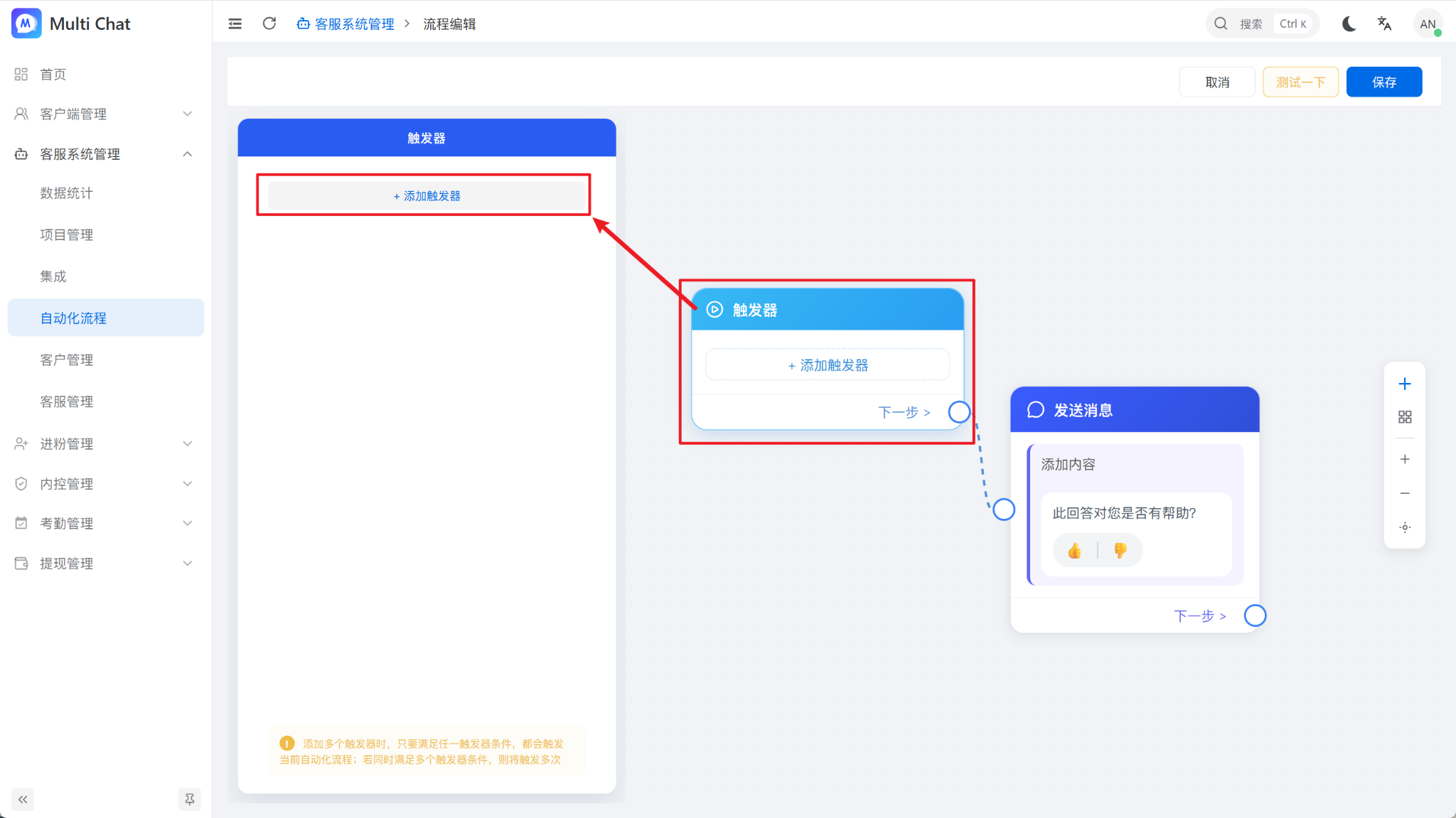
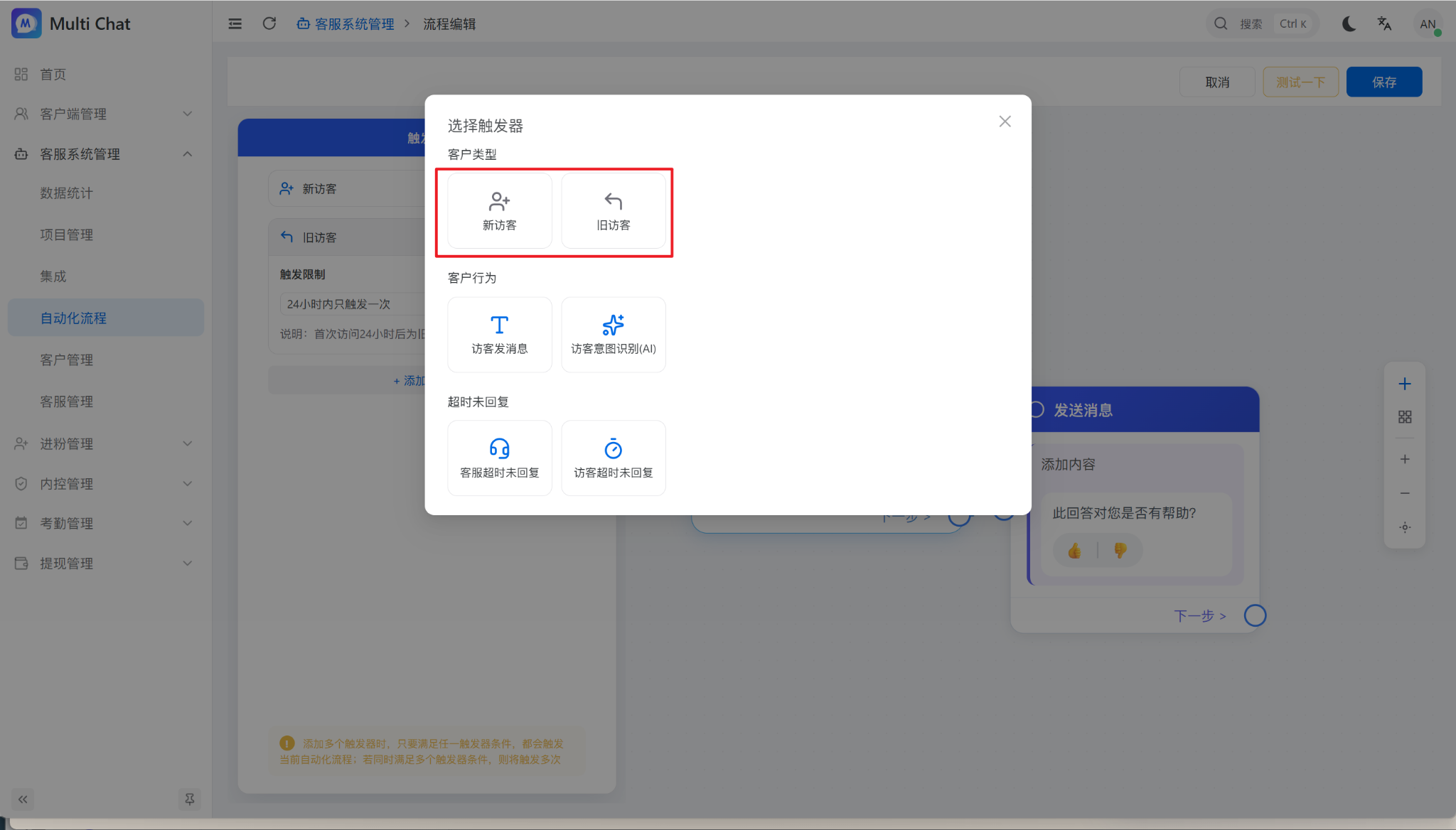
Click “Add Trigger” and select New Visitor and Returning Visitor so both visitor types receive the options.
3. Create question buttons
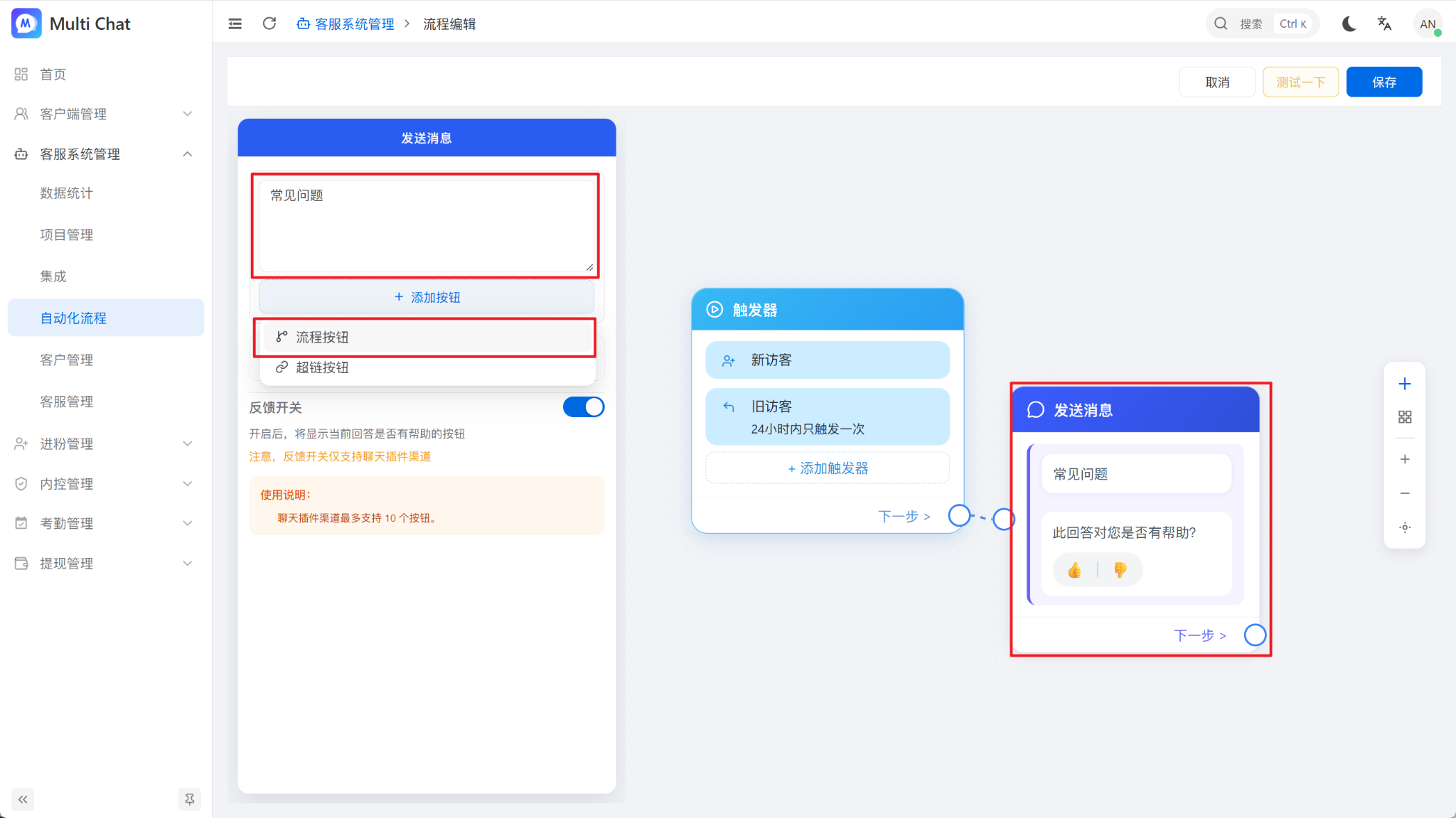
- Select the Send Message card and edit the prompt.
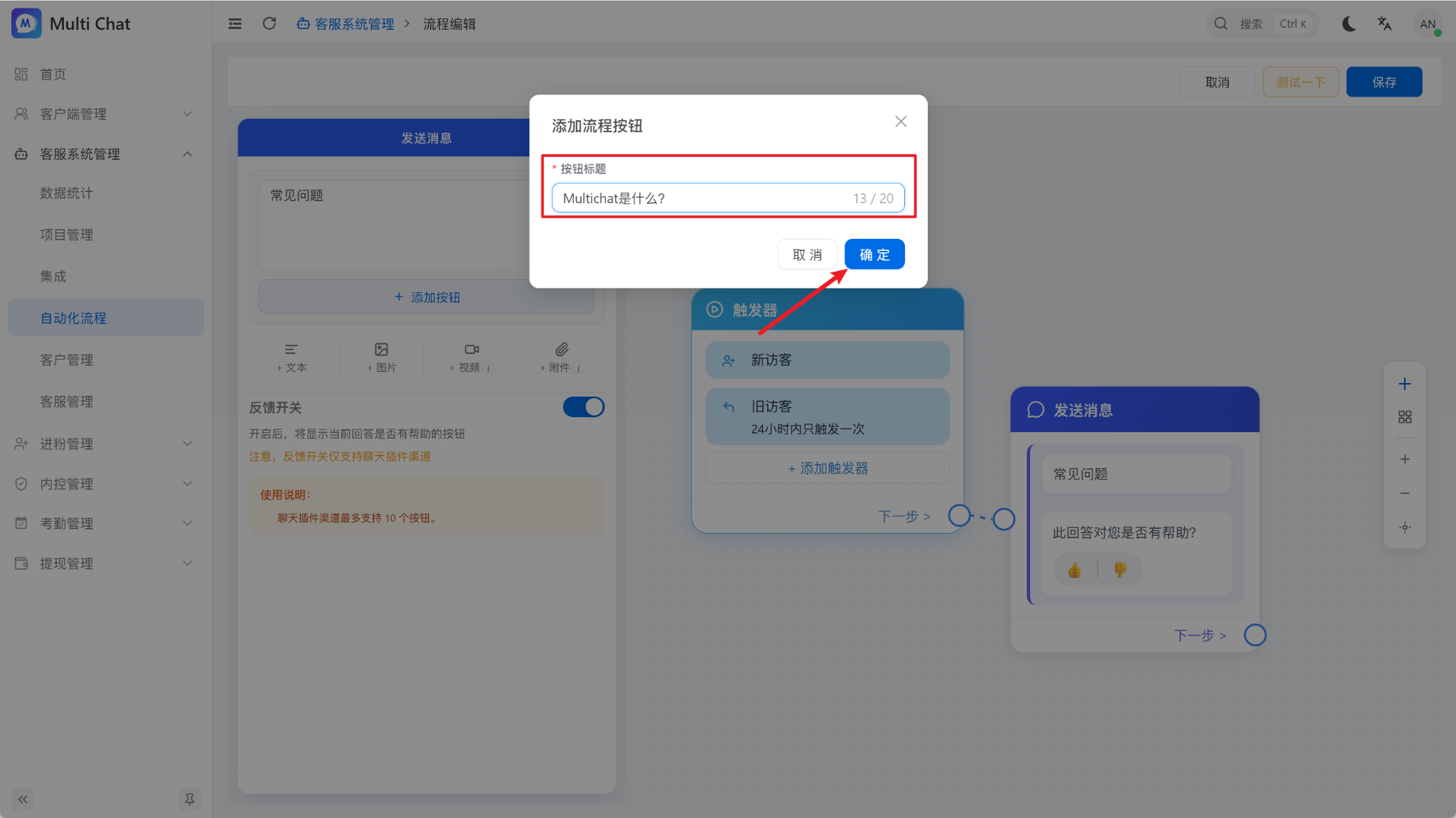
- Click “Add Button”.
- Select “Flow Button”.
- Enter the button label and confirm. A message can contain multiple question buttons.
4. Add and connect answer nodes
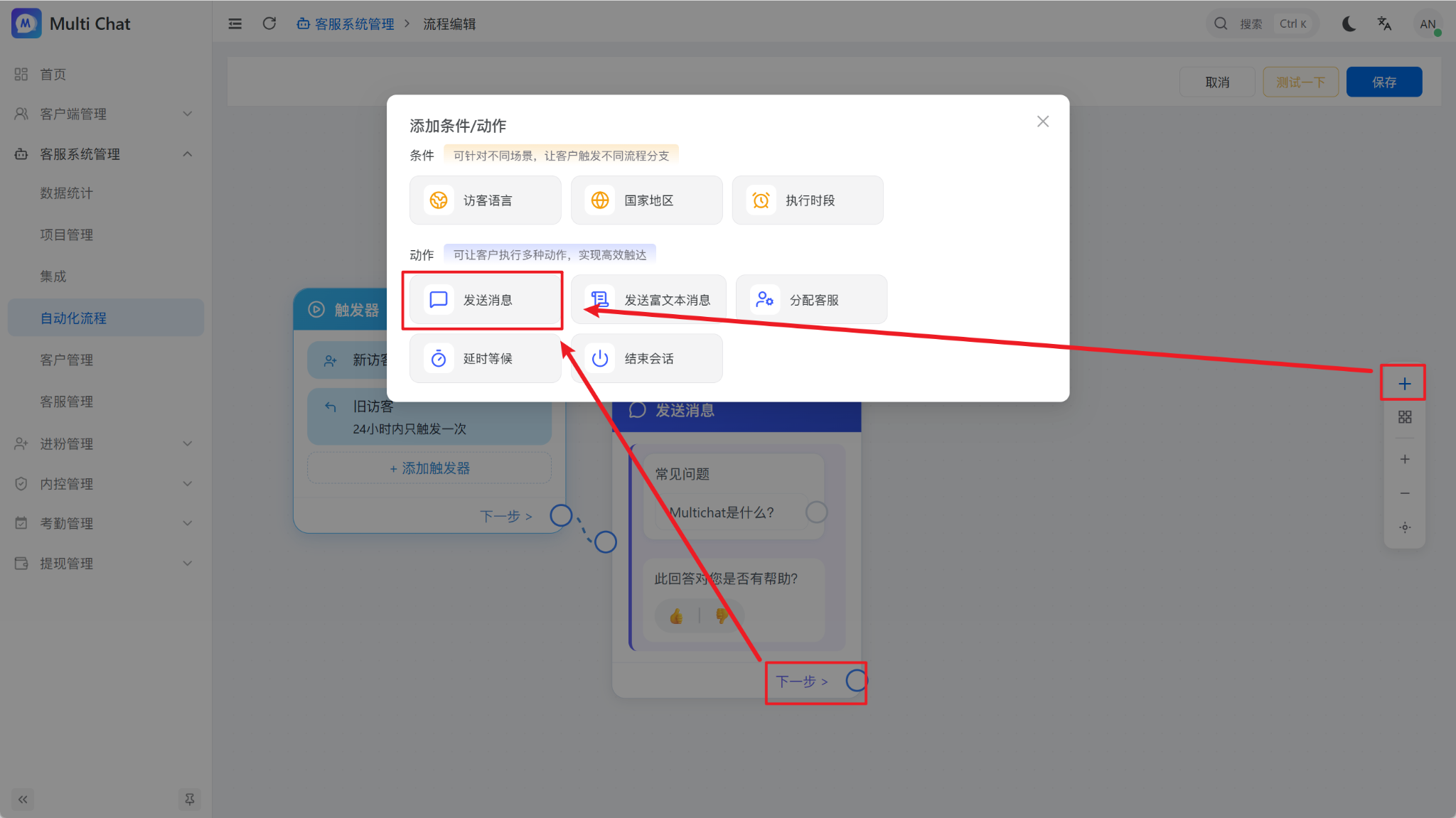
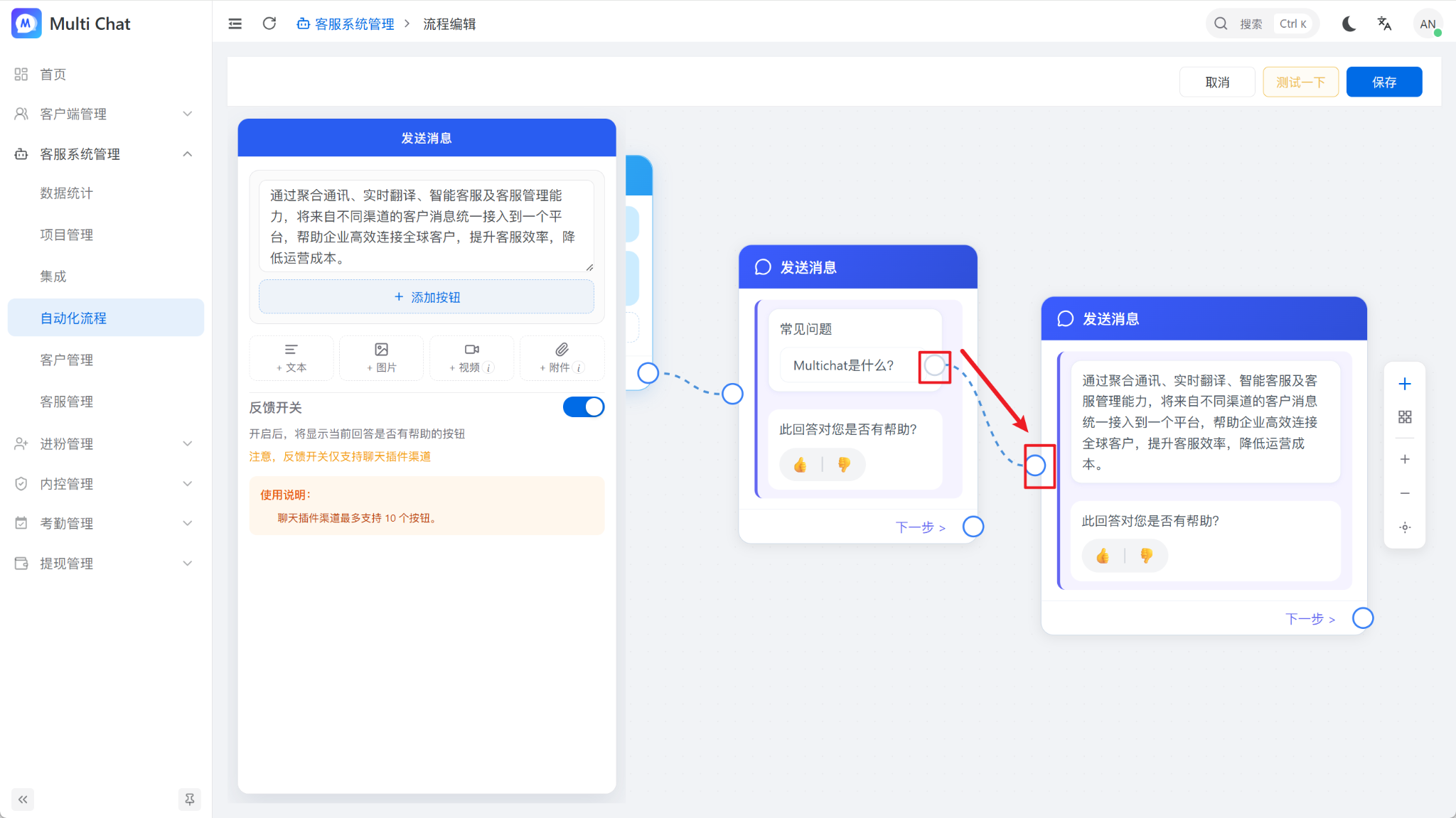
Click Next or the “+” beside the node, add another Send Message node, connect each question button to its answer, and edit the answer text.
5. Save, bind, and test
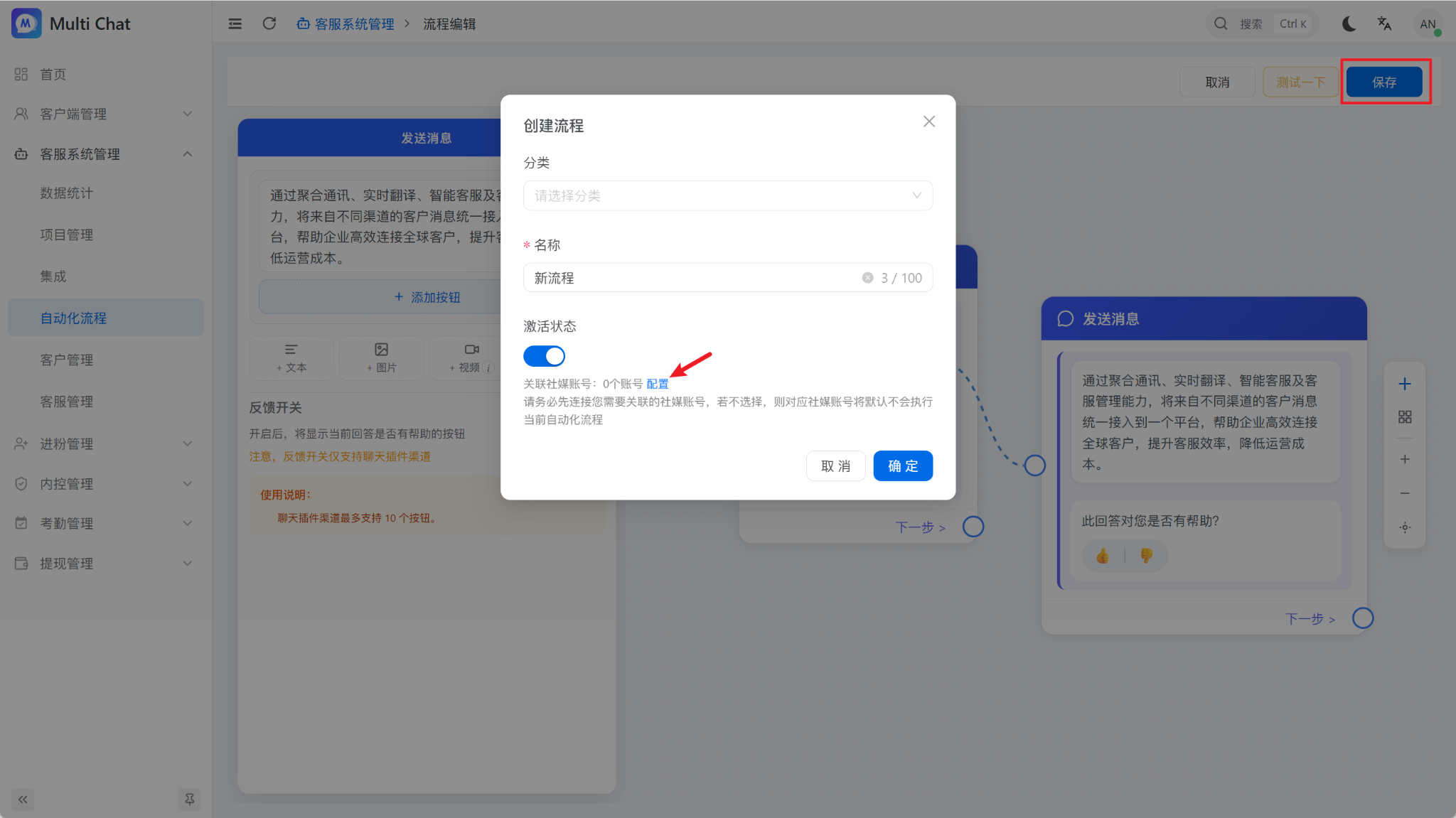
Save the flow, bind it to the target chat plugin, and use the plugin preview to test every button.
TIP
Keep each button focused on one short question. Split long answers into multiple messages for easier reading.