
Chat Widget Entry Integration
MultiChat chat widgets support custom entry styles and chat window content. Based on the needs of your website or app, you can configure the customer service entry's position and size, quick links, promotional carousels, and FAQs so visitors can quickly find the services and information they need.
1. Open Entry Integration Settings
- Sign in to the MultiChat admin console.
- Go to Settings → Channels → Chat Widget.
- Find the chat widget you want to configure and click Edit.
- Find Entry Integration and configure the features you need.
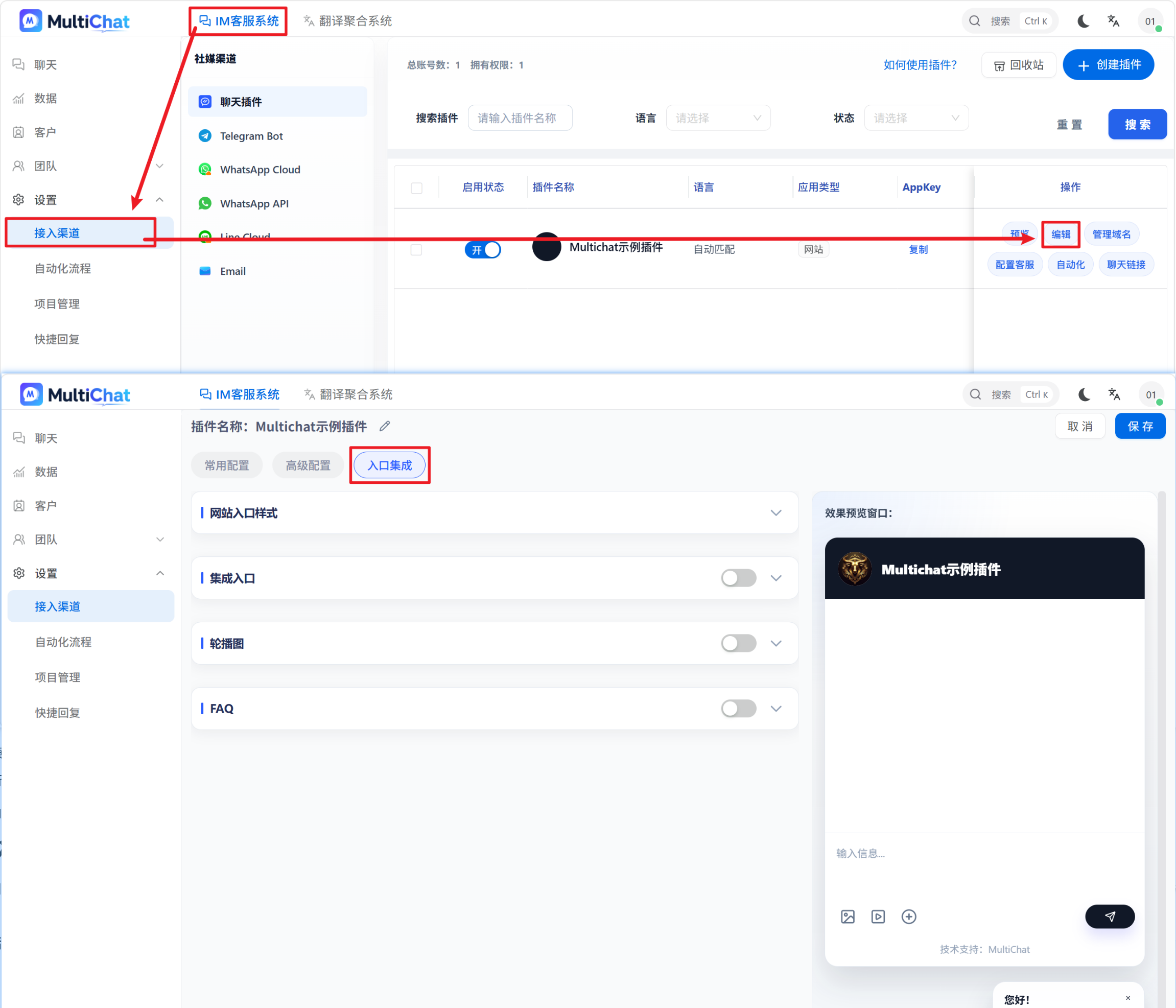
Entry Integration contains four main sections:
- Website entry style: Configure how the customer service entry appears on your website.
- Integrated entry: Add quick links to the chat window.
- Carousel: Display platform campaigns, announcements, and promotional content.
- FAQ: Display frequently asked questions so visitors can quickly find answers.
2. Website Entry Style
Website entry style controls how the chat widget appears on a website. You can customize the customer service entry based on your site's layout and business needs.
Available settings include:
- Show widget icon: Show or hide the customer service entry.
- Entry and chat window position: Display the customer service entry on the left or right side.
- Position and size: Adjust the display size of the customer service entry.
- Collapsed entry icon: Customize how the customer service entry appears using the options available on the page.
If you do not want to display the default customer service entry on the website, you can hide it and use the API to open the chat window instead.
For example, you can design a Contact Support button on your website and use the API to open the MultiChat chat window when a visitor clicks it. See the integration guide for instructions.
3. Integrated Entry
Integrated Entry adds quick navigation options to the chat window so visitors can open specified pages directly.
For example:
- Top-up center: Open the top-up page.
- Withdrawal center: Open the withdrawal page.
- Campaign center: View the platform's latest campaigns.
- Help center: View tutorials or frequently asked questions.
You can customize each entry and its destination URL based on your business needs.
Configuration steps:
- Find Integrated Entry under Entry Integration.
- Add the quick entries you want to display.
- Set the entry name and corresponding destination URL.
- Save the configuration.
After configuration, visitors can click an entry in the chat window to open the specified page.
4. Carousel
The carousel displays promotional content in the chat window and is suitable for campaigns, special offers, platform introductions, and similar content.
You can upload promotional images and set a destination URL for each image. When a visitor clicks a carousel image, the specified page opens.
Common use cases:
- Promote the platform's latest campaigns
- Introduce top-up offers and benefits
- Announce new features
- Introduce platform services and products
Configuration steps:
- Find Carousel under Entry Integration.
- Add the promotional images you want to display.
- Add a destination URL for each image as needed.
- Save the configuration.
After configuration, the promotional images appear as a carousel in the chat window.
Tip: Use clear, appropriately sized promotional images and update campaign content regularly so expired information is not displayed.
5. FAQ
FAQ displays questions that visitors frequently ask in the chat window sidebar. It helps visitors find answers quickly and reduces repetitive replies from agents.
You can configure questions and their answers in advance. When a visitor clicks a question, the system automatically displays the preset answer without requiring an agent to reply manually.
Example:
Question: How do I top up my account?
Answer: Open the platform's top-up center, select a top-up amount and payment method, then follow the on-screen instructions to complete the top-up.
Question: How long does a withdrawal take?
Answer: The arrival time depends on the platform's withdrawal rules. If the funds do not arrive after an extended period, contact customer service for assistance.
Configuration steps:
- Find FAQ under Entry Integration.
- Add the frequently asked questions you want to display.
- Enter each question title and its corresponding answer.
- Save the configuration.
After configuration, visitors can view the FAQs in the chat window sidebar and click a question to display its answer.
Tip: Prioritize the questions visitors ask most frequently. Keep the answers accurate and concise so visitors can understand them quickly.
6. Notes
- Every Entry Integration feature is optional. Configure only the features your business needs.
- If you hide the website's default customer service entry, provide another way to open the chat so visitors can still find customer service.
- When adding destination URLs to integrated entries or carousel images, confirm that every URL is accessible.
- FAQs work best for common, repetitive questions. Agents can continue to handle more complex questions.
- After changing the configuration, open the corresponding chat widget and test the entry style, destination URLs, carousel, and FAQs.