
How to Enable Message Notifications
MultiChat supports desktop and sound notifications. When a new message arrives, the system can alert agents with a desktop pop-up or notification sound so they do not miss customer messages.
Agents can turn notifications on or off based on their needs and set the sound notification interval to reduce interruptions from frequent alerts.
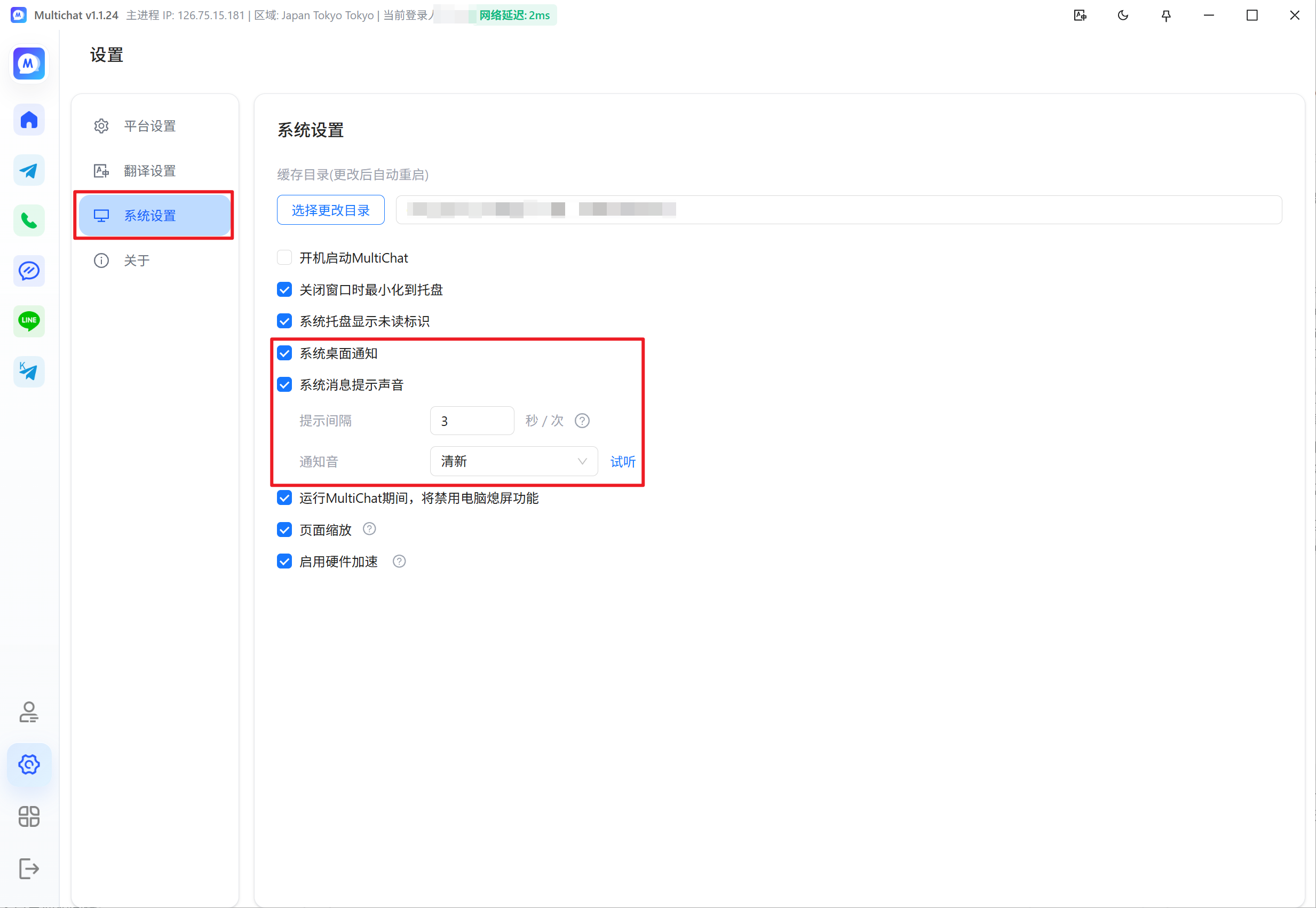
1. Enable Message Notifications in the Desktop Client
- Open the MultiChat desktop client.
- Click Settings in the lower-left corner.
- Open System Settings.
- Select Desktop Notifications and Sound Notifications to enable the corresponding alerts.
- System desktop notifications: Display a notification on the computer desktop when a new message arrives.
- System message notification sound: Play a sound when a new message arrives.
2. Enable Message Notifications in the Web App
- Sign in to the MultiChat web app.
- Click Personal Information in the lower-left corner.
- Find Notification Settings.
- Click Enable Browser Permissions and allow the browser to send notifications.
- Select Desktop Notifications and Sound Notifications to enable the corresponding alerts.
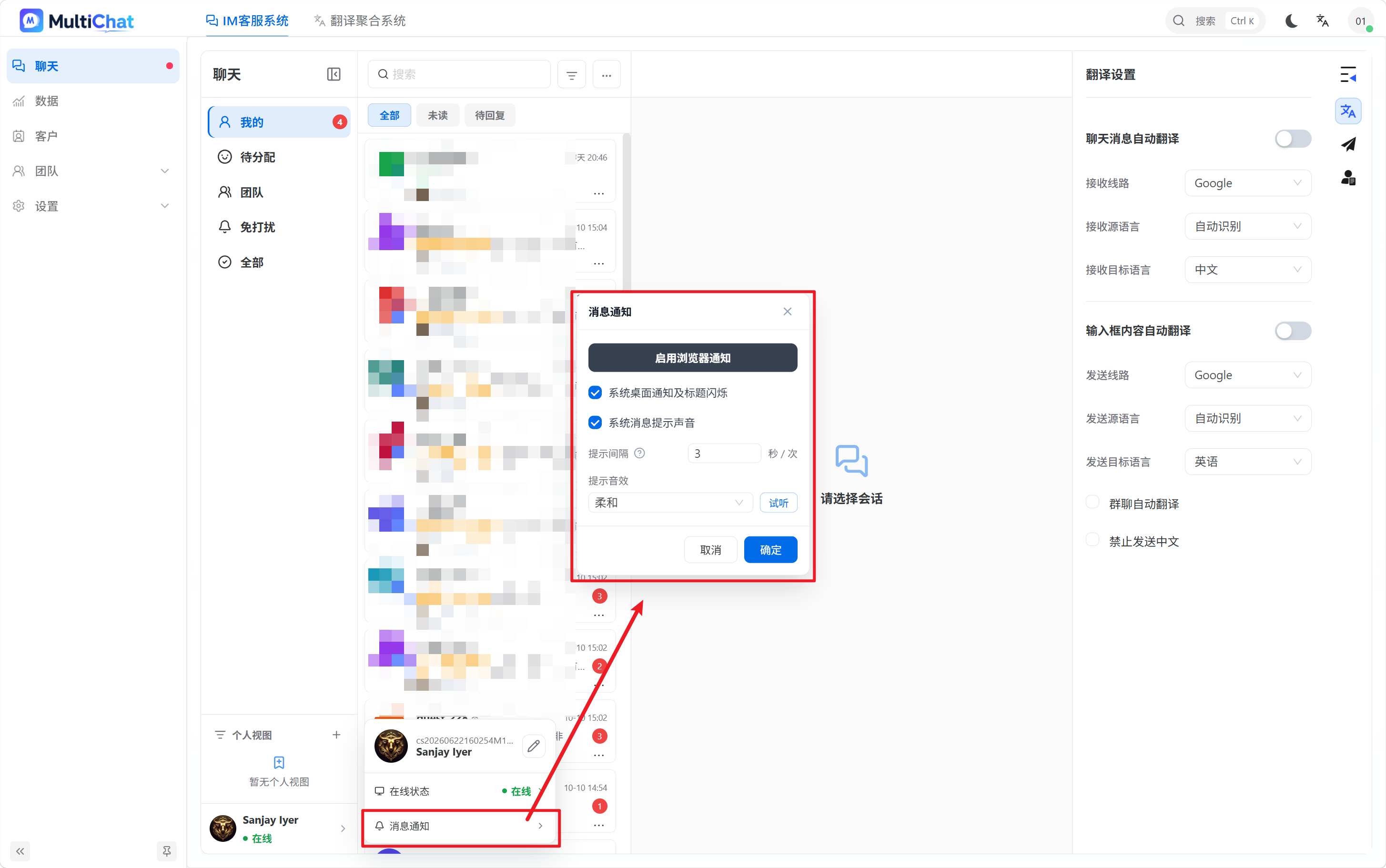
Note: Desktop notifications in the web app require browser notification permission. If the browser blocks notifications, alerts may not appear even when the desktop notification switch is enabled.
3. Set the Sound Notification Interval
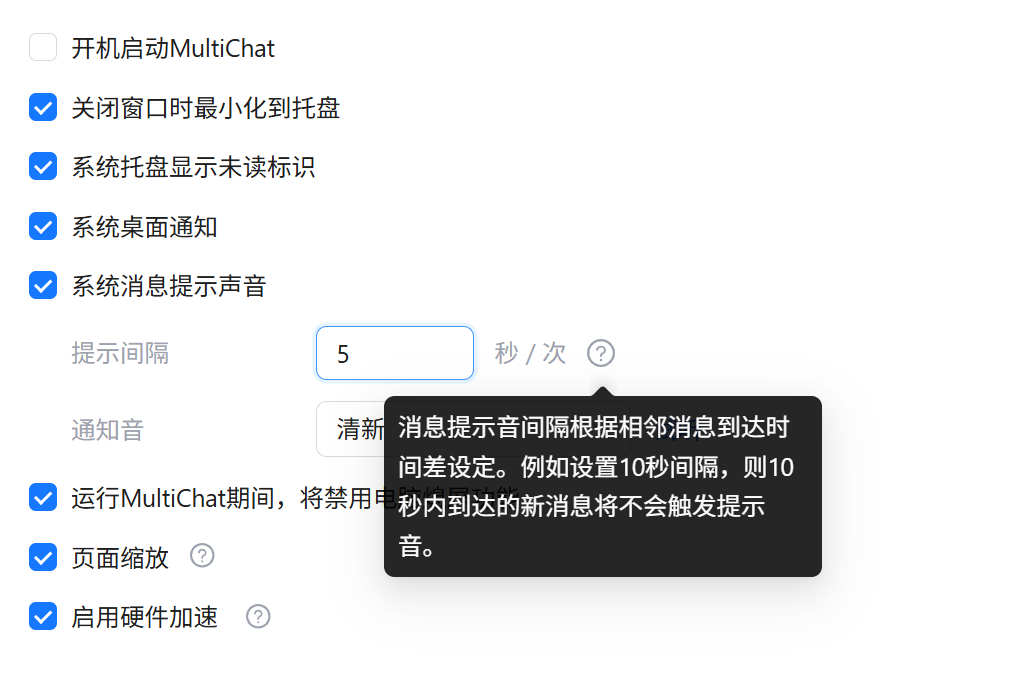
To prevent notification sounds from playing continuously when many messages arrive, MultiChat lets you customize the sound notification interval.
For example, set the sound notification interval to 3 seconds.
- The system plays a notification sound when the first message arrives.
- If other new messages arrive within 3 seconds after the sound plays, the sound will not play again.
- After 3 seconds, the system will play the sound again when another new message arrives.
Agents can adjust the notification interval based on their actual message volume.
- Low message volume: Use a shorter interval to stay informed about every new message.
- High message volume: Use a longer interval to avoid overly frequent notification sounds.
4. Notes
- The notification settings are located in different places in the desktop client and web app. Follow the steps for the version you use.
- The web app requires browser notification permission for desktop notifications to work correctly.
- The sound notification interval controls only how often sounds play; it does not affect the receipt of new messages.
- Agents who receive many messages should use a longer sound notification interval to reduce interruptions from frequent alerts.