
Pre-chat Survey Overview
1. What Is a Pre-chat Survey?
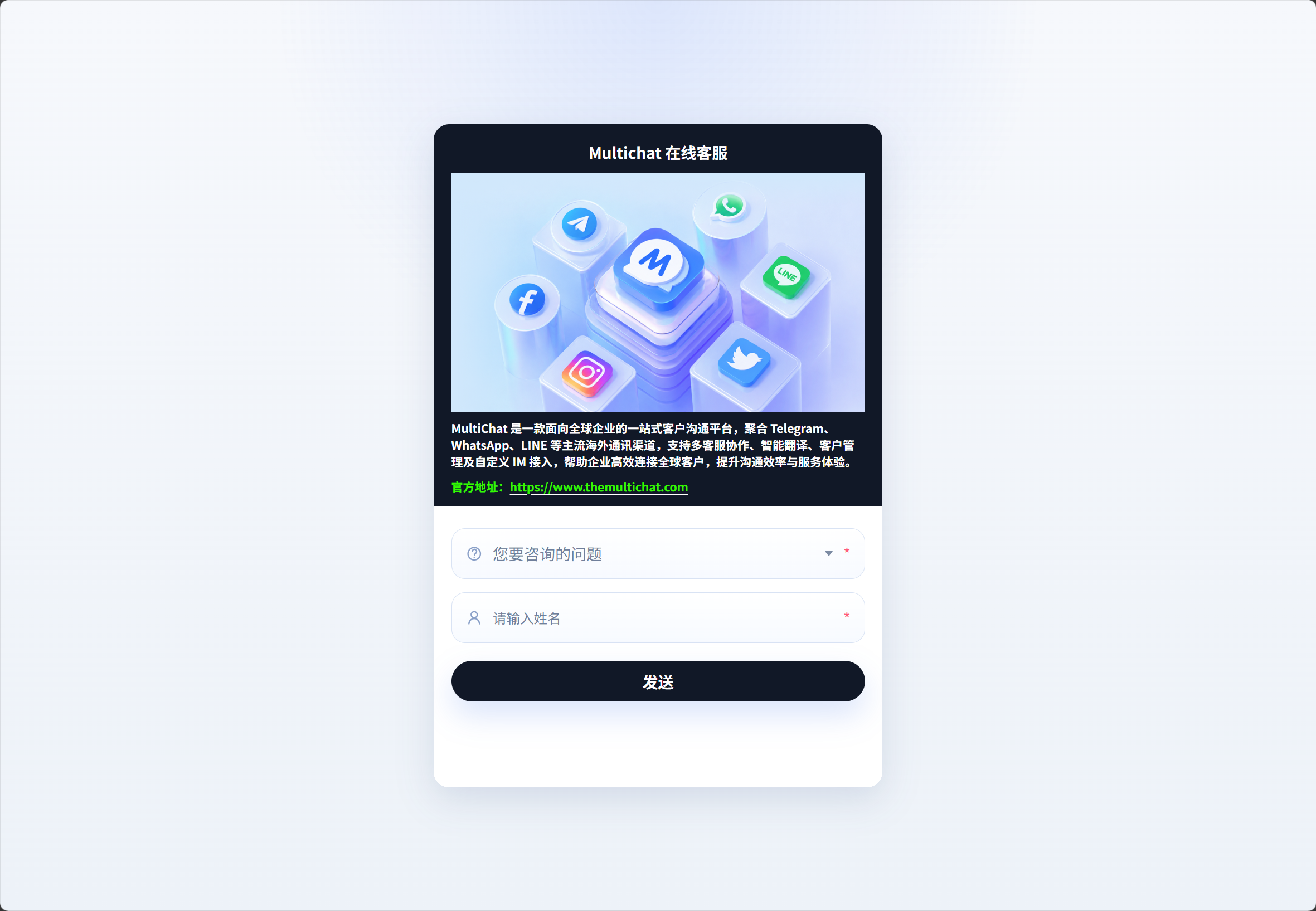
A pre-chat survey displays a merchant-defined survey page before a visitor starts a conversation through a chat widget or chat link. The visitor completes the requested information before entering the agent chat page.
Merchants can configure fields such as name, contact details, and inquiry type. Rich text can also be used to display campaigns, promotional offers, service announcements, and other information.
You can also define inquiry options and assign a specific agent to each option. After a visitor chooses an option, the system routes the conversation to the configured agent, reducing manual transfers.
The system also tracks how often each inquiry type is selected and how the numbers change over time. This helps administrators understand the main reasons customers contact support and quickly identify unusual business trends.
2. How Do I Configure a Pre-chat Survey?
1. Open the Chat Widget Editing Page
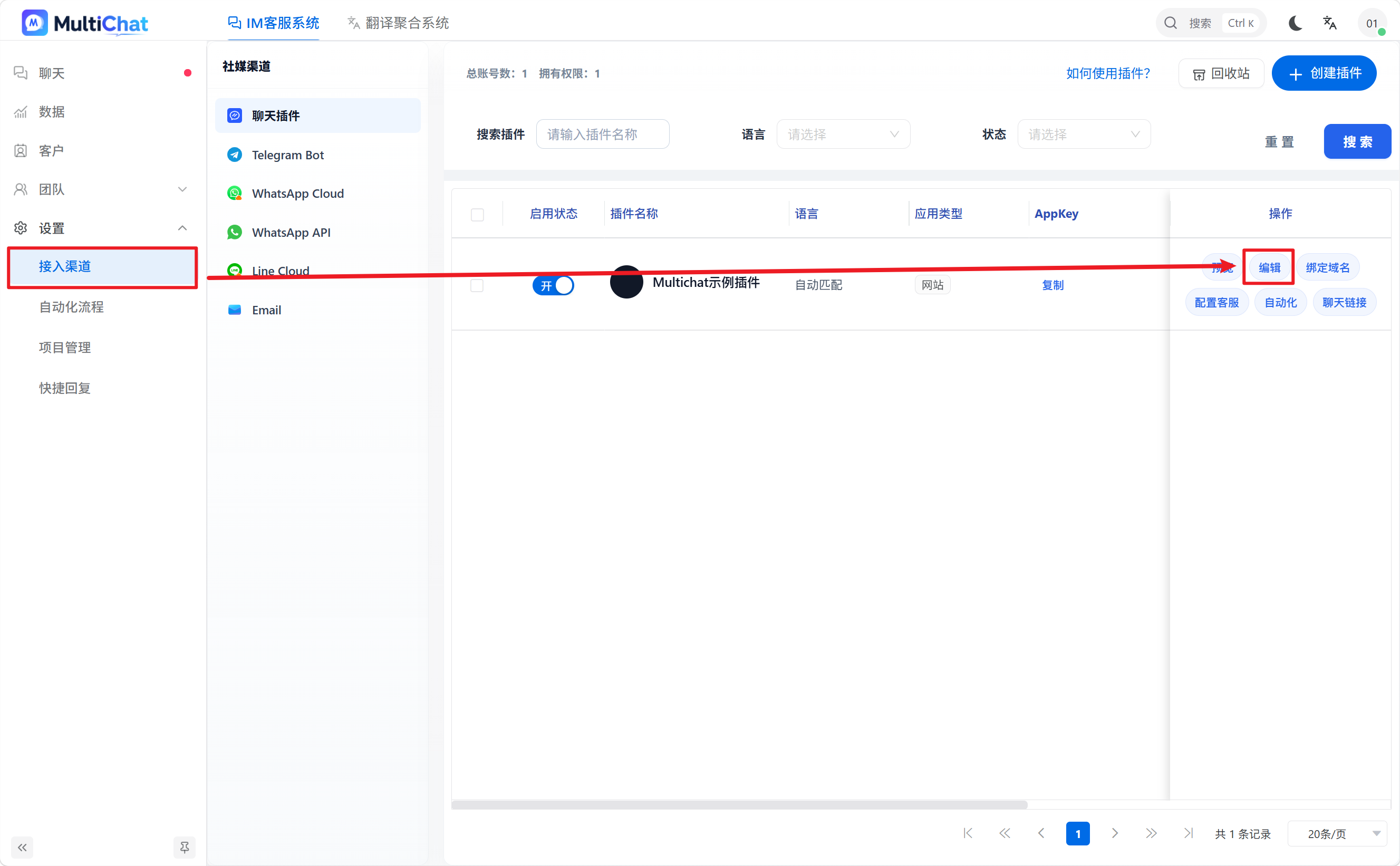
Go to Channels → Chat Widget, find the widget you want to configure, and click Edit.
2. Enable the Pre-chat Survey
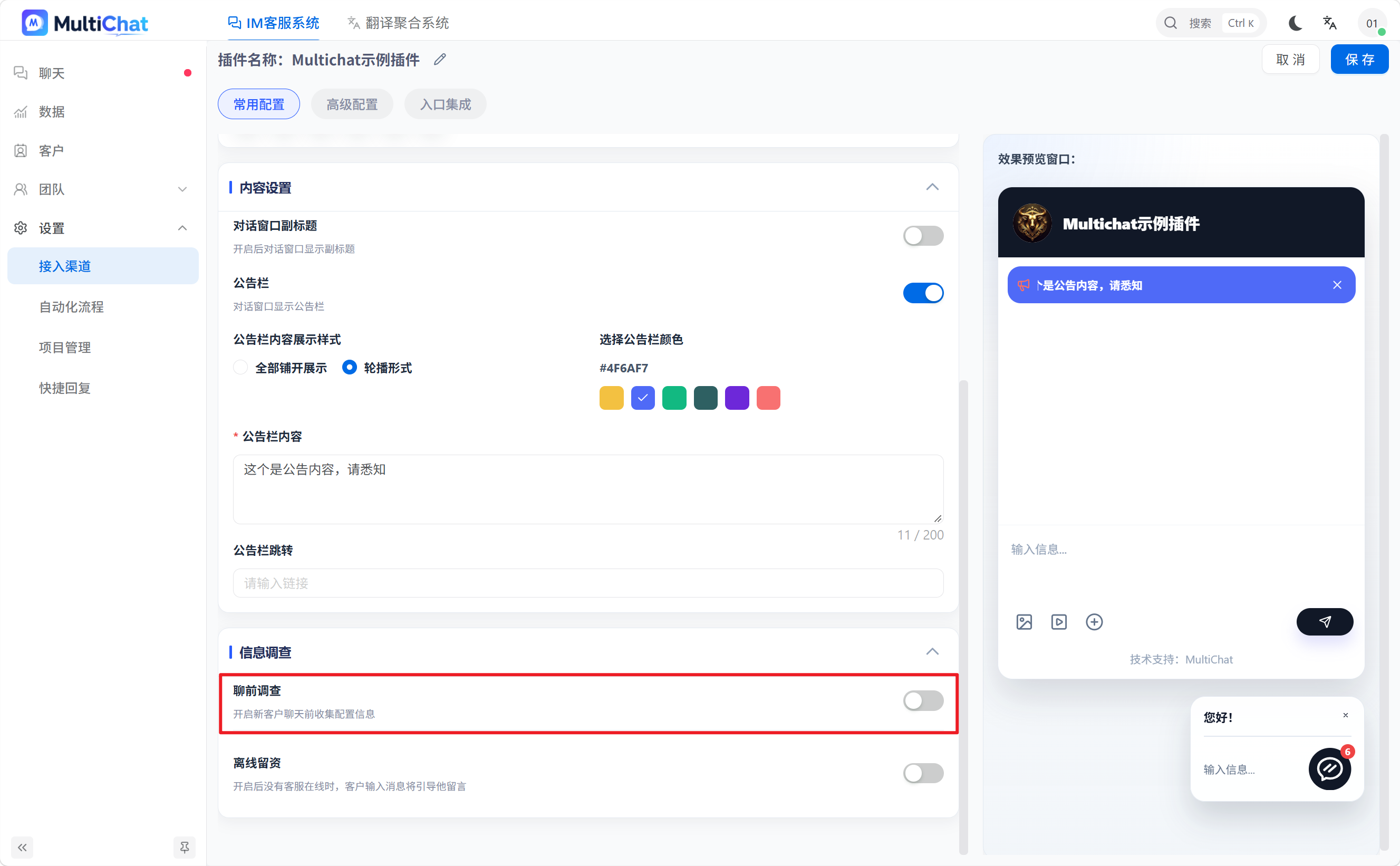
Scroll down on the widget editing page, locate the Pre-chat Survey switch, and turn it on.
3. Configure the Form Introduction and Instructions
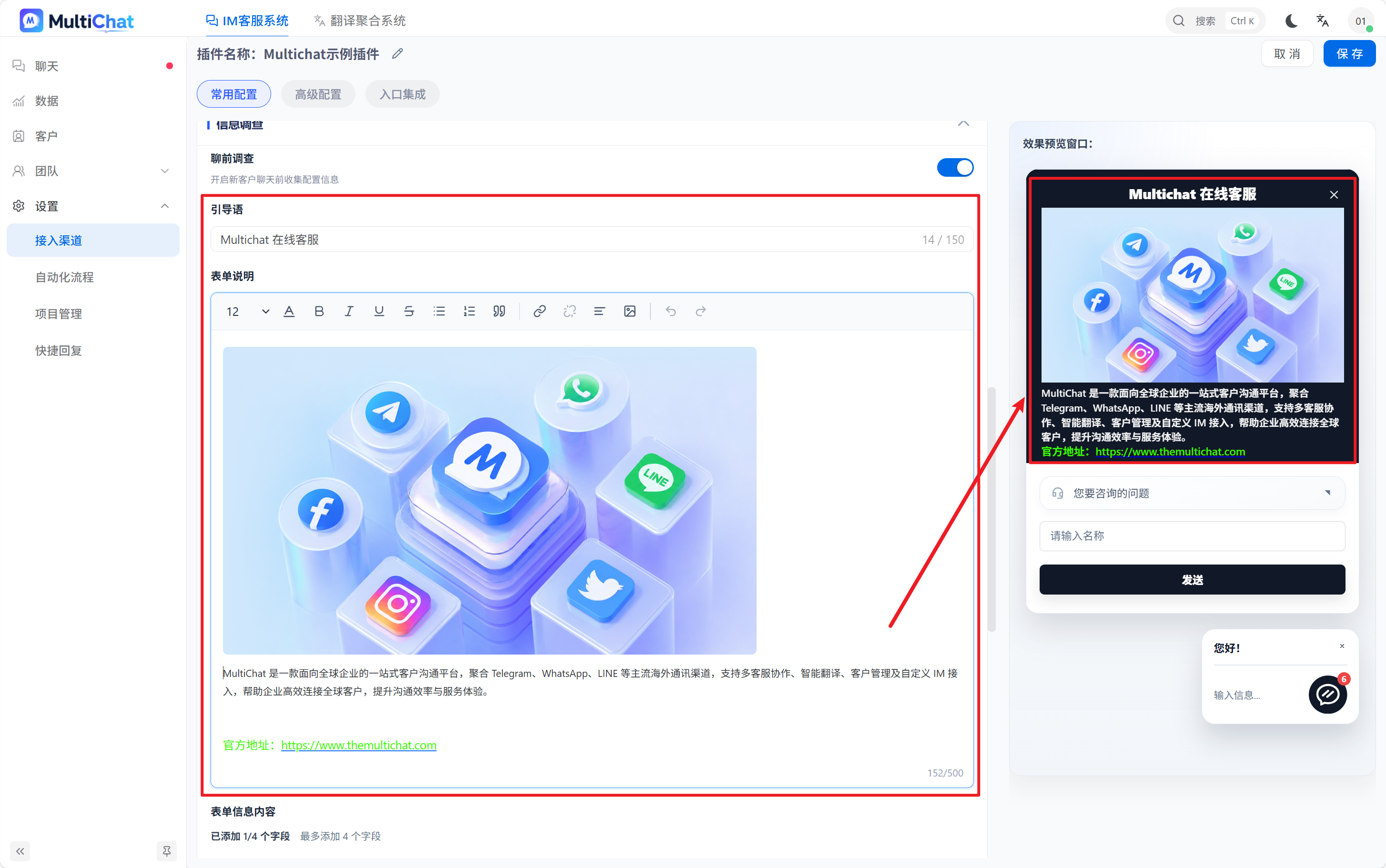
You can add campaign details, promotional offers, service announcements, and other information as needed.
For example:
- Latest platform campaign information
- Promotional top-up announcements
- Agent working hours
- Frequently asked questions and help links
Once configured, visitors can view this information before entering the chat page.
4. Configure the Survey Form
Add the information visitors need to provide, such as their name, email address, and phone number.
The merchant controls the form fields. We recommend collecting only necessary information so the form does not interfere with the visitor's support experience.
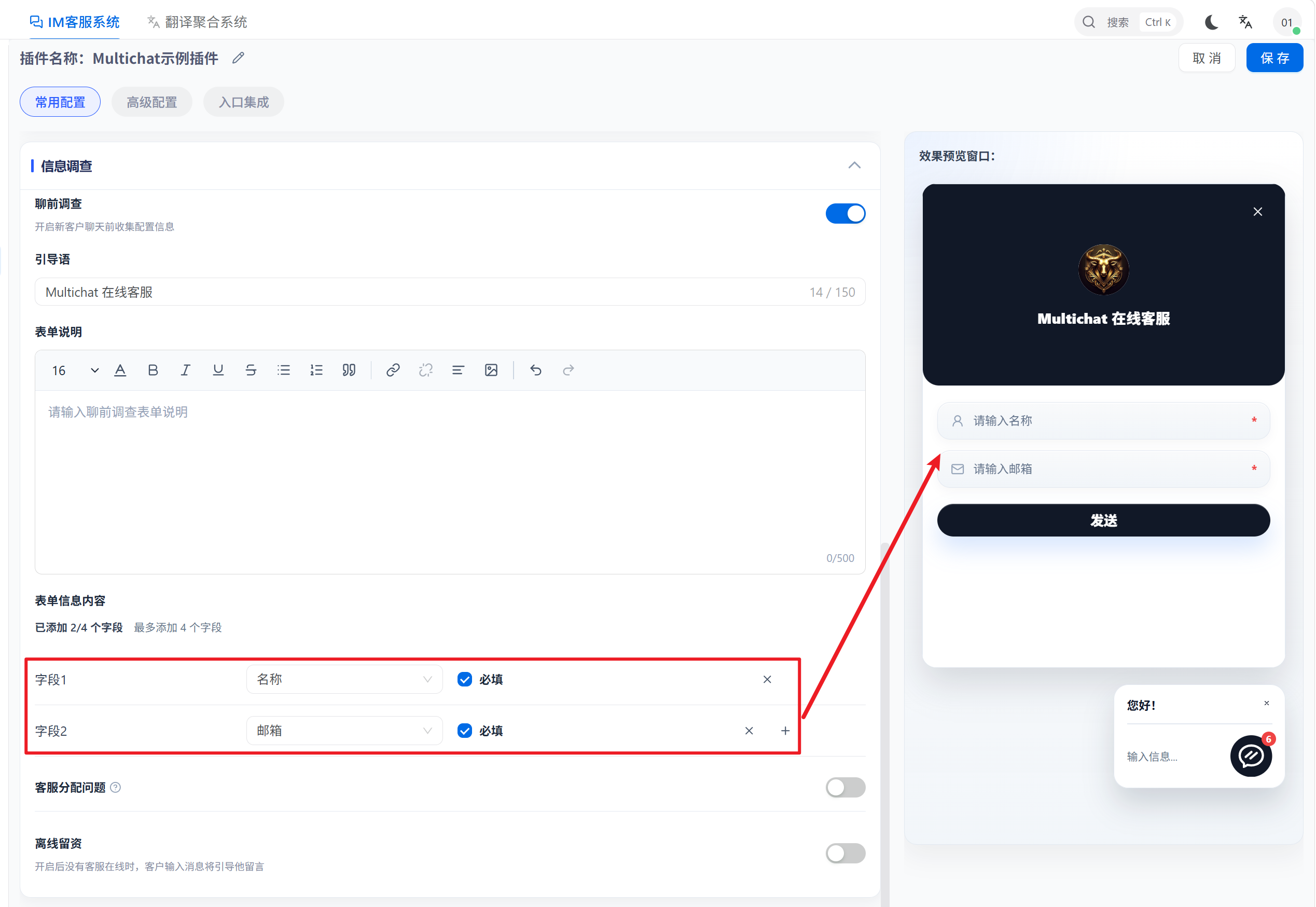
4.1 Add Custom Fields (Optional)
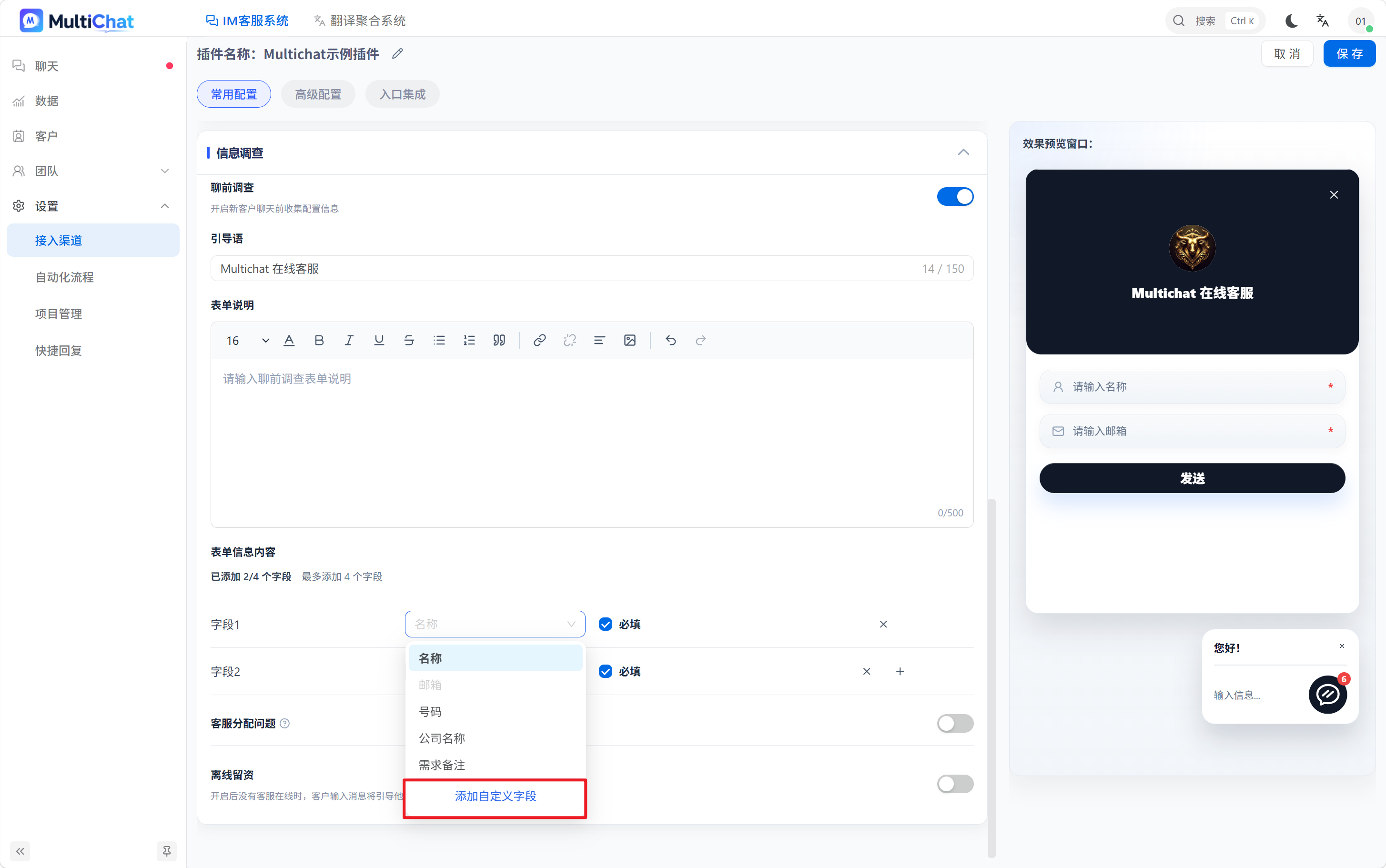
The form provides five default fields: Name, Phone Number, Email, Company Name, and Requirement Notes. If these fields do not meet your needs, add custom fields such as language, user ID, or order number.
Steps:
- On the pre-chat survey configuration page, click Add Custom Field. The system opens the Custom Fields management page.
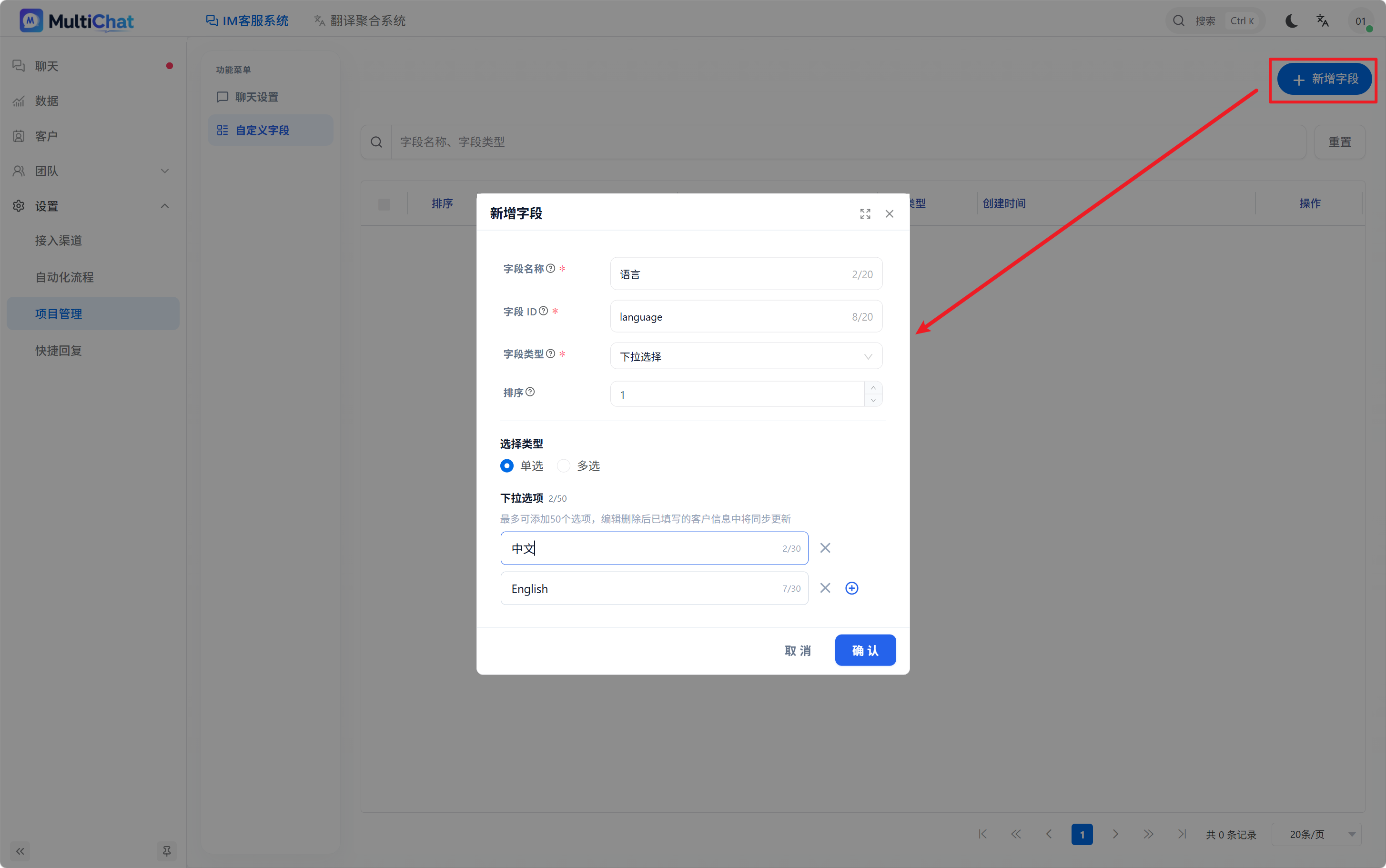
- Click Add Custom Field in the upper-right corner, then enter the field name and related settings. For example, to collect a visitor's language, create a field named “Language” and click Save.
- Return to the chat widget editing page, reopen the Pre-chat Survey settings, and select the custom field you just created from the field list.
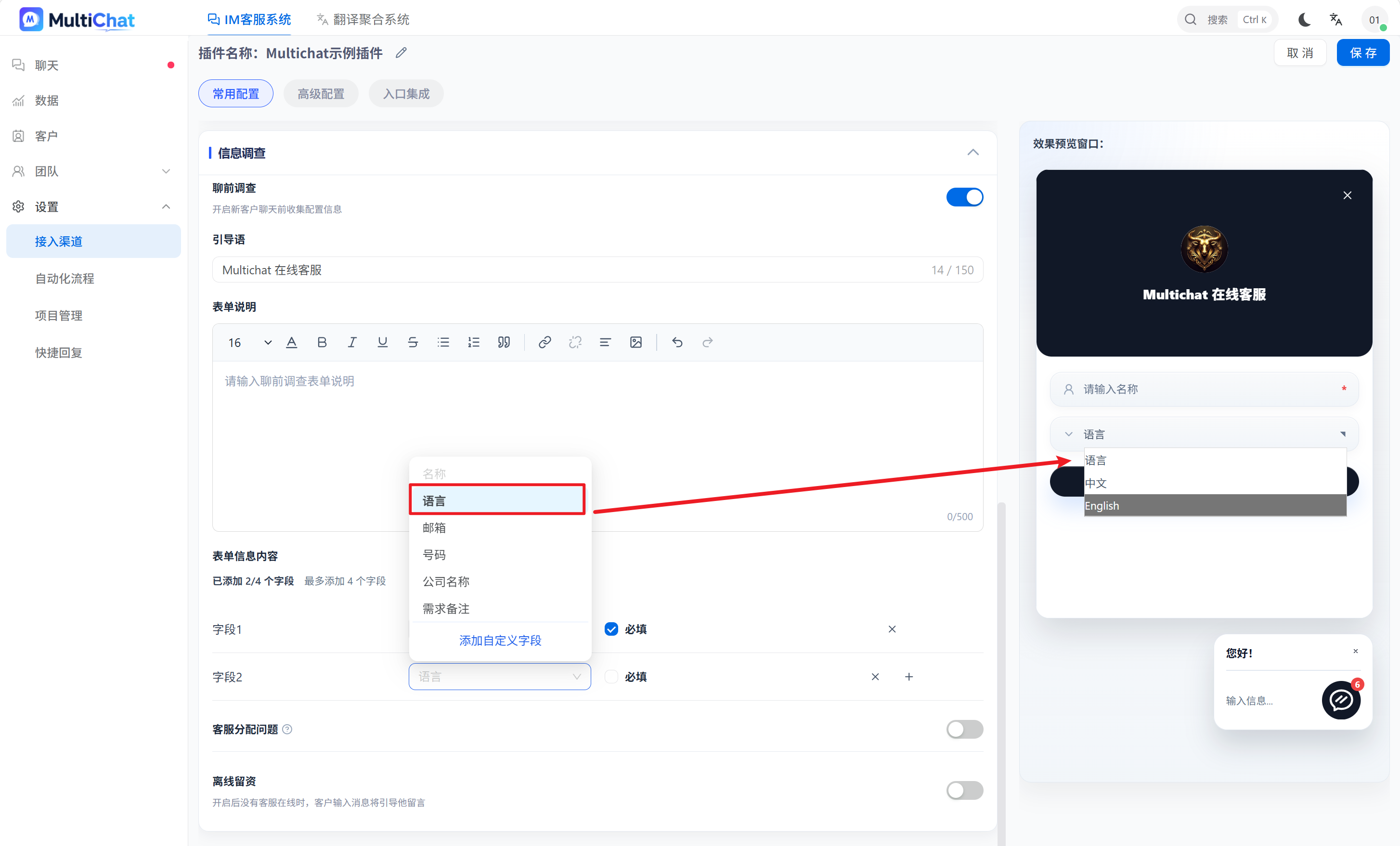
- Save the pre-chat survey settings. The new field will then appear for visitors to complete before they enter the chat page.
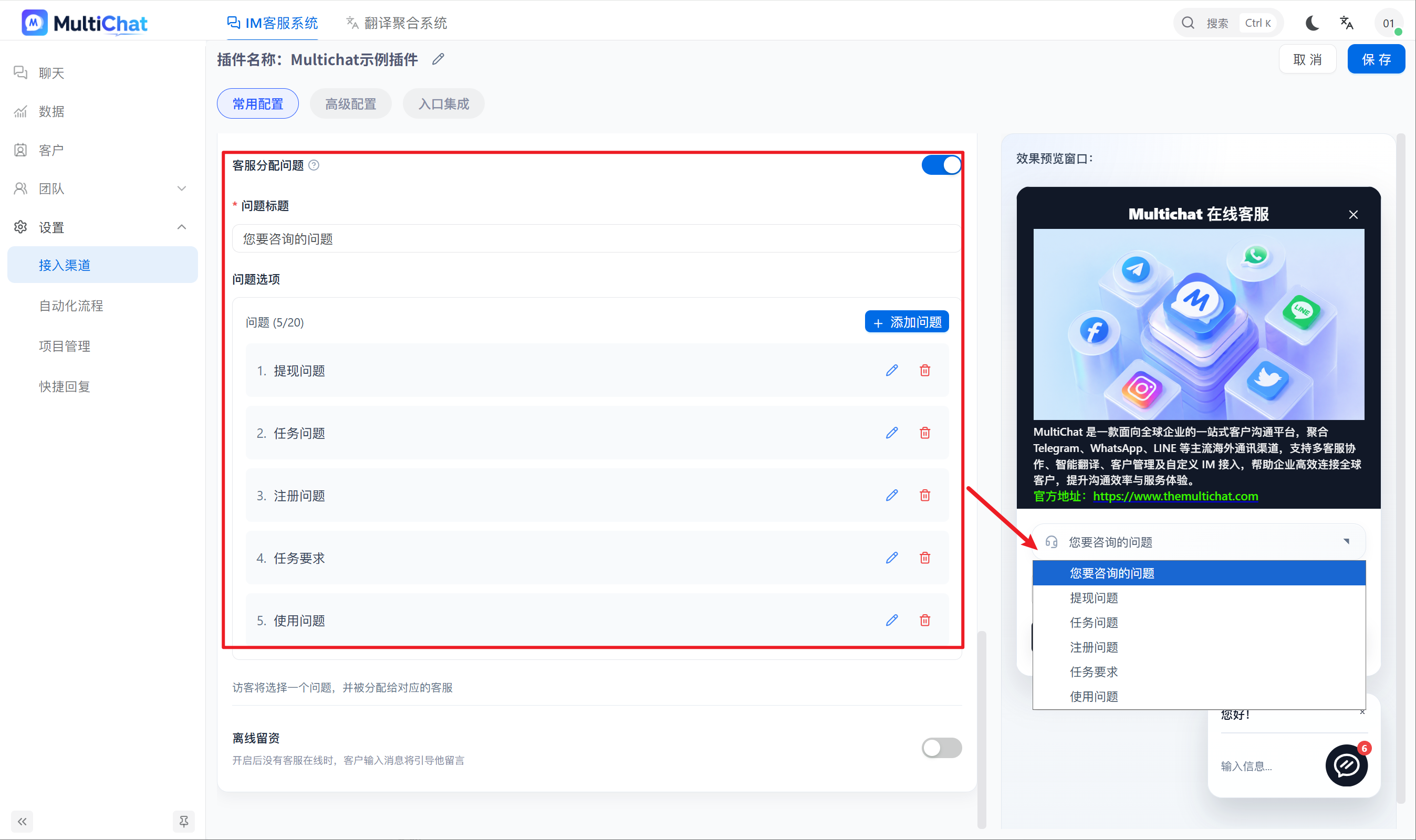
5. Configure an Agent Assignment Question (Optional)
Scroll down to Agent Assignment Question and configure the following items based on your needs:
- Agent assignment question: Enable the question that visitors must answer.
- Question title: Enter the question shown to visitors, such as “Please select the type of issue you need help with.”
- Question options: Enter the available answers, such as “Top-up issue,” “Withdrawal issue,” and “Account issue.”
You can bind a different agent to each option so that the conversation is automatically assigned after the visitor makes a selection.
Note: The options in the agent assignment question are used in pre-chat survey statistics. The system records how often each option is selected.
4. How Do I View Pre-chat Survey Statistics?
Go to Data → Pre-chat Survey Statistics to view how often each option is selected and how the numbers change over time. See Pre-chat Survey Statistics.
For example, if only 10 visitors normally select “Top-up issue” each day but the number suddenly rises to 100, an administrator can promptly check whether the top-up function has a problem.
Notes:
- Statistics rule: Each pre-chat survey question creates a corresponding statistics record that tracks how often each option is selected.
- Effect of changes: Editing the title or options of an existing question creates a new statistics record. New data is counted under the new record.
- Recommendation: Decide on the question title and options in advance. Avoid frequent changes that split the statistics across multiple records.
Pre-chat survey statistics can help identify business trends, but they do not represent the number of confirmed faults.
5. Notes
- Pre-chat surveys apply only to chat widgets and their corresponding chat links when this feature is enabled.
- The survey form and rich-text promotional content can be configured according to the merchant's business needs.
- Keep the form short and clear. Too many fields may negatively affect the visitor's support experience.
- To assign agents by inquiry type, configure the appropriate question options and receiving agents in advance.
- Changing a question title or option used for statistics may create a new statistics record. Keep statistical questions stable whenever possible.