
Connect an Email Channel
Connect your business email to MultiChat so customer emails arrive in the IM customer service workspace. Agents can read and reply to messages without switching between email clients.
1. Add an email account
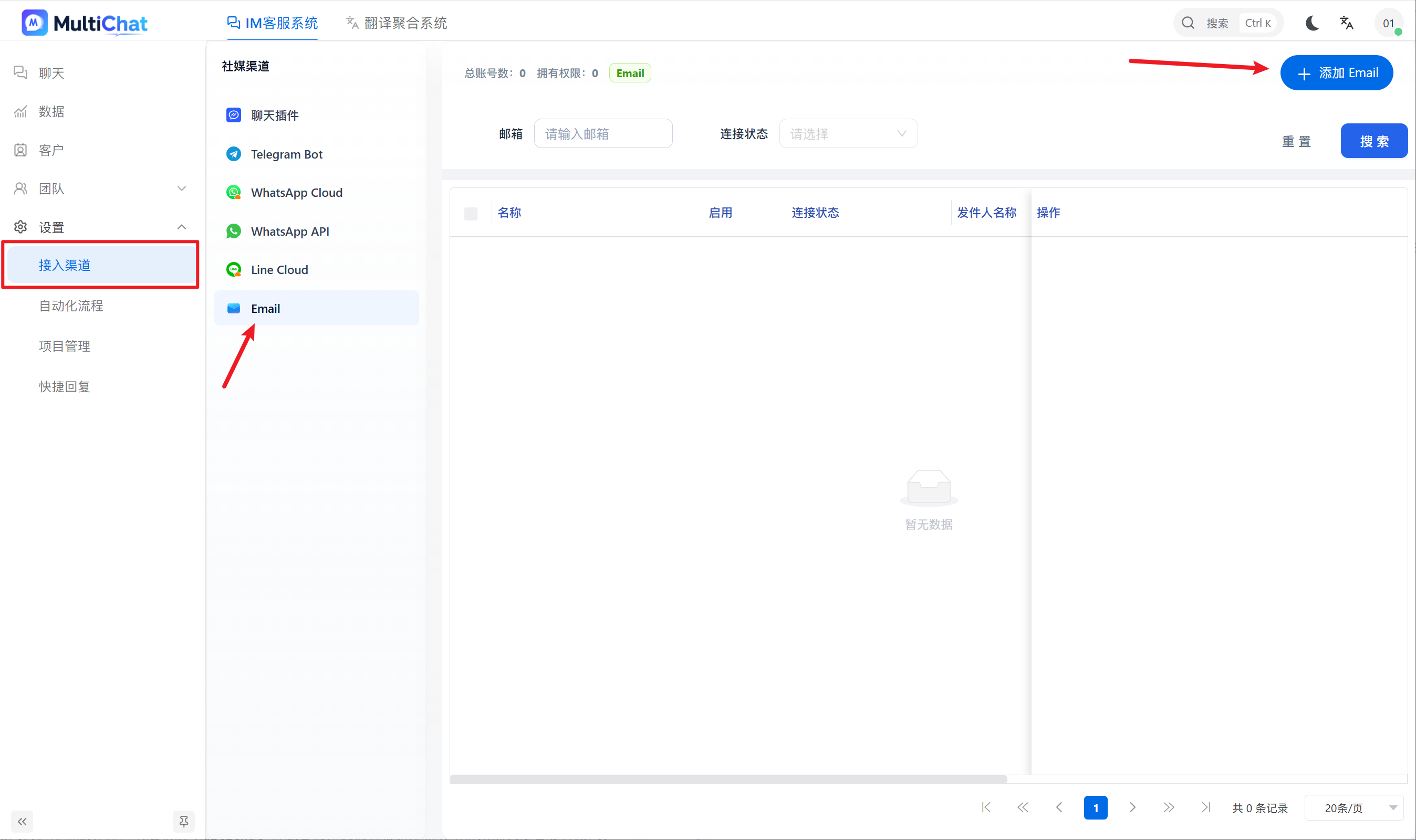
- Sign in to the MultiChat admin panel.
- Go to Settings → Channels → Email.
- Click Add Email.
- Enter the required mailbox information.
Configuration details vary by email provider.
2. Choose an incoming-mail mode
MultiChat supports two connection modes:
1. Forwarding mode
New messages are automatically forwarded to MultiChat. This mode is faster, but you must configure forwarding rules and provide IMAP/SMTP information. Messages with attachments may take longer if delivery is retried.
Choose this mode when fast delivery is important.
2. Synchronization mode
MultiChat connects to the mailbox through IMAP and checks for new messages periodically. Setup is simpler, but new messages may be delayed by about two minutes and IMAP must be enabled.
Choose this mode when real-time delivery is not essential.
For faster delivery, use Forwarding. For simpler setup, use Synchronization.
3. Complete the email configuration
Enter the email address, authorization information, and other required settings, then save. The email channel will be connected after validation succeeds.
[Image: Email configuration page]
4. Test sending and receiving
- Send a test message to the connected mailbox from another email account.
- Confirm that it appears in MultiChat.
- Reply from MultiChat.
- Confirm that the reply reaches the other mailbox.
If both directions work, the email channel is ready. Authorization methods vary by provider.
5. Provider setup guides
- Alibaba Cloud Enterprise Mail setup guide
- Connect QQ Mail
- Connect Zoho Mail
- Contact the MultiChat team if you need assistance