Connect WhatsApp Cloud
Connect WhatsApp Cloud to manage WhatsApp conversations in the MultiChat workspace.
Before connecting
- WhatsApp is installed and signed in on the phone.
- The phone can scan QR codes. Use a regular device to reduce disconnections.
- Your MultiChat account has an available WhatsApp cloud-device quota.
1. Add a device
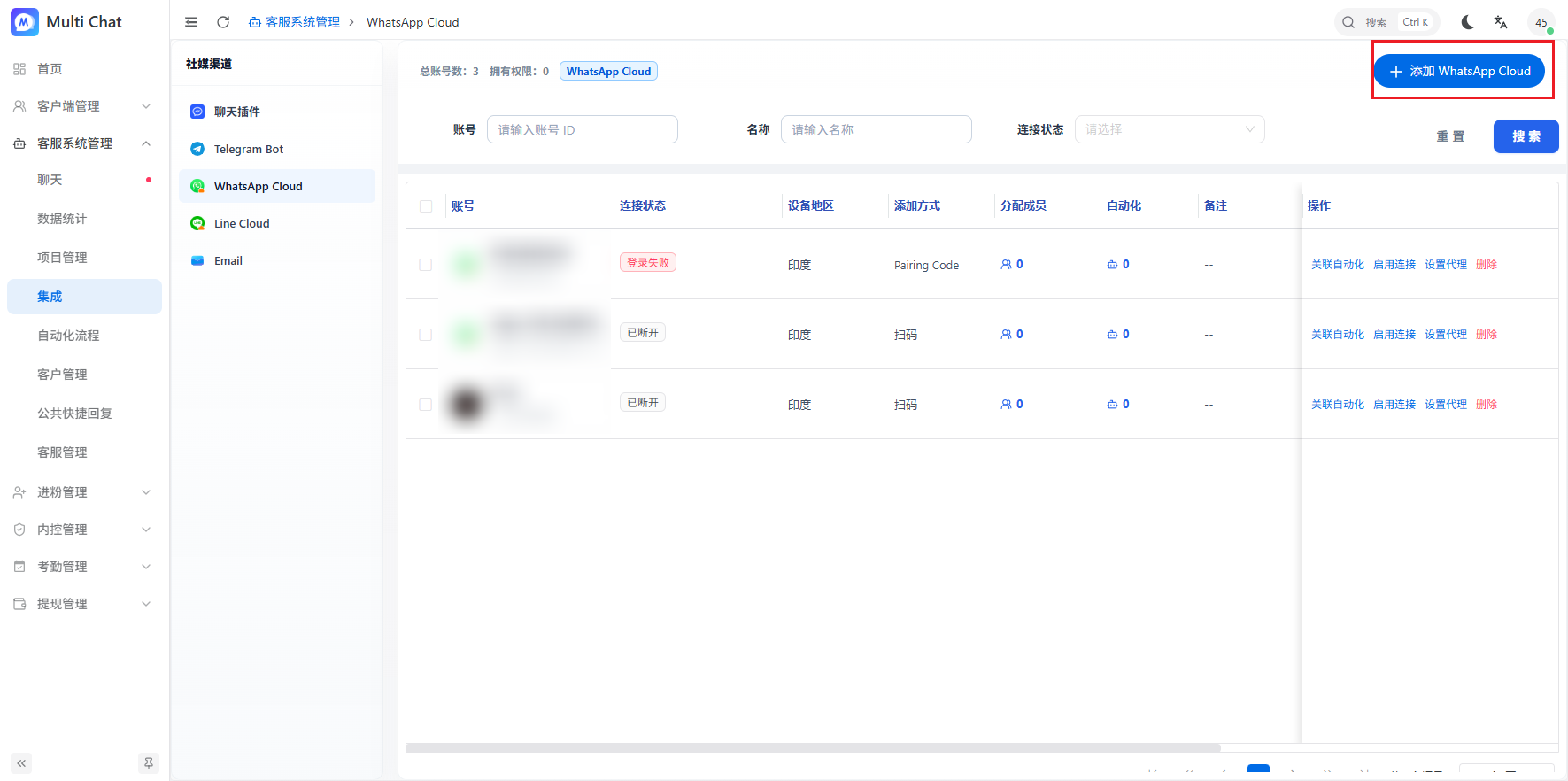
Go to “Customer Service Management → Integrations → WhatsApp Cloud”, click “Add WhatsApp Cloud”, keep QR Code Login selected, and click Connect.
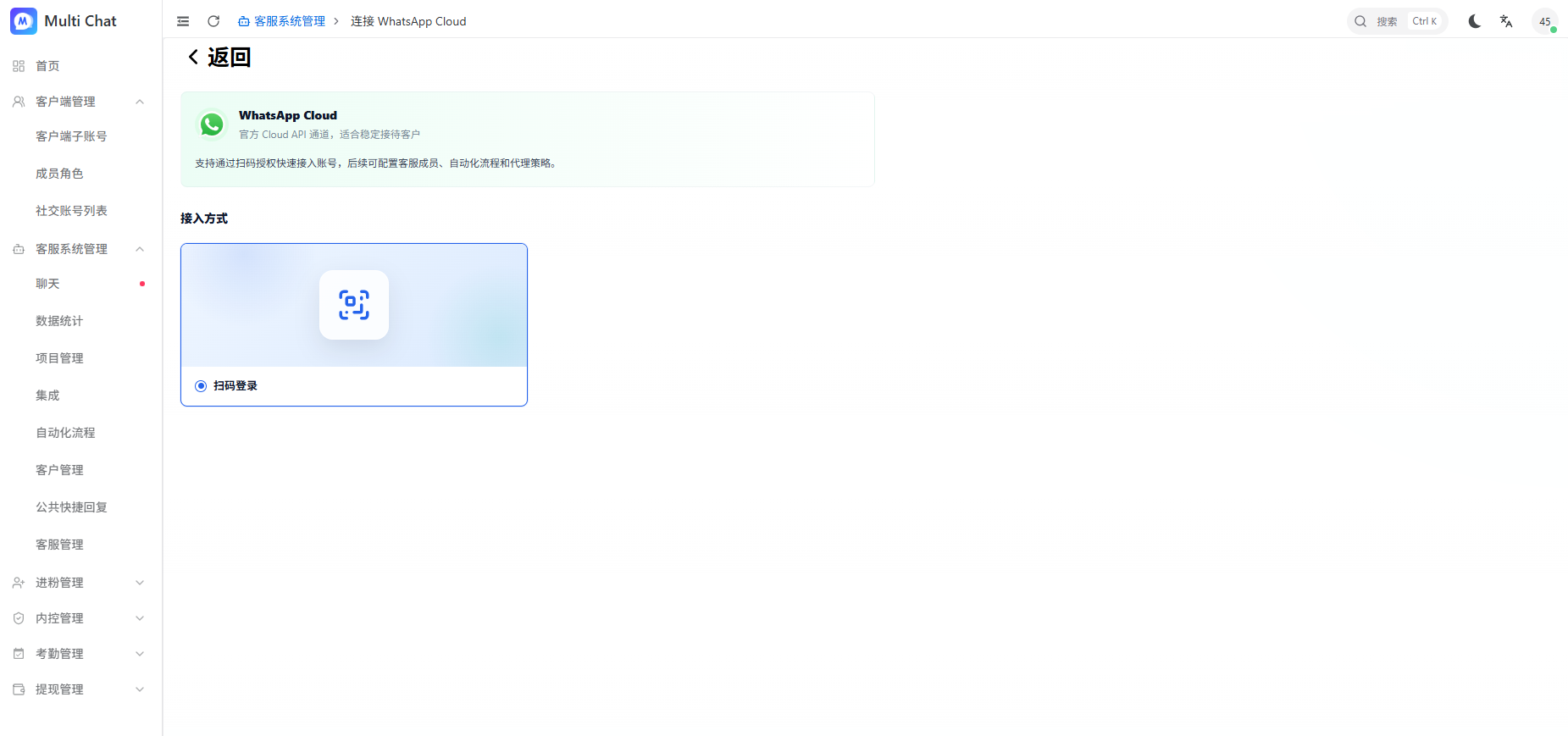
2. Select a region or proxy
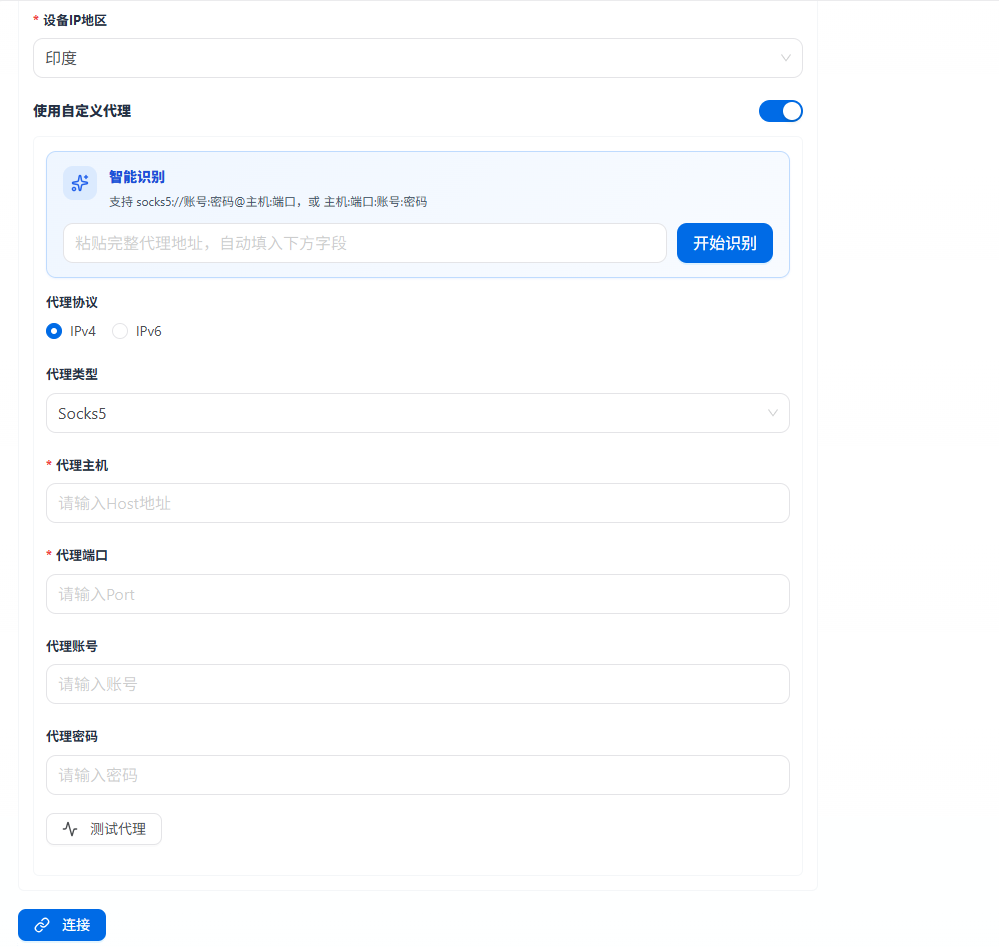
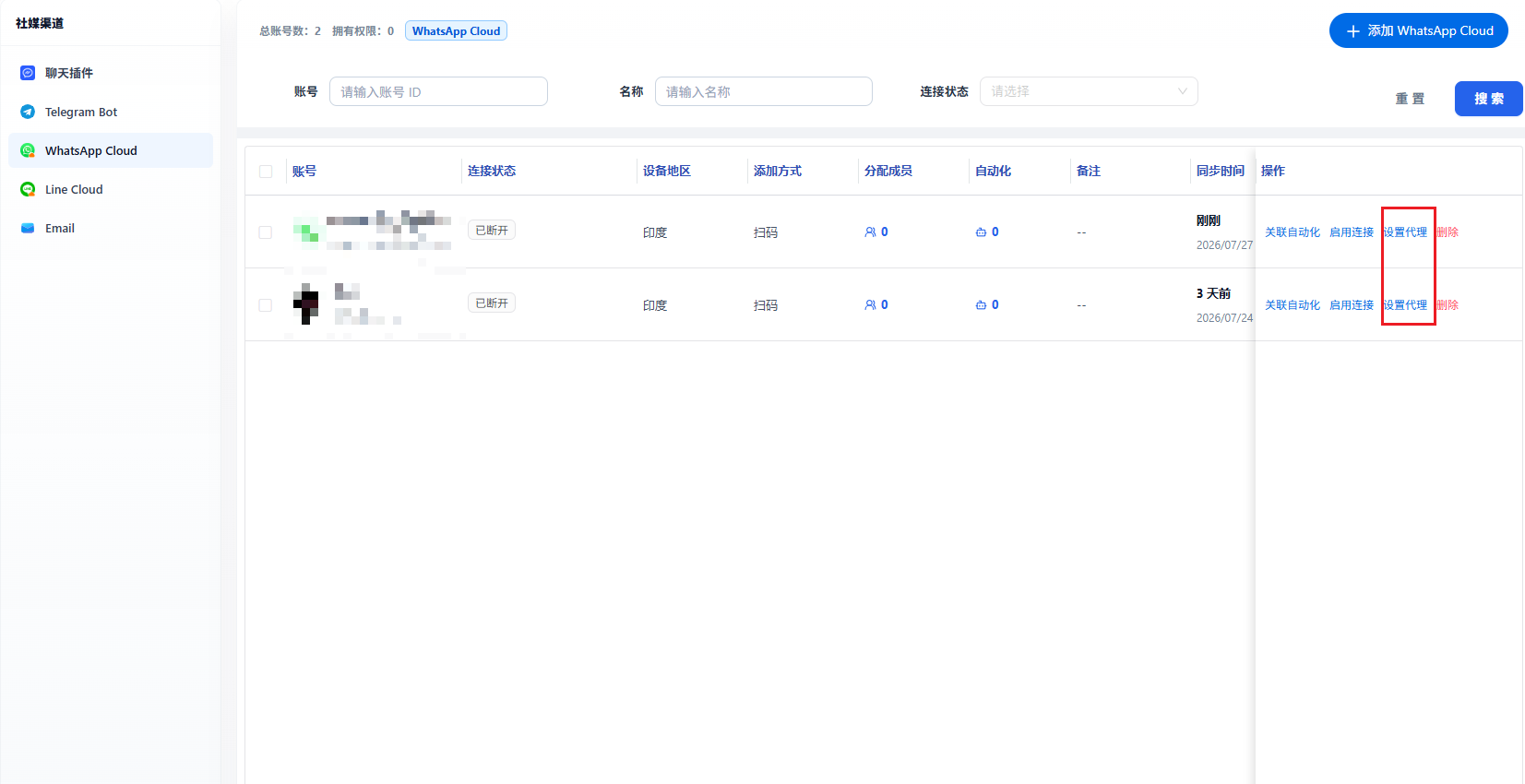
Select the regular WhatsApp login region or the closest available region. To use your own proxy IP, enable Custom Proxy and enter its settings. You can change it later from Set Proxy in the device list.
3. Complete login
QR code
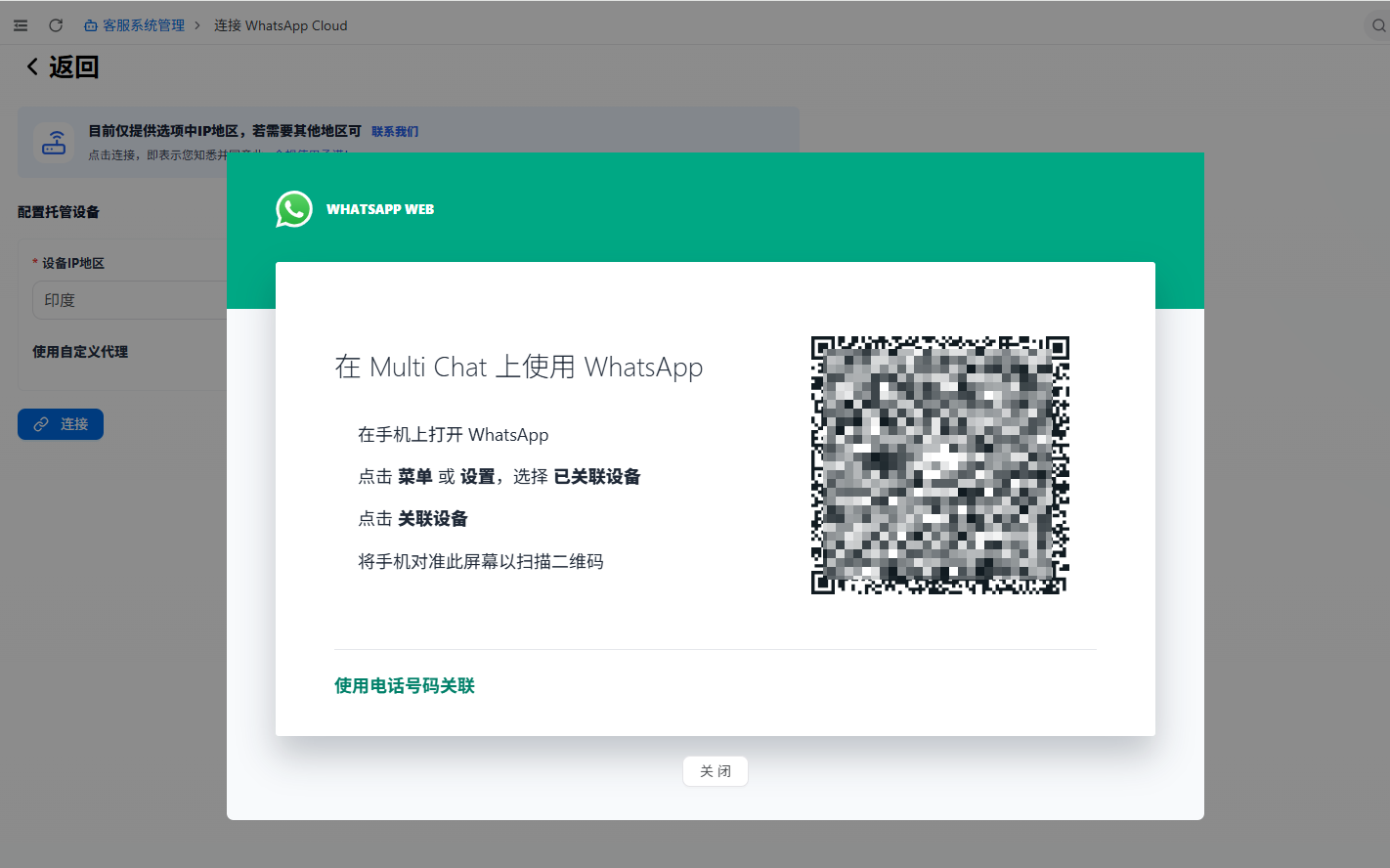
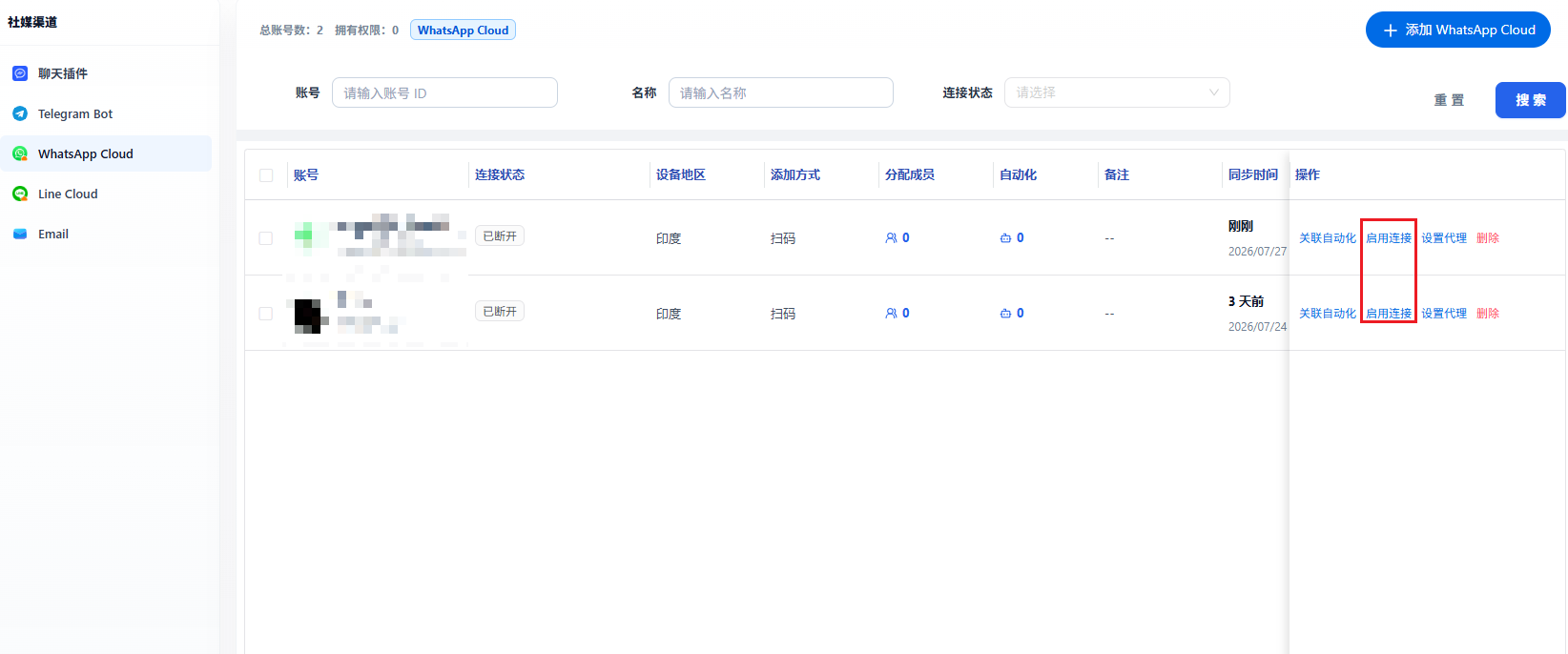
Scan the displayed code with WhatsApp on your phone. If you close the dialog, return to the device list and click Connect Now to generate a new code.
Phone number
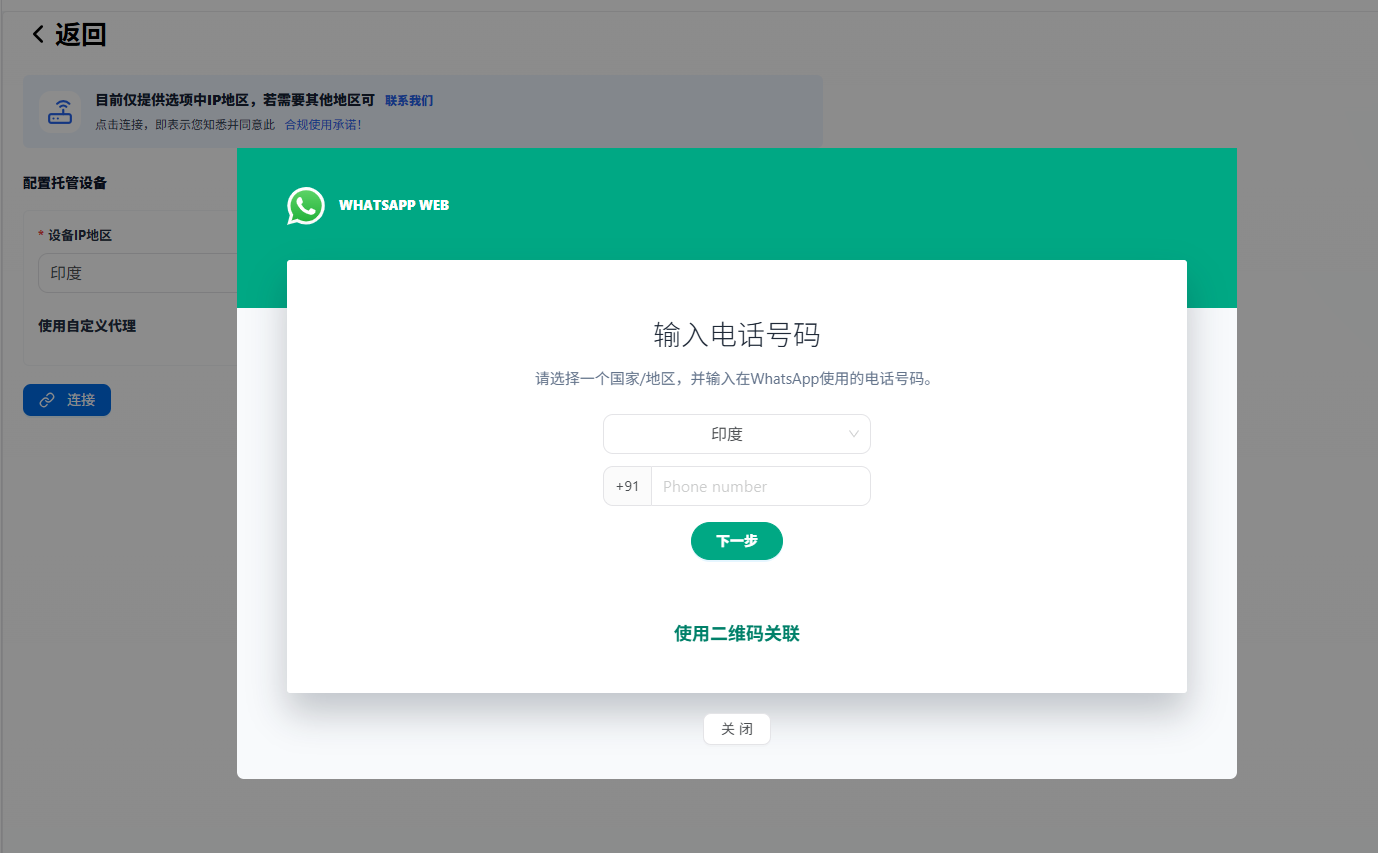
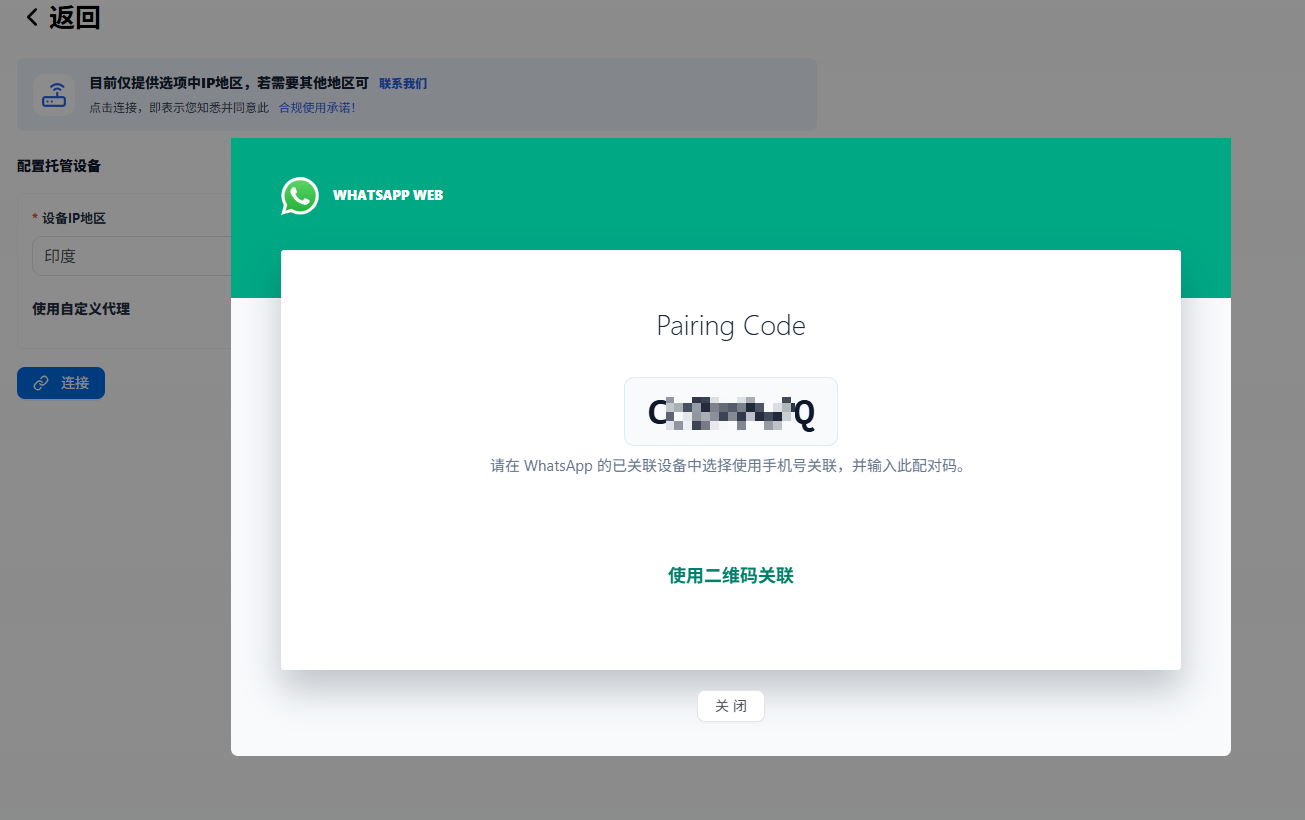
Click “Link with phone number”, select the country or region, and enter the phone number. Enter the displayed pairing code in WhatsApp on your phone.
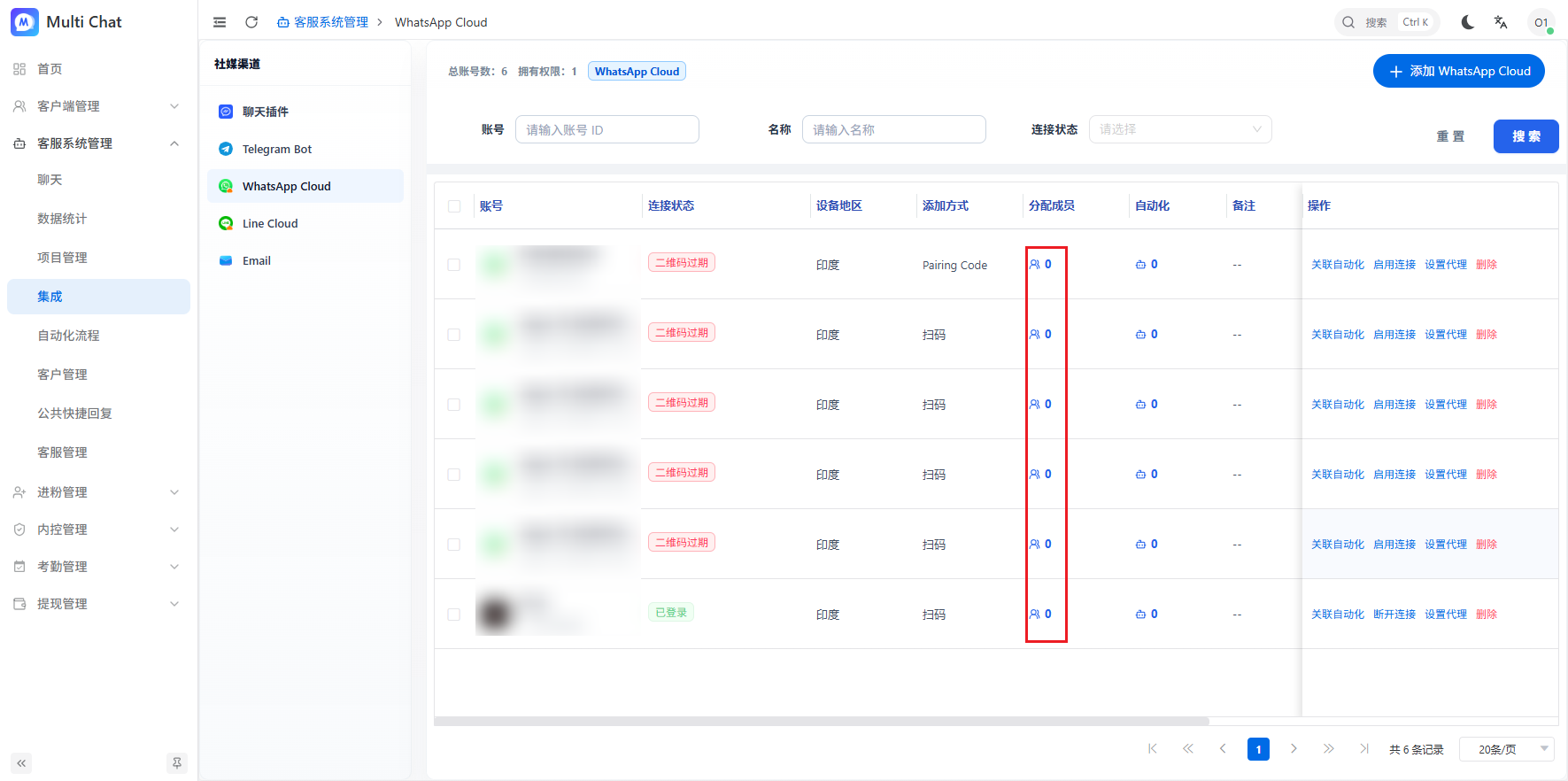
4. Manage the device
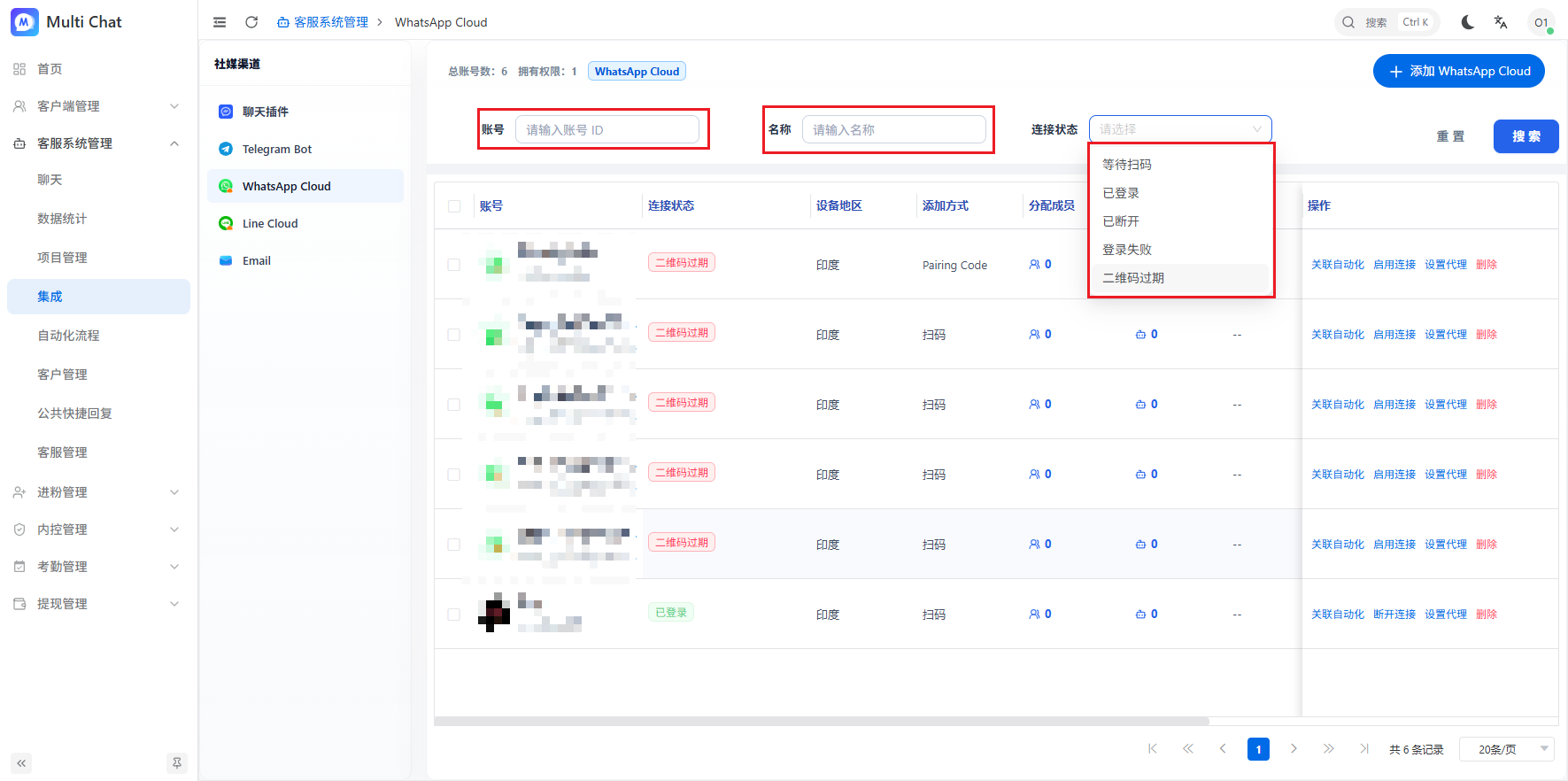
Search connected devices by account, name, or connection status.
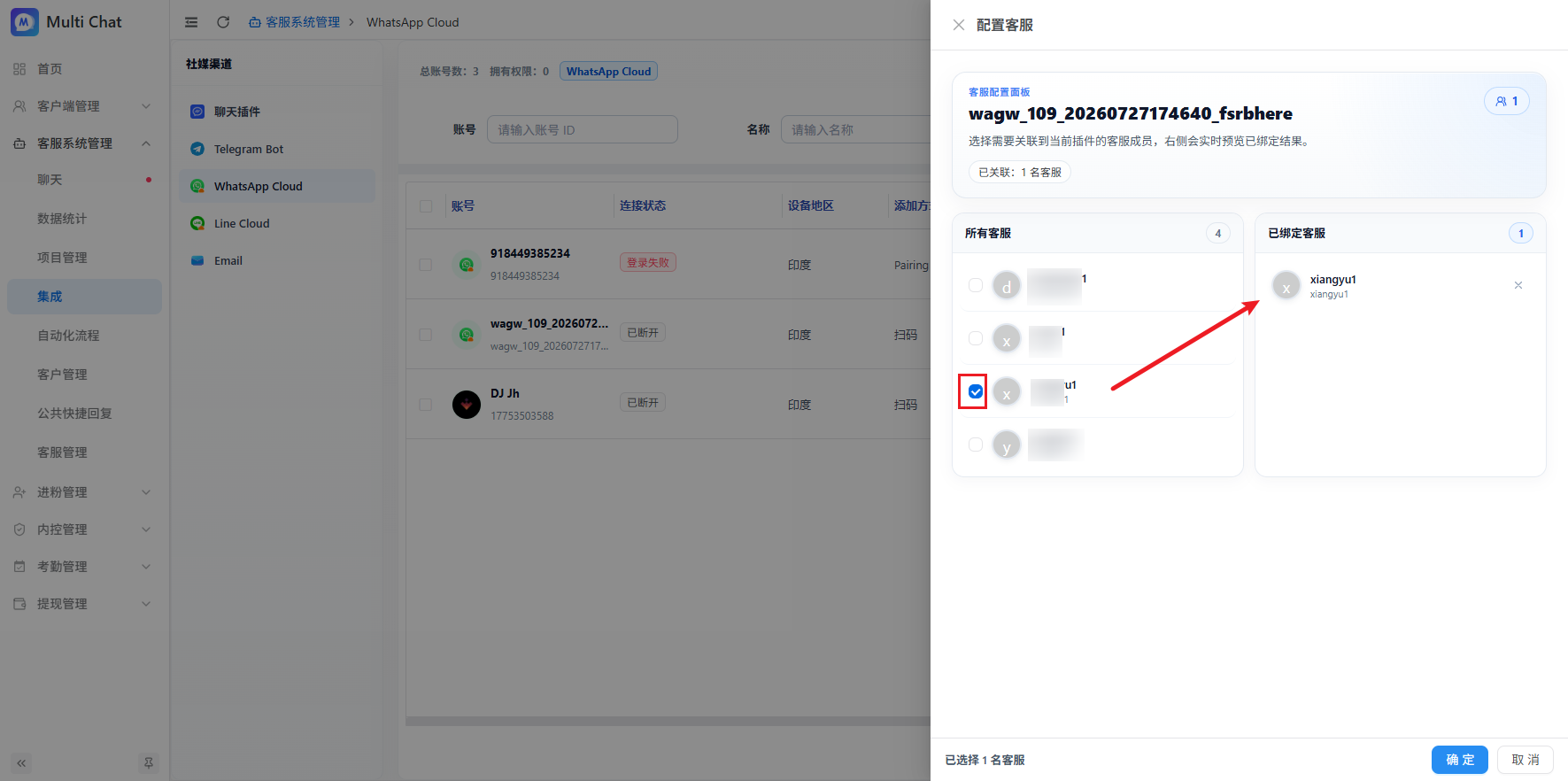
5. Assign agents and automation
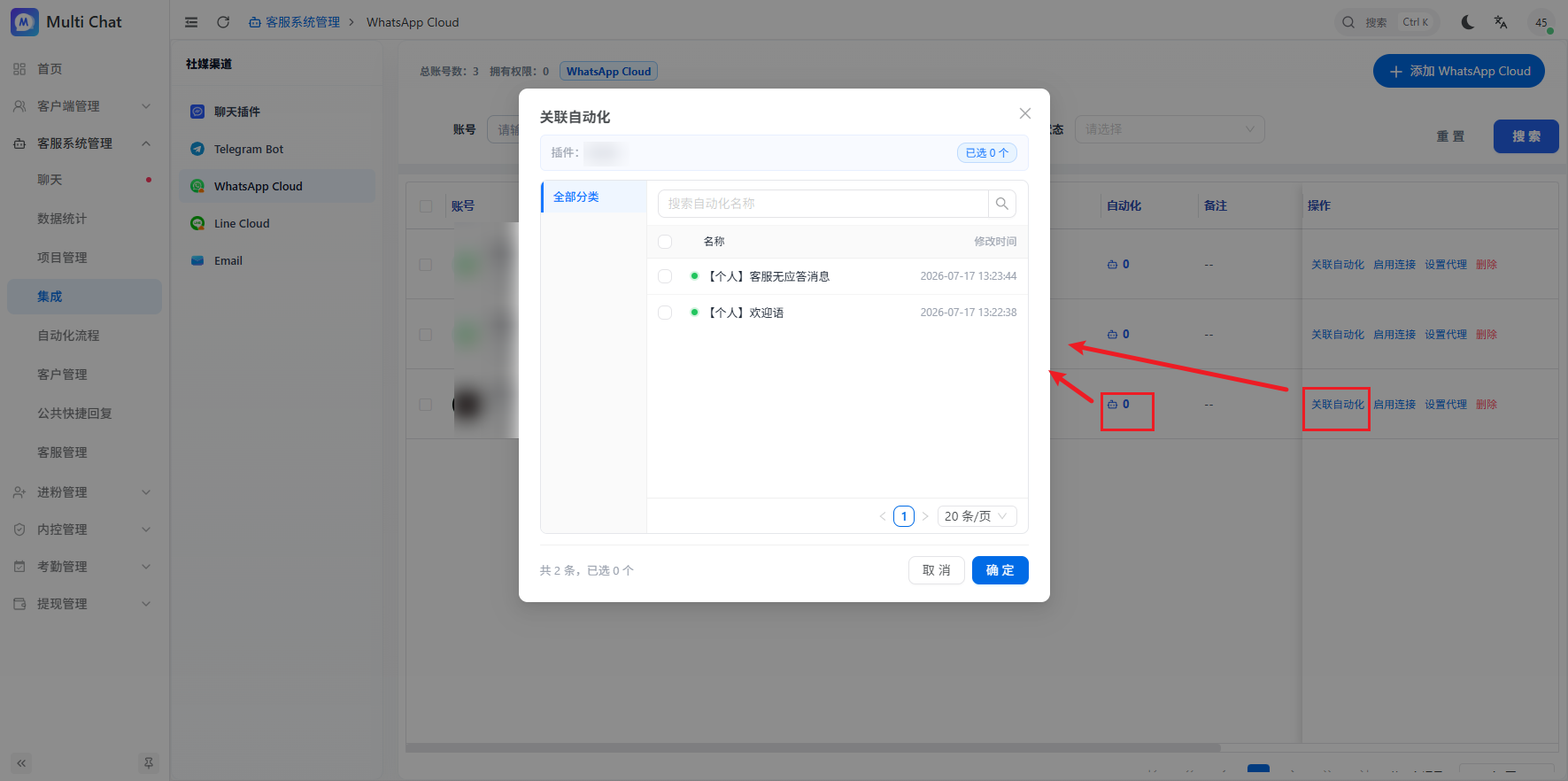
Open Assign Members, select the agents who should handle this device, and confirm. Associate automation flows if the channel needs automatic replies or follow-up.